Error Logs
Preparing and Sending Belkasoft X Task Logs
To report problems encountered in Belkasoft X, you can provide error logs to our support team at support@belkasoft.com. You can obtain these logs through the Dashboard, the Tasks window, or by accessing specific task entries directly.
1. Sending logs for the whole case
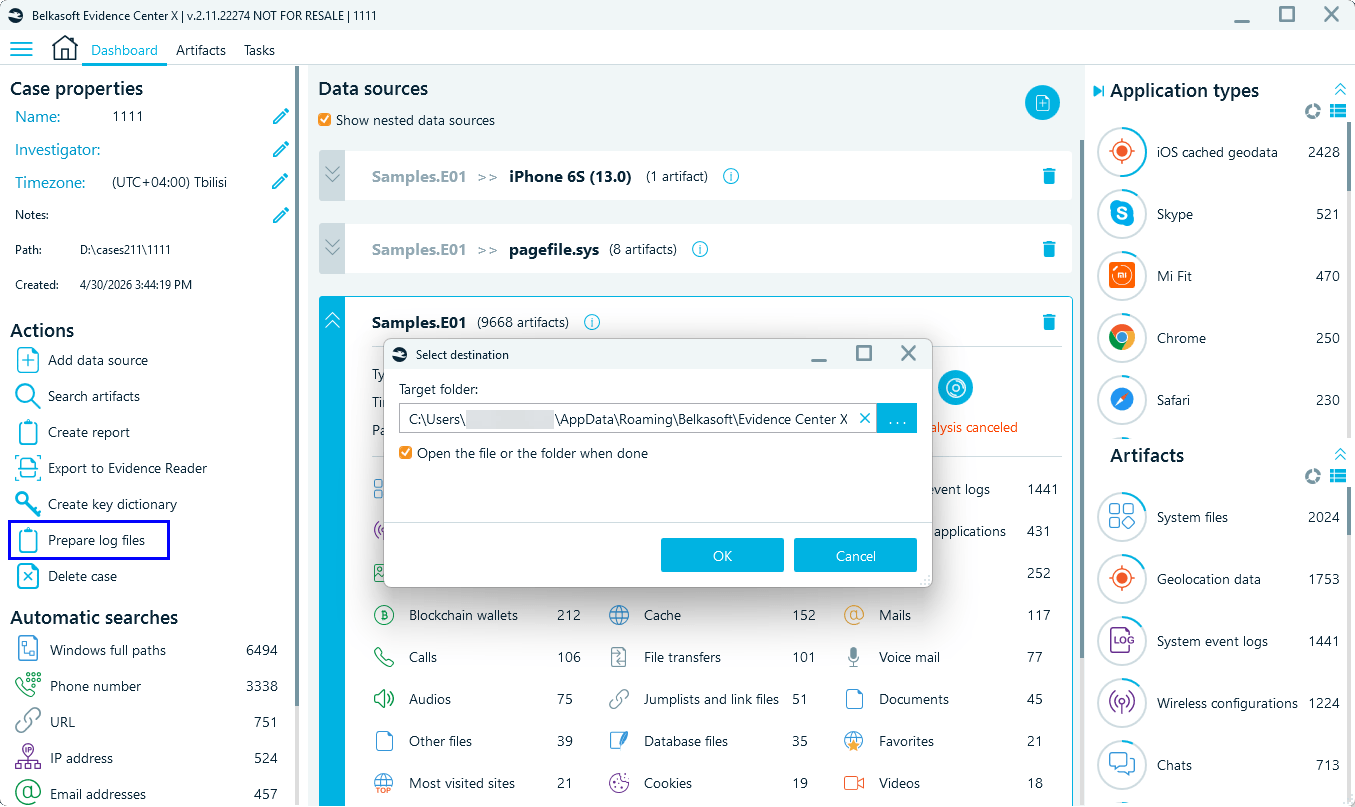
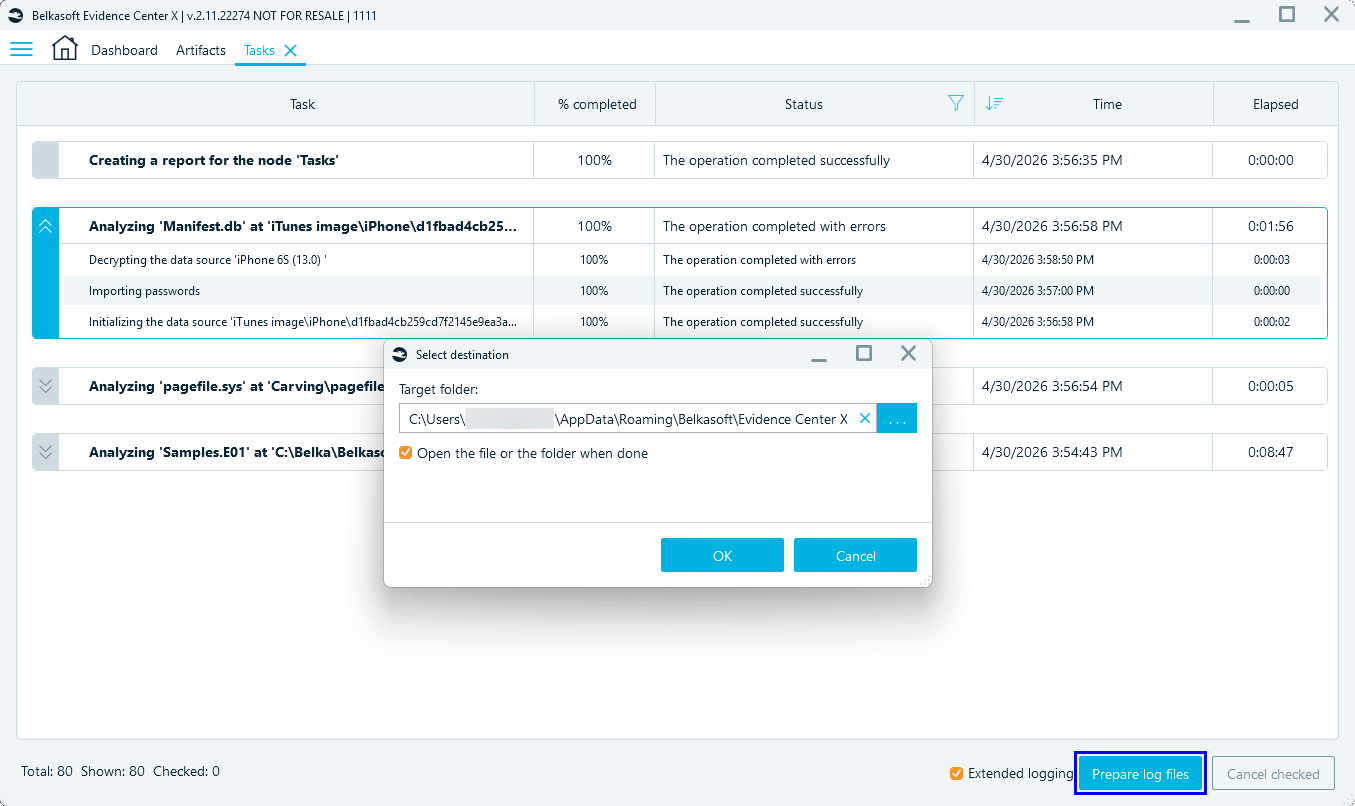
If you are unsure which log to share, or if there are multiple issues, you can send all case logs at once. To do so, go to the Dashboard or Tasks window and click the Prepare log files button. Then select where to save the archive with logs.
2. Sending logs for a single task or subtask
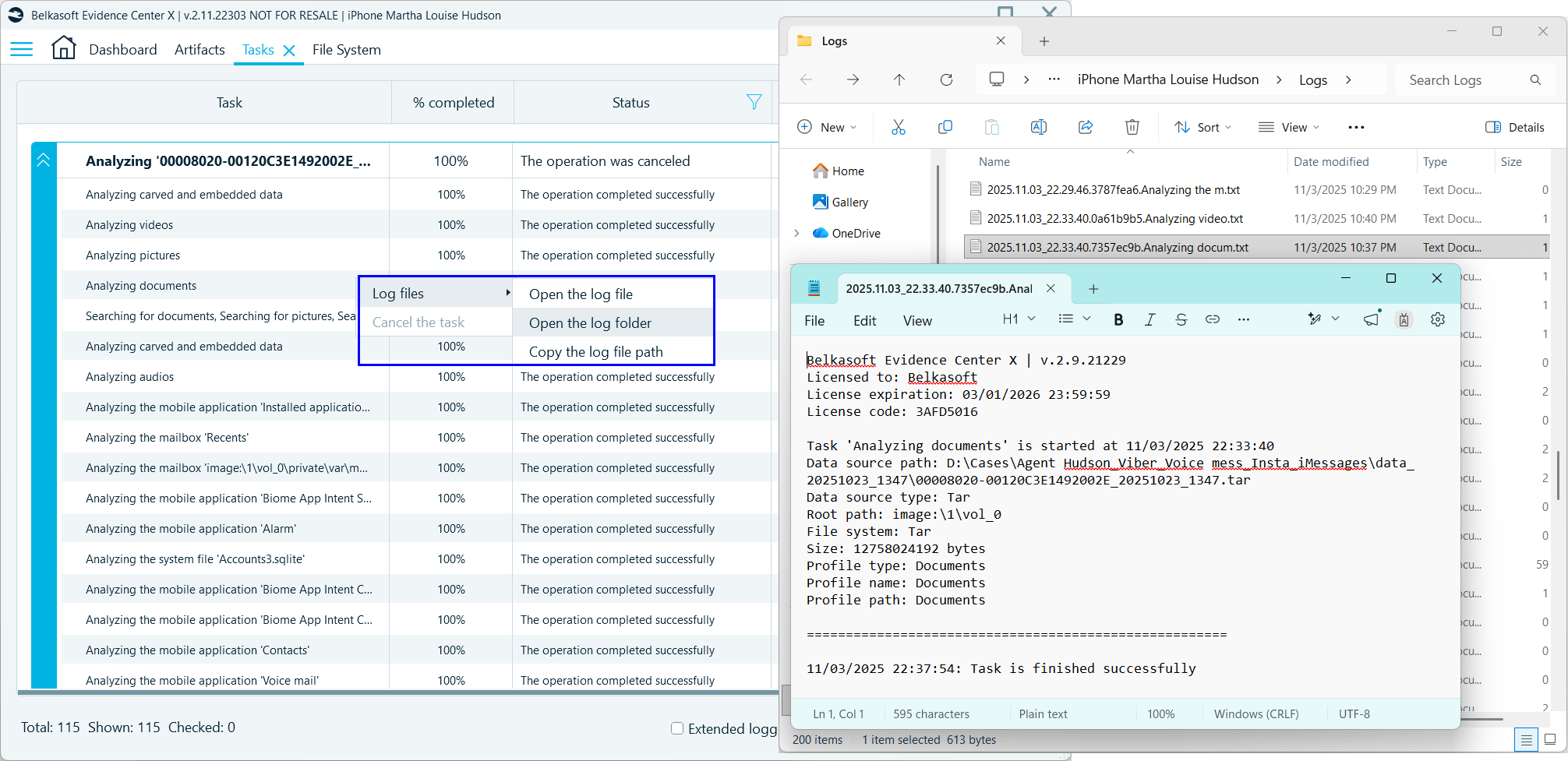
You can also open the log for any individual task or subtask directly. In the Tasks window, right-click the task or subtask of interest, highlight Log files, and select the required option, for example, open the log file or log folder.
3. Sending extended logs
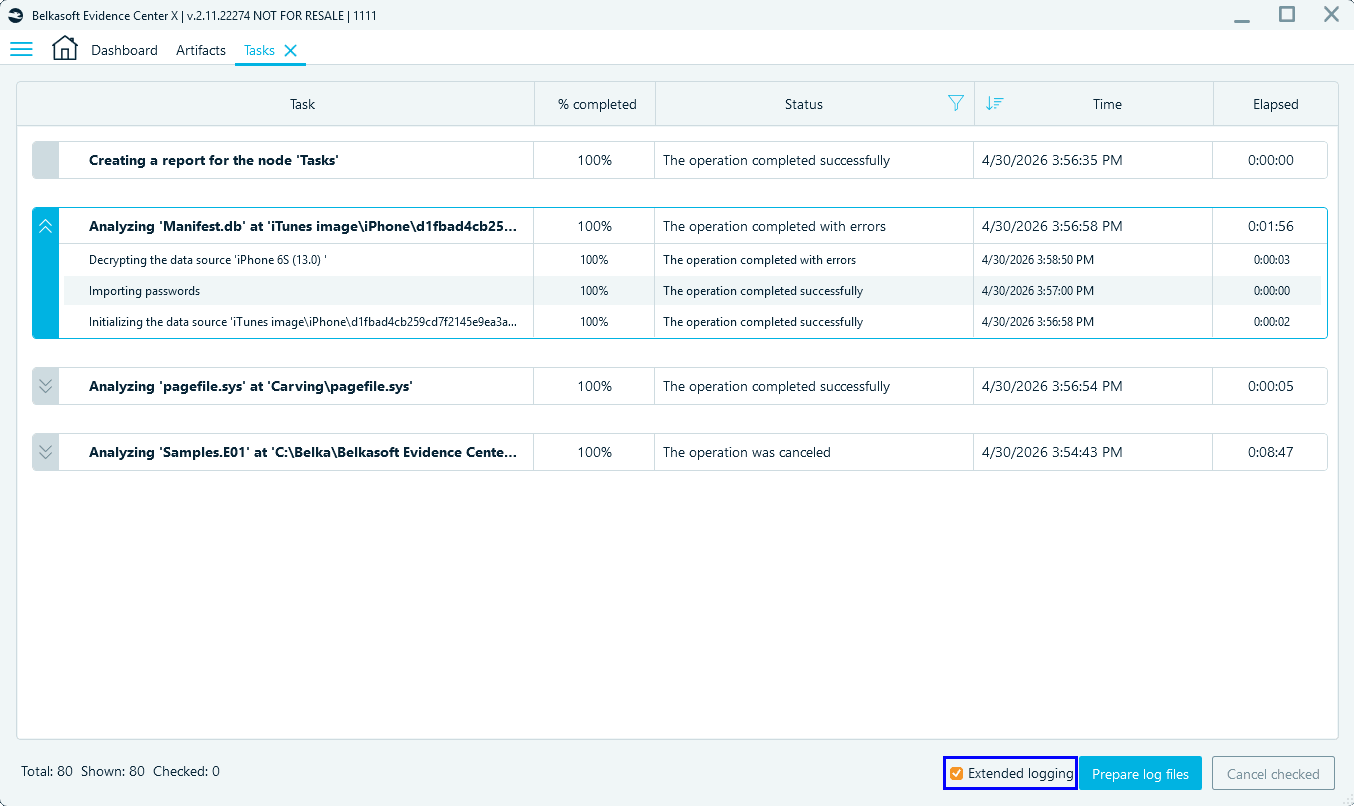
For some complicated issues, the support team may ask you to share extended logs. To enable extended logging, go to the Tasks window and enable the Extended logging checkbox at the lower right corner. Once enabled, repeat the operation that generated errors, then use the Prepare log files button to create the log archive as described in the sections above.
4. Sending service logs
All service logs are stored in the application folder, whose path you can locate in the Settings.
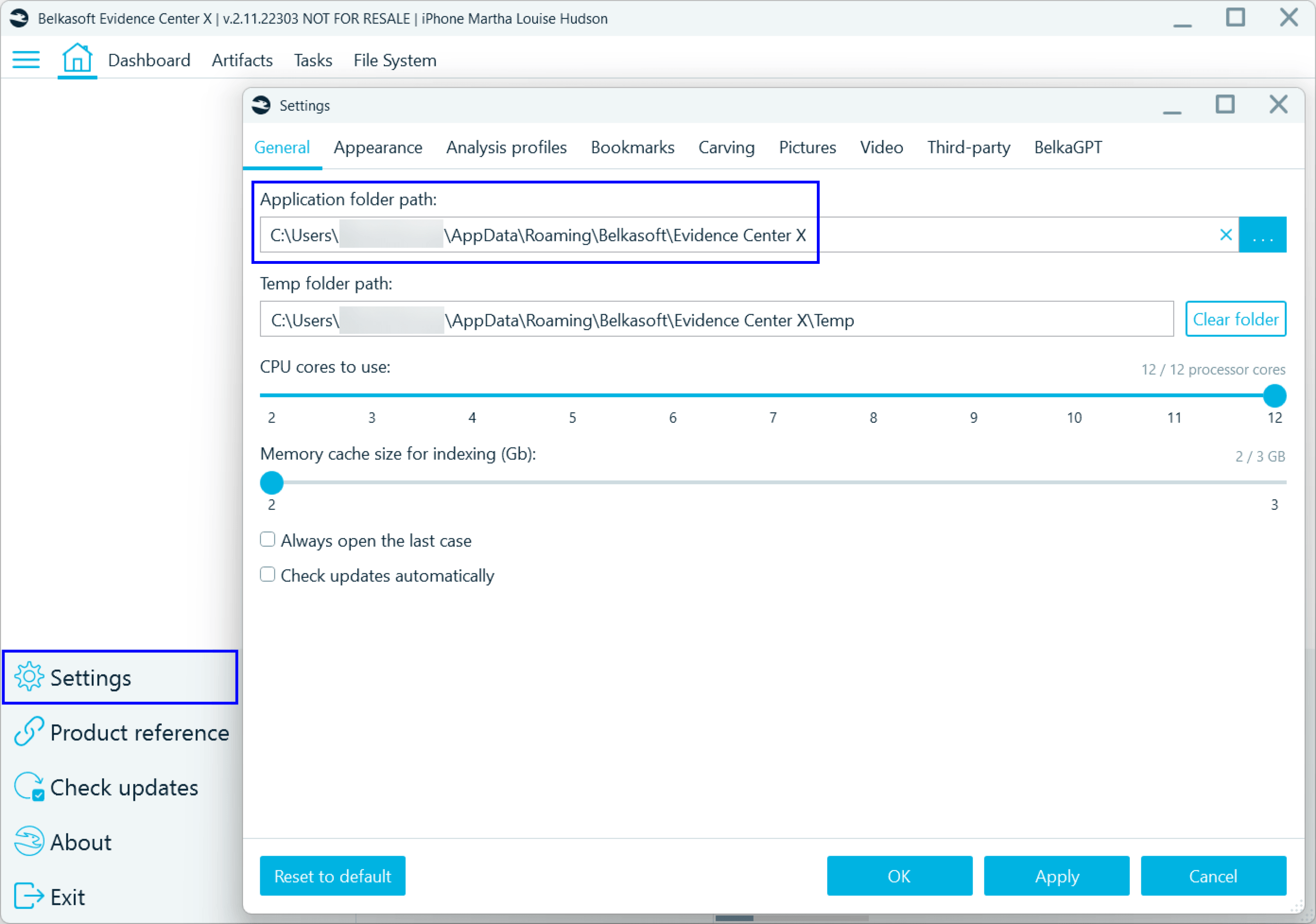
The default service log path looks similar to the following:
C:\Users\[YourAccount]\AppData\Roaming\Belkasoft\Evidence Center X\Logs
If Belkasoft X fails to start, navigate to this folder and locate the file named [date]_[time].AppLog, then send it to support@belkasoft.com.
You can also try to start Belkasoft X in safe mode. To do so, open the Windows Start menu and navigate to the Belkasoft section, then select Belkasoft Evidence Center X – Safe mode.