Apple Biome Forensics: Artifacts, Locations, and SEGB format
Apple Biome artifacts are among the richest sources of pattern-of-life data on modern iPhones, iPads, and Mac computers. Biome is Apple’s on-device system for logging user and application activity. In earlier iOS versions, much of this data lived in the knowledgeC.db database. Apple then changed how it stores these records, and the same evidence reappeared in Biome folders. Most Biome data is stored in SEGB, Apple’s proprietary binary format that logs events into segment-based container files. Biome is harder to work with than the old SQLite database, but the effort pays off. It holds timestamped records of user actions that help you find leads, corroborate other findings, and sometimes recover deleted information.
In this article, you will learn:
- What Apple Biome is and why it matters in forensics
- Where Biome files live on iOS
- How the SEGB format and its Protocol Buffer records are structured
This is part one of a two-part series. Part two covers parsing a Biome file by hand and how Belkasoft X brings this data into your investigation.
What Apple Biome is and why it matters
Biome is an internal iOS and macOS framework that logs what happens on the device: which applications run, how the device state changes, and what the user does. System services and applications report events to Biome, which saves them as records in binary files. Records of one kind, such as application launches or Wi-Fi connections, make up a stream. Apple uses this data for on-device features like Siri Suggestions and Spotlight recommendations but has not documented Biome publicly, so what we know comes from forensic research.
For examiners, the same records show which applications the user opened, which websites they visited, and when the device was locked, charging, or online. Before iOS 16, most of this evidence came from knowledgeC.db, a SQLite database that Apple uses for the same purpose. It also sorts records into streams, and each record keeps its stream name, such as /app/inFocus or /safari/history, in the ZSTREAMNAME column of the ZOBJECT table.
In iOS 18, knowledgeC.db is still present and worth checking. But, since iOS 14, Apple started duplicating and, eventually, moving streams out of it to the Biome.
Biome is useful for examiners because it can provide:
- A detailed activity timeline. Its timestamped events can help reconstruct sequences of actions and identify broader patterns of device use and user behavior.
- Activity from other Apple devices. Some Biome data syncs between devices, so an examined device may contain records that originated on other devices associated with the same Apple ID.
- Additional application evidence. Biome records some application activity independently, so it can preserve information that is no longer present in the application databases.
Where can you find Biome artifacts on iOS?
Biome data is available only through a full file system extraction, not through an iTunes-style backup.
Binary files with Biome data are primarily stored in two file system directories:
- /private/
var/ mobile/ Library/ Biome/ - /private/
var/ db/ biome/
Inside each directory, a streams folder separates data into public and restricted subfolders, based on how sensitive Apple considers the data. Restricted streams generally cover more personal categories, such as messages and calls, while public streams cover broader device and app usage. Each tracked function then gets its own subdirectory. Many older knowledgeC.db streams reappear here with descriptive names. For example:
- App in focus moved to /private/
var/ db/ biome/ streams/ restricted/ _DKEvent.App.InFocus/ - Application installs moved to /private/
var/ mobile/ Library/ Biome/ streams/ restricted/ _DKEvent.App.Install/ - Application launch moved to /private/
var/ mobile/ Library/ Biome/ streams/ public/ AppLaunch/ - CarPlay connection state moved to /private/
var/ mobile/ Library/ Biome/ streams/ restricted/ _DKEvent.CarPlay.IsConnected/ - Safari history moved to /private/
var/ db/ biome/ streams/ restricted/ _DKEvent.Safari.History/
Note: SEGB files are not limited to the two Biome directories. The Duet Expert Center service maintains its own streams in /private/
Each Biome subdirectory usually contains a local folder and may also contain a remote folder.
- local contains Biome records generated on the device being examined.
- remote contains records synced from other iOS or macOS devices.
Each remote subfolder is named with the GUID of the device that generated the data. You can identify that device through the sync.db database located at /private/
The binary files inside the local and remote folders store Biome records and are named using their creation timestamp—a Mac Absolute Time value expressed in microseconds.
Each Biome stream directory typically contains a metadata plist that defines retention settings for the stream. A commonly observed maxAge value is 2,419,200 seconds, or 28 days. Records older than this value are typically removed from the active stream, while expired data may remain in SEGB files under the tombstone folder. In practice, Biome often provides roughly a 28-day window of activity, while tombstone data may extend the timeline further back.
The SEGB format
The binary files inside each stream are called SEGB files. This name comes from the ASCII signature stored inside the file. Two versions exist:
- SEGB v1—used by iOS 15 and iOS 16
- SEGB v2—introduced in iOS 17, with a different file layout
In both versions, a file holds a sequence of records. Each record describes one event and consists of a record header and a payload. The payload usually contains a Protocol Buffer (Protobuf) message. Protobuf is a compact binary format from Google for storing structured data. In many cases, a stream keeps the same Protobuf structure in v1 and v2, even though the file layout around it changed. Part two of this series shows how to decode Protobuf payloads.
SEGB v1 structure
A SEGB v1 file starts with a 56-byte file header. The “SEGB” signature sits at the end of that header, at offsets 52–55. The first record begins right after it, at offset 56.
Each record has two parts:
- Record header, 32 bytes—metadata about the record
- Payload, variable length—event data, typically a Protobuf message
The record header contains the following fields:
- Payload length (offsets 0–3)—the payload size in bytes, a 4-byte little-endian integer
- Record state (offsets 4–7)—a 4-byte little-endian integer. Community research reports it as a data flag with these values:
- 1—Written, a live record
- 3—Deleted, a record marked as deleted
- 4—Unknown, the meaning has not been confirmed
- Two timestamps (offsets 8–15 and 16–23)—8-byte little-endian doubles containing Mac Absolute Time values
- CRC32 checksum (offsets 24–27)—a checksum of the payload, which you can use to confirm that you extracted the payload correctly
- Unknown value (offsets 28–31)—4 bytes with no confirmed meaning
The two timestamps are not always identical. They usually mark when the record was written, not necessarily when the event happened. Keep that distinction in mind when you build a timeline. Records are padded so that the next record header always starts at an offset divisible by 8.
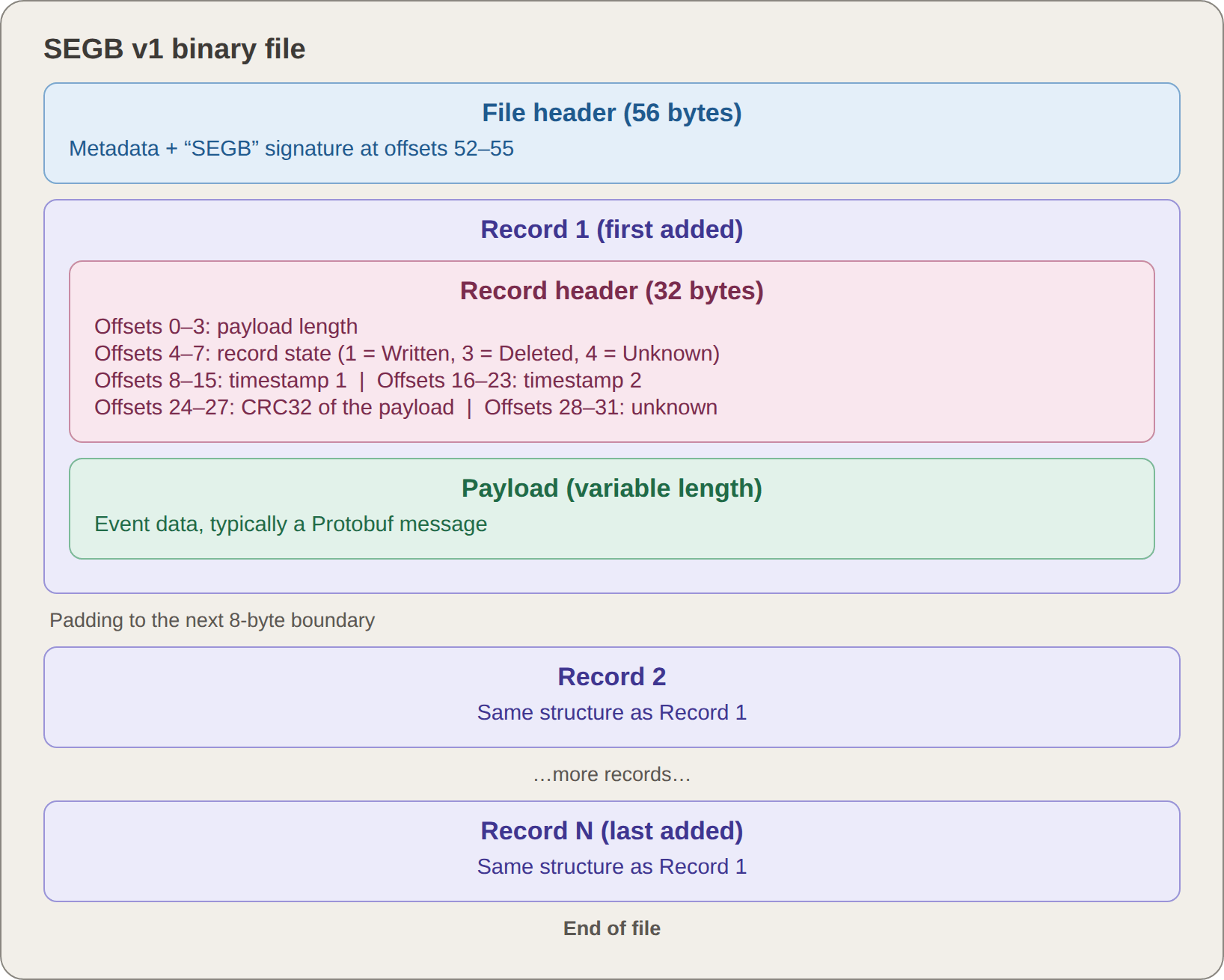
SEGB v1 file structure
SEGB v2 structure
iOS 17 changed the SEGB format significantly. A v2 file has a fixed size of 1 MiB and four sections:
- File header—a 32-byte block at the start of the file with the SEGB signature, the trailer entry count, and a creation timestamp that matches the file name
- Records section—the area right after the file header, where records are written one after another as events occur
- Unused area—zero bytes between the records section and the trailer, reserved for new records and trailer entries
- Trailer—an index at the end of the file that consists of 16-byte trailer entries, one per record. New trailer entries are added backward from the end of the file.
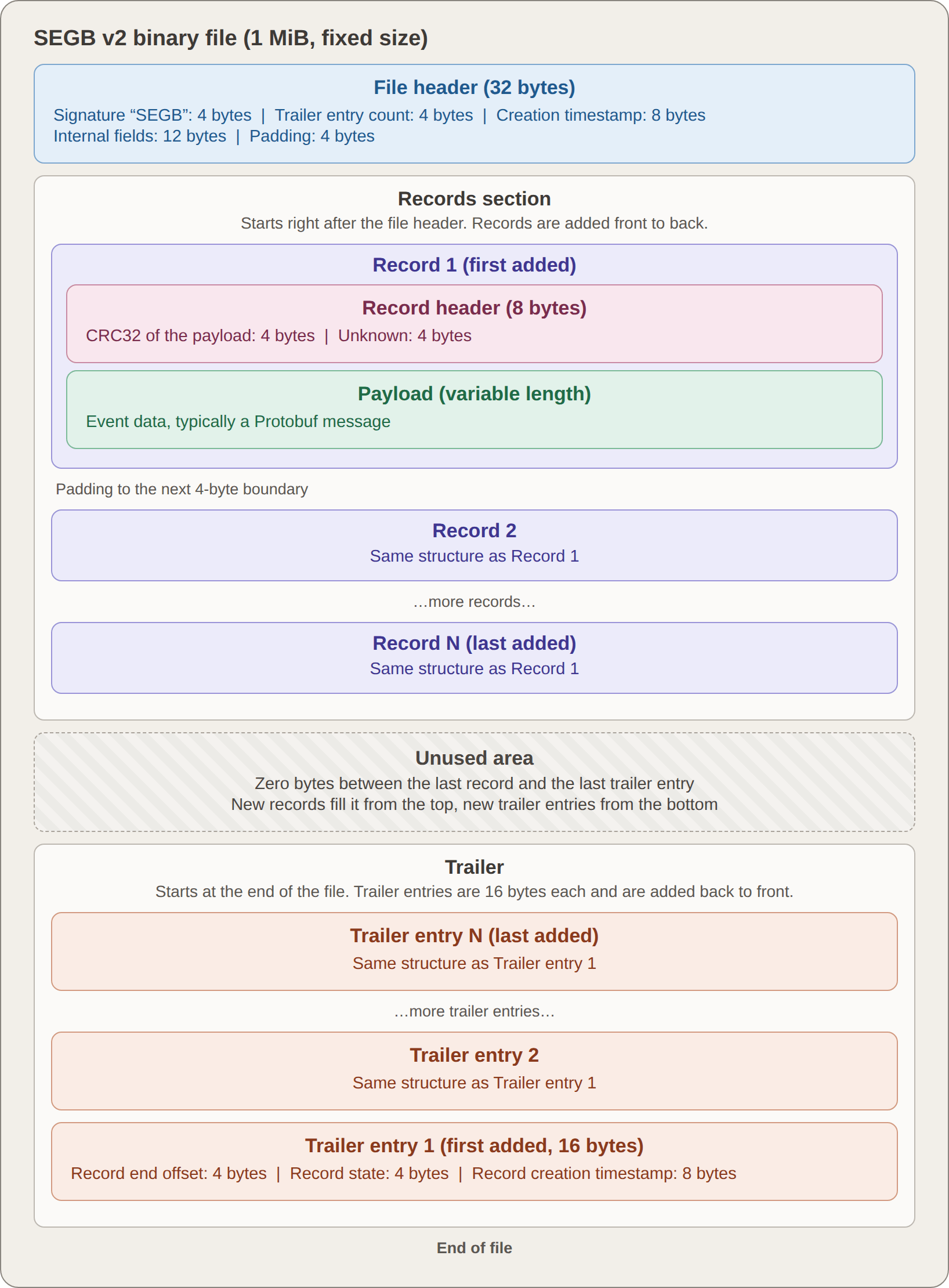
SEGB v2 file structure
File header
The v2 header is 32 bytes and contains:
- Signature—the “SEGB” ASCII string
- Trailer entry count—a 4-byte little-endian integer
- File creation timestamp—an 8-byte little-endian double containing a Mac Absolute Time value
- Internal fields—12 bytes, reserved for internal use
- Padding—4 bytes
For basic parsing, the most important header field is the trailer entry count, which tells you how many entries, and thus, records, to process.
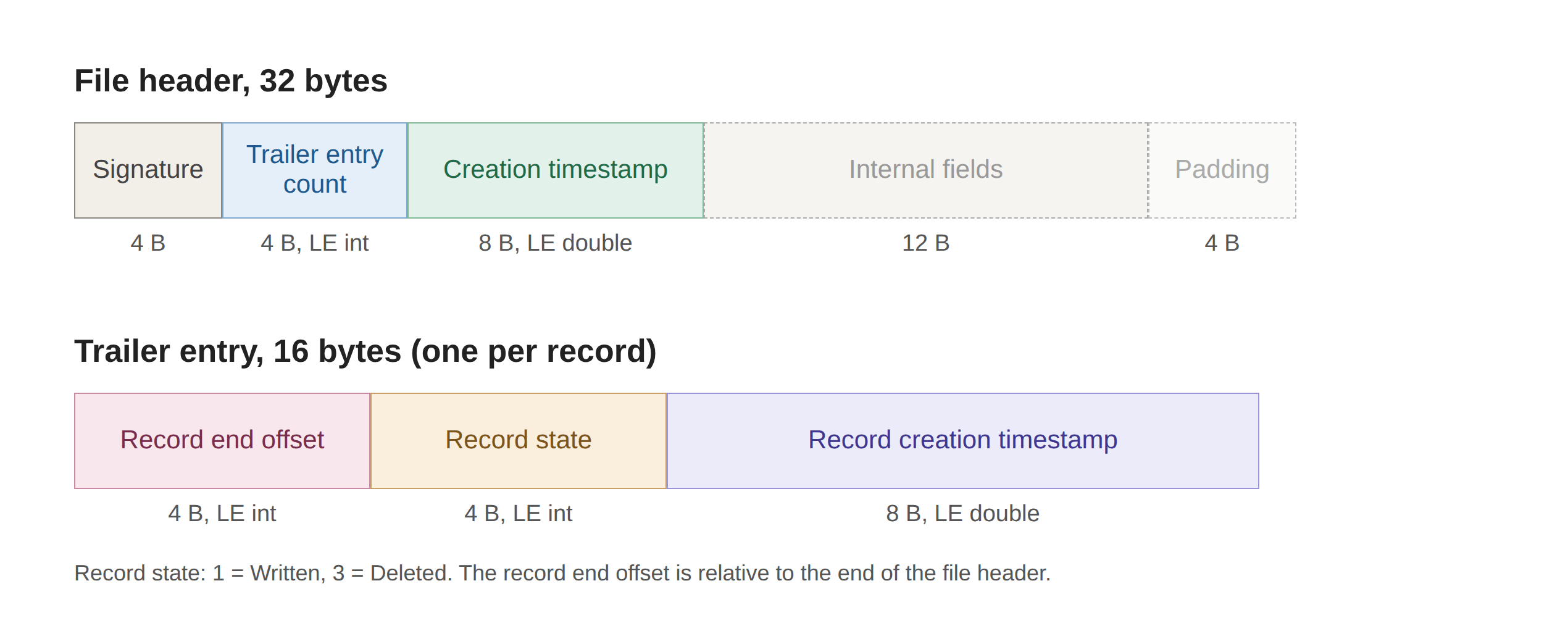
SEGB v2 header and trailer structures
Trailer
The trailer is the main structural addition in v2. It starts at the end of the file and grows toward the beginning, consuming 16 bytes of the unused area with each new entry. Each 16-byte trailer entry contains:
- Record end offset—a 4-byte little-endian integer, relative to the end of the file header
- Record state—a 4-byte little-endian signed integer (1 = Written, 3 = Deleted)
- Record creation timestamp—an 8-byte little-endian double containing a Mac Absolute Time value
To parse the trailer, read its entries from the end of the file toward the beginning. The number of trailer entries should match the record count in the header.
Records
A v2 record consists of an 8-byte record header followed by the payload. The record header starts with a CRC32 checksum of the payload. The purpose of the other 4 bytes is not confirmed. Unlike v1, the v2 record header stores no payload length, state, or timestamp. That metadata sits in the matching trailer entry. Records are aligned to 4-byte boundaries.
To find a v2 record, use its trailer entry together with the previous trailer entry:
- The matching trailer entry gives the record end offset.
- The previous trailer entry gives the end of the previous record. Round it up to the next multiple of 4 to get the record start offset.
- The first record starts immediately after the 32-byte file header.
The payload runs from the end of the 8-byte record header to the record end offset. Its length equals the end offset minus the start offset minus 8. Both offsets are relative to the end of the file header, so add 32 to get a position in the file.
SEGB version comparison
Although SEGB v1 and v2 store broadly similar event data, their file structures differ significantly. The table below summarizes the changes that matter most when identifying and parsing the two formats.
| Aspect | SEGB v1 | SEGB v2 | Practical significance |
|---|---|---|---|
| SEGB identification | The SEGB signature is at offsets 52–55, at the end of the 56-byte file header. | The SEGB signature is at offsets 0–3, at the start of the 32-byte file header. | The signature location provides a straightforward way to distinguish the two formats. |
| File header | 56 bytes. Contains the last record timestamp, the end-of-data offset, other partially understood metadata, and the SEGB signature. | 32 bytes. Contains the SEGB signature, record count, file creation timestamp, and additional fields. | The header determines where record data begins and provides different structural information in each version. |
| Locating records | Records are stored sequentially, and their boundaries can be determined from information in each record header. | Records are stored sequentially, but their boundaries are determined using the corresponding trailer entries. | V2 requires the records section and trailer to be interpreted together. |
| Record metadata location | Each record has a 32-byte record header containing payload length, state, timestamps, and other metadata. | Each record has an 8-byte record header, while key metadata such as the record end offset, state, and timestamp is stored in its 16-byte trailer entry. | V2 separates the record from much of the metadata needed to locate and interpret it. |
| Record alignment | Records begin on 8-byte boundaries. | Records begin on 4-byte boundaries. | Record-start calculations differ between the formats. |
| Record state | Stored in the record header. | Stored in the corresponding trailer entry. | The location changes, but the state continues to distinguish written and deleted records. |
| Payload structure | Event data is commonly stored as a Protobuf payload within each record. | Event data is also commonly stored as a Protobuf payload. For the same stream, the Protobuf structure often remains unchanged. | Existing knowledge or parsers for a stream's Protobuf payload may remain applicable across versions. |
| When to stop parsing | The file header contains an end-of-data offset marking the end of the populated records area. | The file header contains the record count, which indicates how many trailer entries and records are present. | Each version provides a different mechanism for determining when all records have been processed. |
Deleted records
SEGB records include a state value that indicates their current lifecycle state. In v1, this 4-byte field is stored in the record header. In v2, the equivalent Record state field is stored in the corresponding trailer entry. Commonly observed values include:
- 1—Written, indicating a live record
- 3—Deleted, indicating that the record has been marked deleted
When a record reaches the Deleted state, its original payload is typically wiped with zeroed bytes. In SEGB v1, the record header remains. In SEGB v2, our tests on several iOS 18 files showed that the whole record is zeroed, including the record header. As a result, the original event data generally cannot be recovered from that SEGB record itself. However, the remaining metadata may still show that a record occupied that position and was later deleted.
The exact behavior that leads to deletion can vary by stream and by the action performed. For example, testing of Safari Biome data found that clearing all browsing history caused existing SEGB payloads to be overwritten with zeroes, while deleting an individual history item did not immediately remove or overwrite its SEGB record. Tombstone files were also created during some deletion operations, but they did not necessarily preserve the original record contents.
Even when a deleted SEGB record no longer contains its payload, Biome may still provide useful evidence elsewhere:
- The record metadata can remain in the SEGB file. In SEGB v1, the record header keeps the Deleted state and timestamps. In SEGB v2, the trailer entry keeps the Deleted state and the record creation timestamp. These artifacts show that the stream recorded an event at a given time.
- A copy of the record may survive on a synced device. If the stream syncs between devices, the record may have reached another device with the same Apple ID before it was deleted. In an extraction of that device, you can look in the remote subfolder named with the GUID of the device you are examining.
Conclusion
Starting with iOS 16, Biome took over much of the pattern-of-life data that knowledgeC.db used to hold. Biome records live in stream folders under two directories, separated into local and remote data, and they usually cover about 28 days of activity. The records are stored in SEGB files, and the file layout depends on the iOS version: SEGB v1 on iOS 15 and 16, and SEGB v2 on iOS 17 and later.
Before you parse Biome records by hand, you need to know where each record starts, where its state and timestamps are stored, and what deletion leaves behind. Part two puts this into practice. It walks through a real record from hex bytes to decoded fields and shows how Belkasoft X parses Biome artifacts.
To see how Belkasoft X handles iOS file system extractions and Biome data, download a trial and test it on your own evidence.

FAQ
What is Apple Biome?
Biome is an internal iOS and macOS framework that logs user and application activity on the device. System services and applications report events to Biome, which saves them as records in binary files. Records of one kind, such as application launches, form a stream.
Where are Biome files stored on an iPhone?
Biome files are stored in two directories:
- /private/
var/ mobile/ Library/ Biome/ - /private/
var/ db/ biome/
Inside each directory, the streams folder splits data into public and restricted subfolders. Each stream then has its own subdirectory.
Biome-related SEGB streams can also be found under /private/
Can I get Biome data from an iTunes backup?
Biome data is not included in iTunes-style backups. You need a full file system extraction to access it.
How is Biome different from knowledgeC.db?
Both sources store pattern-of-life data and sort records into streams. knowledgeC.db is a SQLite database, while Biome stores records in binary SEGB files. Since iOS 14, Apple has been duplicating streams from knowledgeC.db into Biome and eventually moving them there. On iOS 18, knowledgeC.db is still present, so check both sources.
How far back does Biome data go?
Biome usually covers about 28 days of activity. Each stream directory contains a metadata plist with a retention setting, and a common maxAge value is 2,419,200 seconds. Expired data may remain in SEGB files in the tombstone folder and extend your timeline further back.
What is a SEGB file?
A SEGB file is the binary file that stores Biome records. The name comes from the “SEGB” ASCII signature inside the file. Each record describes one event and usually carries a Protocol Buffer (Protobuf) payload.
How do I tell SEGB v1 from SEGB v2?
Check where the “SEGB” signature sits:
- SEGB v1 (iOS 15 and 16)—offsets 52–55, at the end of the 56-byte file header
- SEGB v2 (iOS 17 and later)—offsets 0–3, at the start of the 32-byte file header
SEGB v2 files also have a fixed size of 1 MiB.
Do Biome timestamps show when an event happened?
They may not. In SEGB v1, the two record timestamps usually mark when the record was written, which can differ from the event time. Keep this in mind when you build a timeline.
Can you recover deleted Biome records?
You usually cannot recover the event data from the deleted SEGB record itself. When a record is marked as deleted, its payload is typically overwritten with zeroed bytes. In our tests on iOS 18, SEGB v2 files had the whole record zeroed, including the record header. However, the remaining metadata can still show that the stream recorded an event at a given time. A copy of the record may also survive on another device that syncs with the same Apple ID.
How can I find out which device a synced record came from?
Synced records sit in the remote folder, in subfolders named with the source device GUID. To identify the device, open sync.db at /private/
Does Belkasoft X support Biome artifacts?
Belkasoft X parses Biome artifacts from iOS file system extractions. Part two of this series shows how it brings this data into your investigation.