Belkasoft Offline Map Server
Belkasoft X includes the Map window, which you can use to view geolocation artifacts found in a case or browse the map independently. If the forensic workstation has internet access, Belkasoft X can use the online OpenStreetMap service. For workstations that must remain offline, Belkasoft provides an offline map server that can be deployed locally.
This article explains how to configure Belkasoft Offline Map Server for use on a forensic workstation or on a local network.
Download the map file
Important: The map file and the server must be on the same machine. Before downloading the map file, choose the server machine and verify that it has at least 100 GB of available storage space.
- Open the following file in a browser: https://btrfs.openfreemap.com/
files.txt - Locate the most recent entry whose path begins with areas/planet ends with tiles.mbtiles. Append this path to: https://btrfs.openfreemap.com/.
For example:
https://btrfs.openfreemap.com/areas/ planet/ 20260621_080001_pt/ tiles.mbtiles - Open the resulting URL in the browser to begin downloading the map file.
Tip: Because the map file is large, you can download it using PowerShell to avoid interruptions.
In the folder where you want to save the map file, open PowerShell and run the following command, replacing PASTE_URL_HERE with the URL you obtained above:
$Url="PASTE_URL_HERE"
$FileName=[IO.Path]::GetFileName(([uri]$Url).AbsolutePath)

while($true){
    curl.exe -L -C - --fail --http1.1 --connect-timeout 30 --keepalive-time 30 --speed-limit 1024 --speed-time 120 -o $FileName $Url

    if($LASTEXITCODE -eq 0){
        Write-Host "Download completed: $FileName"
        break
    }

    Write-Host "Download failed. Retrying in 7 seconds..."
    Start-Sleep 7
}
The command saves the map as tiles.mbtiles in the current PowerShell folder. If the connection is interrupted, the command retries automatically and resumes the download from where it stopped.
Download and install Belkasoft Offline Map Server
- On the Belkasoft Customer Portal, log in to your account and navigate to the Downloads tab.
- Locate the Belkasoft Offline Map Server section and click Download. Extract BelkaOfflineMapServer.zip
- Run the BelkaOfflineMapServer-setup.exe executable.
- On the Welcome page of the installation wizard, click Next.
- In the Destination Folder field, specify the installation path. Click Next.
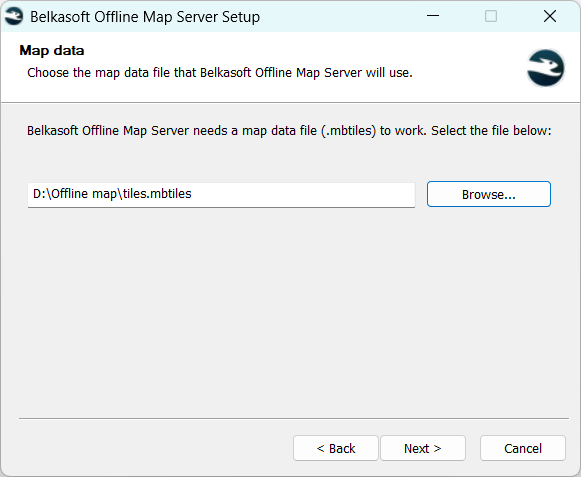
Important: You must install the server on the machine where you store the map file. - On the Map data page, specify the path to the .mbtiles file. Click Next.
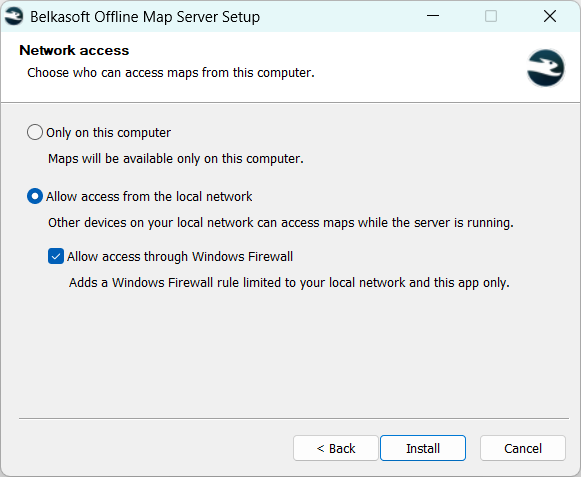
- On the Network access page, select whether you want to share server access with machines on your local network and click Install.
Note: If you allow other machines on the local network to access the server and let the installer configure Windows Firewall automatically, you may still need to configure the antivirus software on the server machine to allow network access to Belkasoft Offline Map Server.
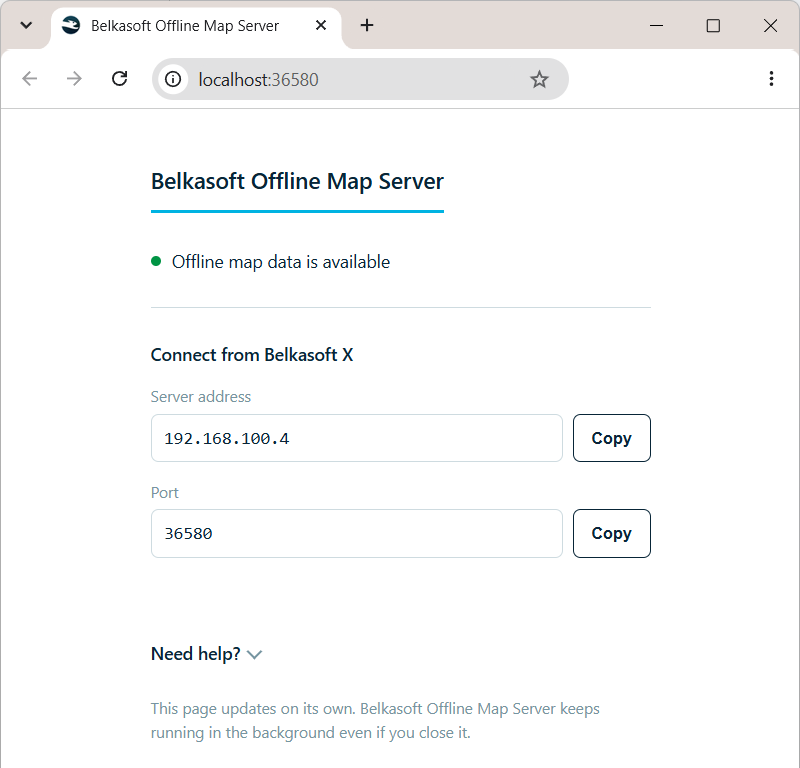
- After the installation completes, keep the Open Belkasoft Offline Map Server in your browser checkbox selected and click Finish. Your browser will automatically open the server page with the Server address and Port values you will need to connect to the server from Belkasoft X.
Configure Belkasoft X for using the offline map server
- From the Belkasoft X Home window, go to Settings → Third-party.
- Scroll down to the Maps section.
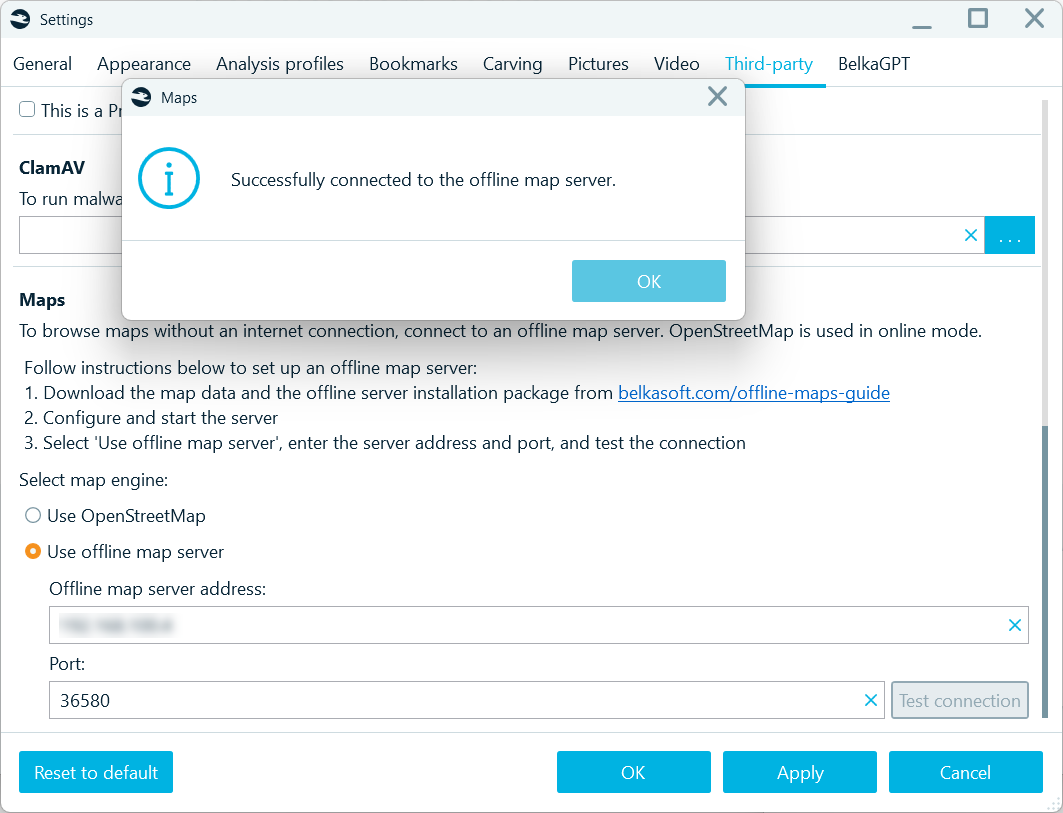
- Under Select map source, select the Offline map server option.
- Provide the Offline map server address and Port. Click Test connection to verify your server is accessible.
- Click Apply.
To use the offline map directly in the Map window, restart Belkasoft X. Alternatively, right-click any geolocation artifact and select Show on Map. In this case, Belkasoft X will use the new map source without requiring a restart.