The Silent Observer: Forensic Analysis of Apple Unified Logs
Investigations on Apple devices often begin with familiar artifacts: application databases, web history, and file system metadata. However, when that evidence is incomplete or ambiguous, investigators need a one more layer of truth—one that reveals exactly what the device was doing at a specific moment.
One of such layers is the Apple Unified Log (AUL). Introduced in 2016 to replace legacy logging systems like Apple System Logs (ASL) and Syslog, the Unified Logging System records a continuous stream of system and application events, offering a granular timeline that few other sources can match.
Yet, AUL analysis remains one of the most challenging aspects of Apple device forensics: the data is binary, dependent on complex metadata, and prone to massive expansion upon parsing. This article explores what AULs consist of, how to decode their complex record format, and how to leverage them in DFIR investigations using Belkasoft X.
How to access Apple Unified Logs on an iOS device
You can acquire Apple Unified Logs from an iPhone or iPad through a full file-system extraction, a dedicated log archive acquisition, or Apple's built-in sysdiagnose mechanism. These three methods differ in the structure of the acquired logs and the amount of data available.
Full file-system (FFS) extraction
Persisted Unified Logs are part of a full file-system extraction. The relevant files are typically located in three directories:
- /private/
var/ —binary .tracev3 log records and time synchronization files.db/ diagnostics/ - /private/
var/ —message format strings and associated resources needed to reconstruct readable log messages.db/ uuidtext/ - /private/
var/ —time synchronization records needed to convert internal Mach timestamps into UTC timestamps.db/ diagnostics/ timesync/
An FFS extraction generally does not capture log records available in volatile memory buffers.
Direct acquisition of a .logarchive using a macOS device
You can also collect Apple Unified Logs as a .logarchive using the built-in log utility on a Mac.
- Connect the iOS device to a Mac. When the device prompts you, tap Trust.
- Open the Terminal app and run the following command:
sudo log collect --device --output ~/Desktop/ system_logs.logarchive - Locate the system_logs.logarchive package on the desktop. It contains the Unified Log records and the supporting data.
This package generally includes the same files as an FFS extraction, but in a different structure. It combines the contents of the diagnostics/ and uuidtext/ folders in one folder:
📁 system_logs.logarchive/
├── 📁 HighVolume/
├── 📁 Persist/
├── 📁 Special/
├── 📁 Signpost/
├── 📁 timesync/
├── 📁 00/ … FF/
├── 📁 dsc/
Collecting logs through sysdiagnose
The built-in sysdiagnose mechanism provides another way to obtain Unified Logs directly from an iPhone without FFS access or specialized acquisition software.
- Hold the Volume Up, Volume Down, and Power buttons at the same time for about 1.5 seconds, then release them to trigger sysdiagnose.
- Wait for the diagnostic package to be generated. This can take several minutes.
- Navigate to Settings → Privacy & Security → Analytics & Improvements → Analytics Data.
- Find the newest file whose name starts with sysdiagnose_ and transfer it to the forensic workstation.
The resulting .tar.gz package contains various diagnostic artifacts, including a system_logs.logarchive directory with a snapshot of Unified Logs. It has the same structure as the .logarchive folder acquired using a macOS device.
How much historical data is available in Apple Unified Logs?
The amount of data available in Apple Unified Logs depends on both the acquisition method and the device's log retention policies.
A full file-system extraction provides access to the persisted log records still stored on the device. Direct acquisition of a .logarchive can also provide several days of historical records and may include data from in-memory log buffers.
In contrast, the .logarchive included in a sysdiagnose package typically offers a shorter period of detailed coverage, primarily capturing recent activity. Although some older records may be present, sysdiagnose is less suitable for reconstructing events from several days earlier.
Apple Unified Logs do not have a uniform retention period. Some records may remain available for days or weeks, while others are overwritten much sooner. For this reason, investigators should collect logs as early as possible and should not assume that the oldest timestamp in an archive indicates continuous coverage of the entire period.
What Apple Unified Logs consist of
Apple Unified Logs are not a simple collection of text files. They consist of binary log records and several types of supporting files stored separately. To reconstruct readable log entries with accurate timestamps, a forensic tool needs access to all of these components.
Binary log files (.tracev3)
The log records themselves are stored in binary files with the .tracev3 extension. In an FFS extraction, these files are typically found in the Persist, Special, Signpost, and HighVolume subfolders of /private/
The .tracev3 format is compact, and much of its data is compressed (LZ4). Rather than storing each log message as complete, human-readable text, most records store only the argument values and a reference to a format string (message template) kept in a separate file. Besides regular log messages, .tracev3 files can also contain other record types, such as activities, signposts, and state dumps.
Message templates (uuidtext and dsc files)
The format strings for log messages are stored outside the .tracev3 files, in /private/
Time synchronization artifacts
Apple Unified Logs do not store event times as a regular date and time. Instead, each record stores a value of an internal counter called Mach continuous time. This counter starts at zero when the device boots and increases at a fixed rate, including while the device sleeps. Each increase is called a tick. On iPhones, iPads, and Apple silicon Macs, one tick lasts about 41.67 nanoseconds, which is 24 million ticks per second. On Intel-based Macs, one tick equals one nanosecond.
Because the counter restarts with every boot, a tick value alone does not tell you the date and time of an event. To convert tick values into UTC timestamps, a parser needs time synchronization records, typically found in /private/
Without the corresponding synchronization data, a parser may be unable to determine accurate event timestamps, although the original tick values may still be available.
The forensic challenges
The complex structure and sheer volume of Apple Unified Logs create several problems for investigators:
- Data explosion: Because the binary format is so compact, a small footprint on the device can expand tenfold or more during analysis. A typical archive of binary logs occupies 500–800 megabytes, but once parsed, the same dataset can grow to 5–10 gigabytes of text.
- Signal-to-noise ratio: A single device can generate hundreds of thousands of log entries per day. Most of them are routine system events, such as memory management and process signaling, that are irrelevant to an investigation. To find evidence, you often have to filter millions of records to find the few dozen that show what the user did.
- Log redaction: Apple integrated aggressive data protection features directly into the logging architecture. Consequently, the sensitive data is redacted before it is written to disk. The log entry will contain the static text and a placeholder <private> instead of the actual value (for example, "Connecting to.. <private>"). For investigators, this means that certain high-value artifacts, such as specific URLs visited or email addresses processed, may be partially obscured in the logs unless the user had previously installed a debugging profile that disabled this redaction.
Real-world DFIR use cases
Despite these difficulties, AULs are worth the effort because they capture timestamped activity that often exists nowhere else. Belkasoft X parses these logs from both FFS extractions and .logarchive packages (including those from sysdiagnose) and displays them under System files → System event logs. Here, you can sort and filter the extracted log to review specific activities.
To filter the list in Belkasoft X, click the funnel icon in a column header, such as Text or Application. In the Add a filter window, select the Contains operation, enter a value in the Value field, and click Apply. For each example below, we name the column and the value to use.
Verifying unlocking methods
AULs can help determine when and how a device was unlocked, which is vital for alibi verification or compelled-access cases.
- Passcode logon: The SpringBoard process logs type: 1; hasPasscode: YES.
- Biometric logon: The log shows type: 2; hasPasscode: NO, indicating FaceID or TouchID was used.
To find these records, filter the Text column by hasPasscode. To narrow the results further, filter the Application column by com.apple.SpringBoard.
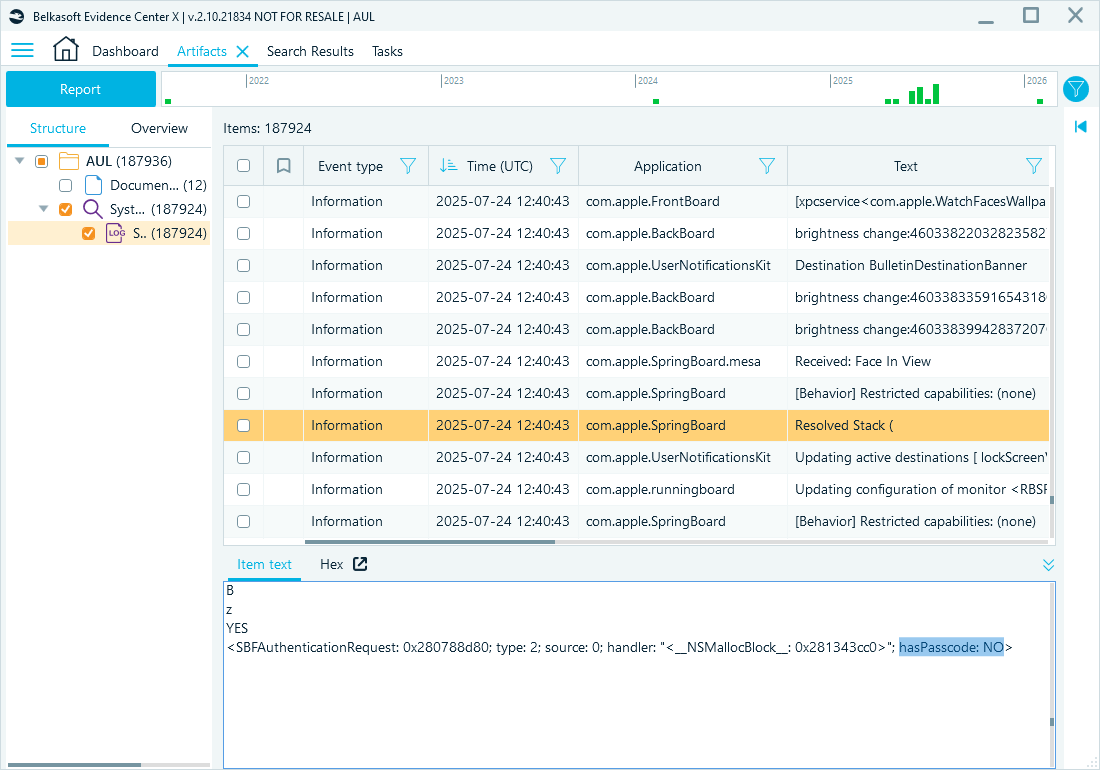
Unlock records filtered by hasPasscode in Belkasoft X
Wi-Fi networks
Unified Logs often contain entries from wifid, the process that manages Wi-Fi connections. These entries show the device scanning for networks or changing its connection state. They can help you place a device at a specific location by identifying the Wi-Fi networks it saw or connected to, even if no other location data is available.
To find the networks the device connected to, filter the Text column by WiFi state changed. These records show the connection state, the security type, and the network name (SSID). In the example below, the device connected to the "BelkasoftGE 2" network:
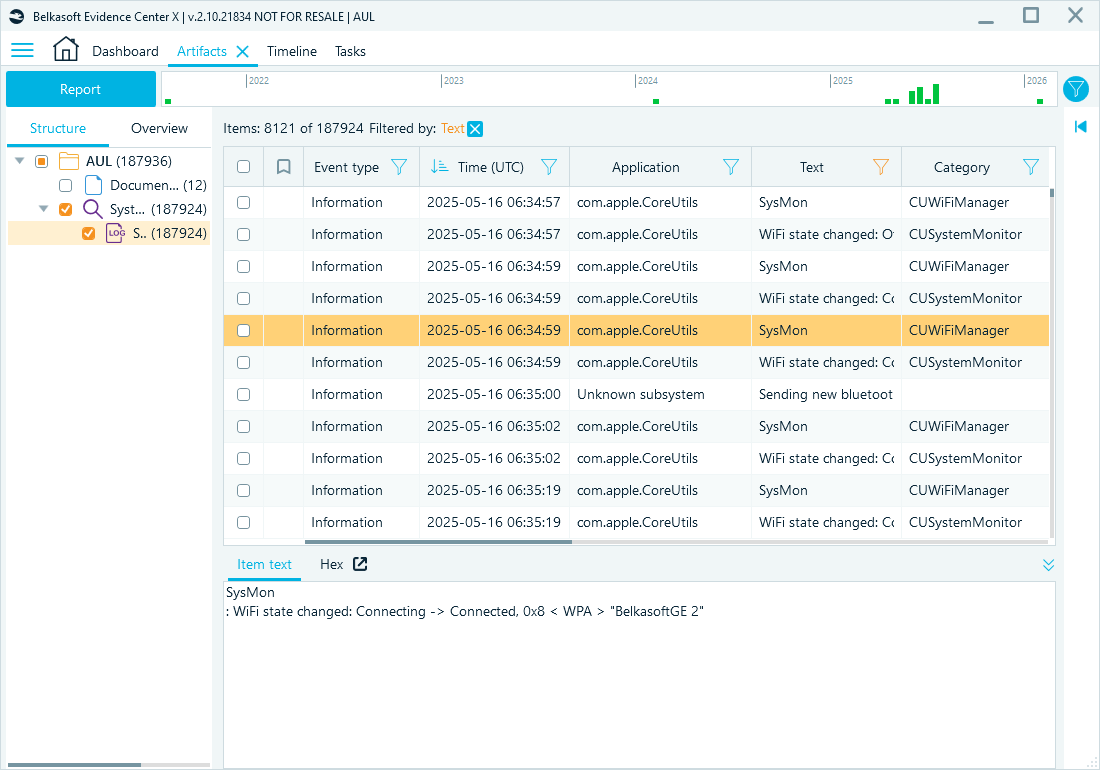
Wi-Fi connection record for the BelkasoftGE 2 network
To see which access points the device scanned for, filter the Process name column by /usr/sbin/wifid. Then look for messages that start with Preparing background scan request for. Each of them lists BSSIDs, which are MAC addresses of specific access points, and the radio channels to scan:
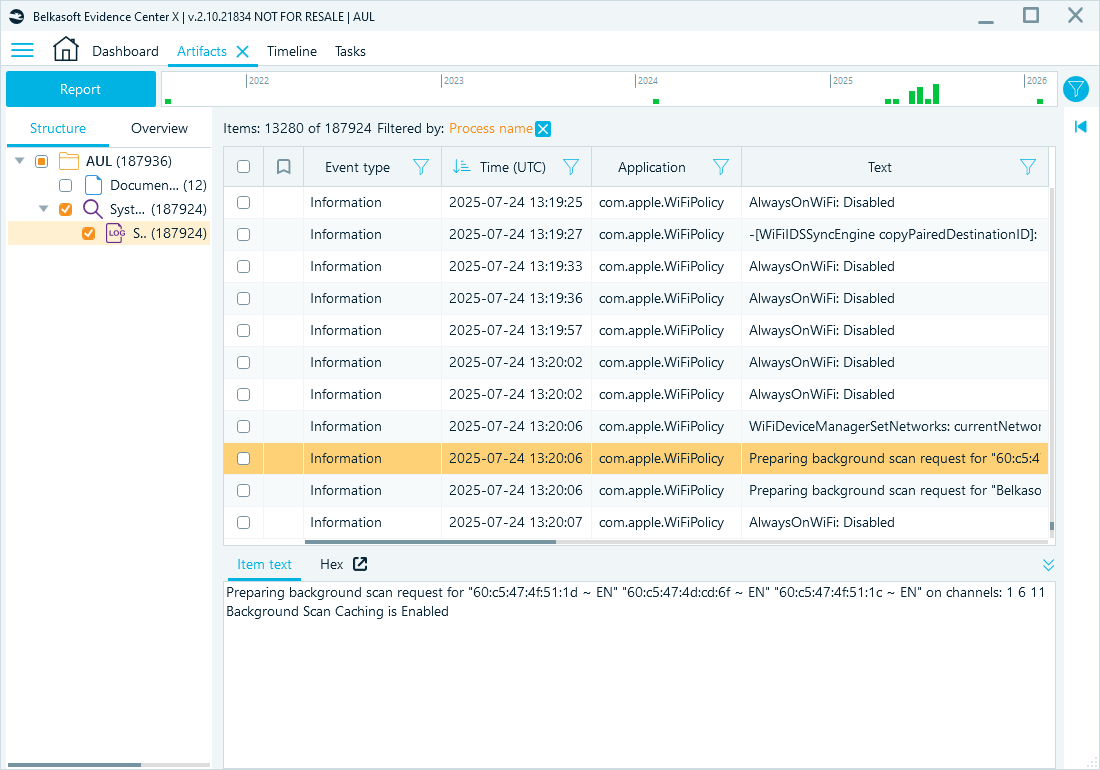
Wi-Fi scan requests from the location service
You can match these BSSIDs against known access points to link the device to a location. To find only the scans that the location service requested, filter the Text column by client='locationd'.
You can also check whether the device was connected to any Wi-Fi network at a given moment. To do so, filter the Text column by is WiFi associated. These records do not name the network, so to identify it, find the closest WiFi state changed record before that time. Those records can be useful even if the value is NO. For example, it can contradict a claim that the device was at home and connected to the home network at the given time.
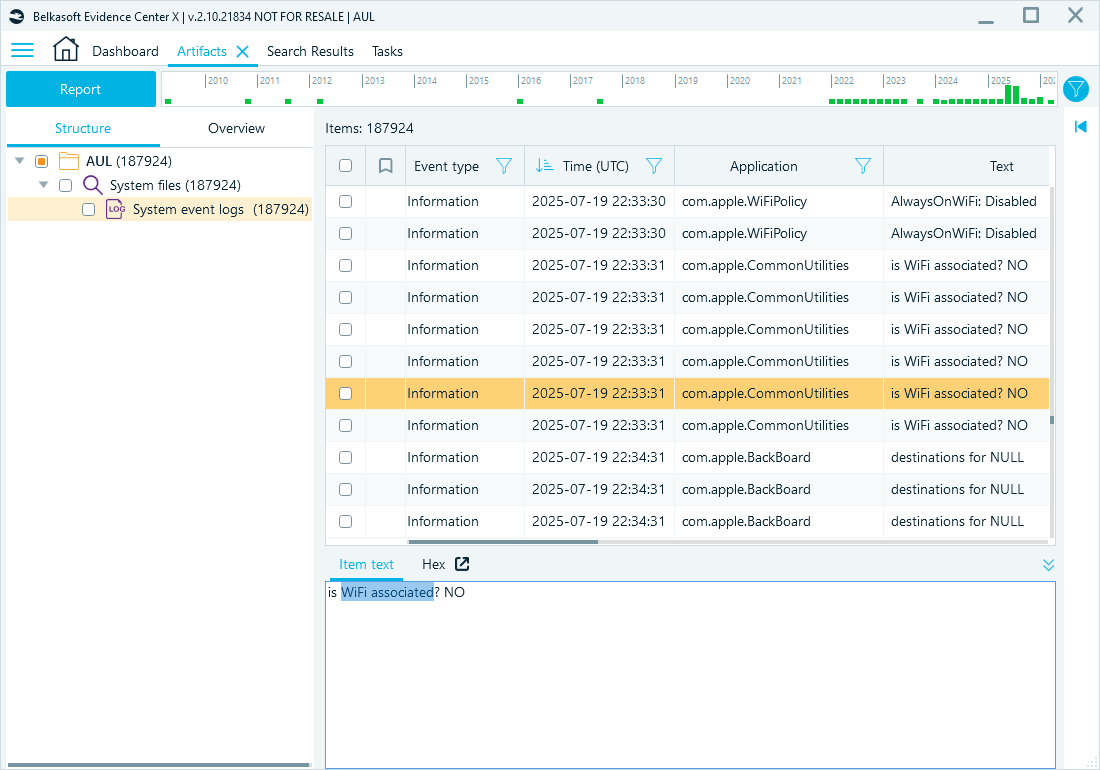
Records showing whether the device was connected to Wi-Fi
Bluetooth connection
Discovery messages can reveal other Bluetooth devices nearby. They allow investigators to map the digital environment around a suspect, for example, to show that the suspect was near a victim’s device or a specific vehicle.

To find these messages, filter the Text column by Found CUBluetoothDevice. Each record shows the Bluetooth address, name, and type of the discovered device. In the example below, the device found a car multimedia system named “Toyota Touch 2 with Go”:
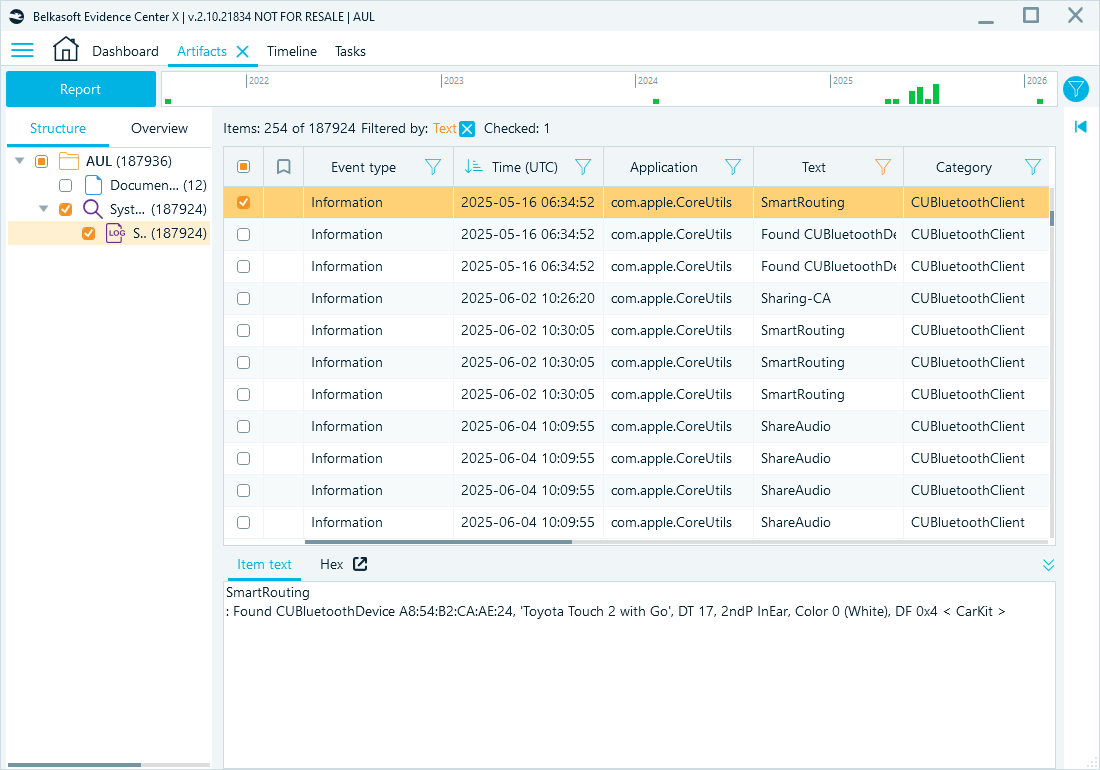
Bluetooth discovery record for a car multimedia system
User activities
Reviewing the logs can reveal other device usage events. In the example below, the user unlocked the device at 2026-02-17 18:31:34 UTC. To find such events, filter the Text column by Screen is unlocked:
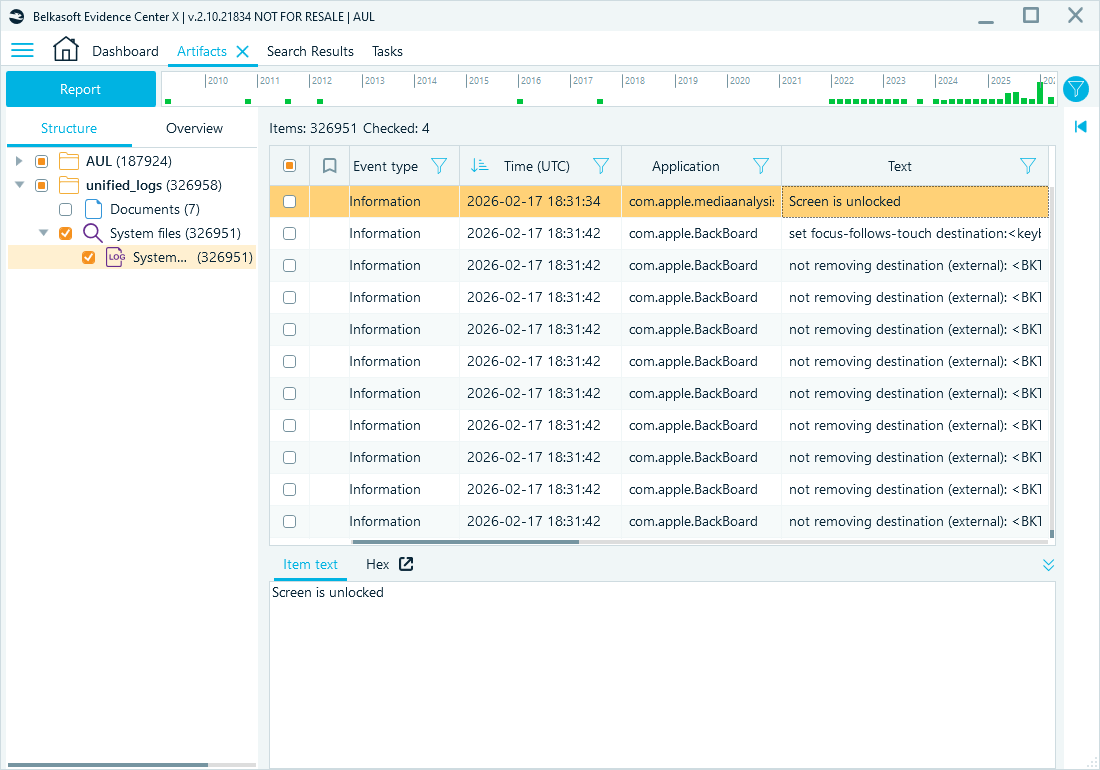
Screen unlock event
Then the user opened YouTube. To find records that show an app in the foreground, filter the Text column by the app bundle identifier, in this case com.google.ios.youtube:
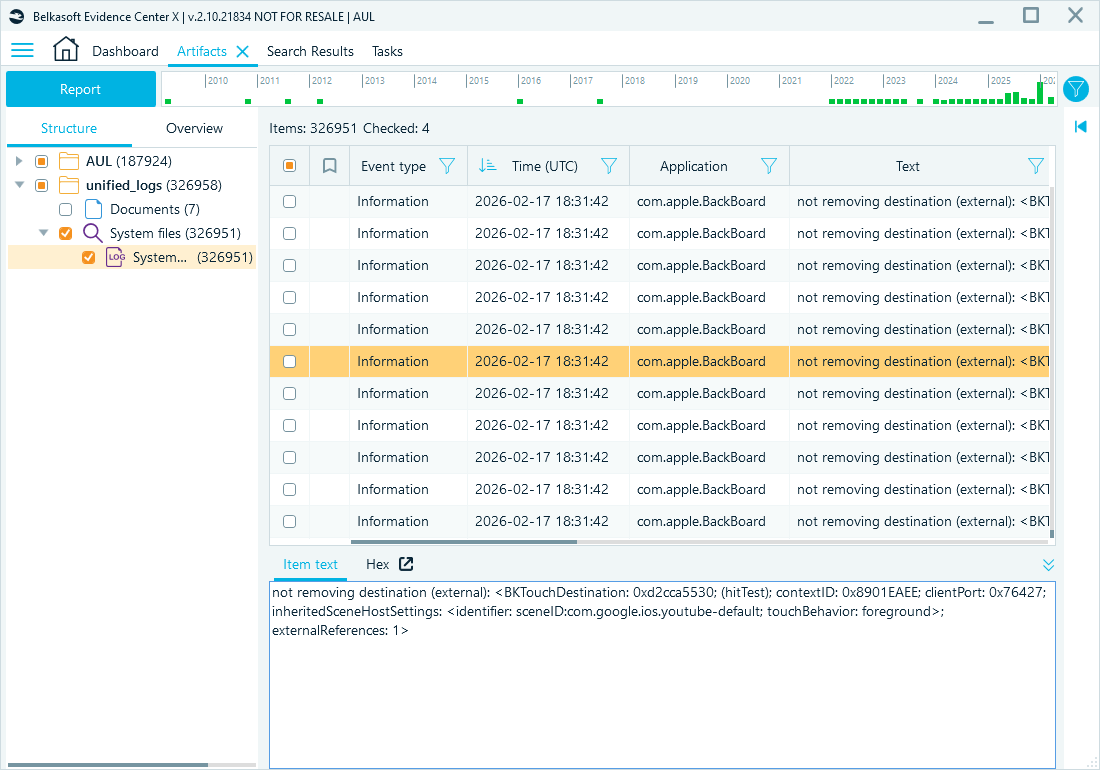
Records showing YouTube in the foreground
After a short session, the user locked the device. To find such events, filter the Text column by Screen did lock:
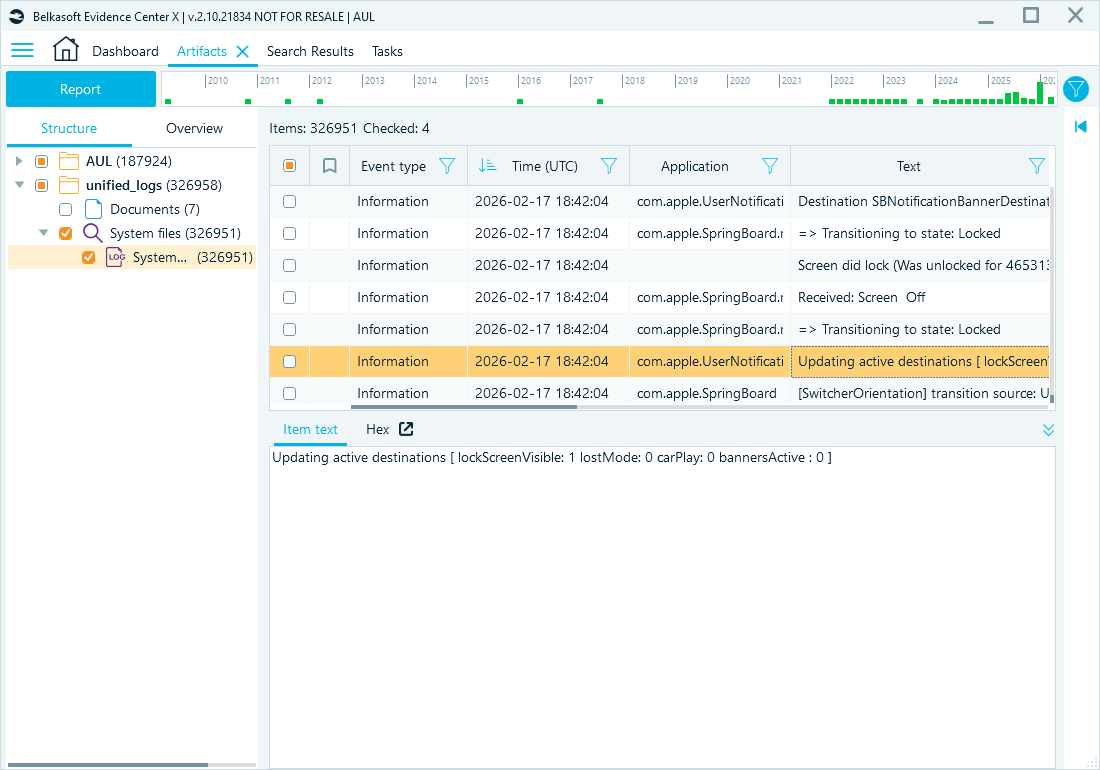
Screen lock event
The device also tracks its own motion state. You can correlate these records with user actions, for example, to check whether the user was walking or stationary at a given time. To find them, filter the Text column by Motion State Transition:
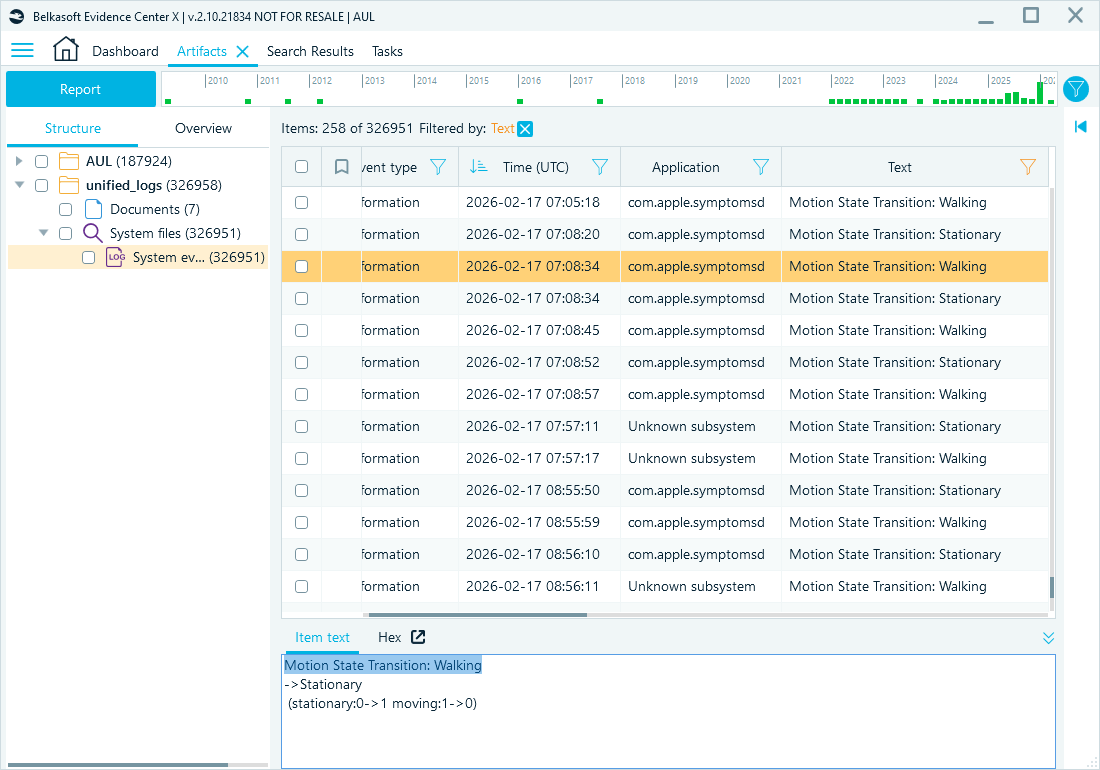
Motion state transitions
Conclusion
Apple Unified Logs record what an iPhone or iPad was doing at a given moment. They can show when and how the device was unlocked, which Wi-Fi networks it joined or scanned for, which Bluetooth devices were nearby, which apps the user opened, and whether the user was walking or standing still. Much of this activity leaves no trace in application databases or other common artifacts.
To get reliable results from Unified Logs, keep three points in mind:
- Collect the logs early. Records are overwritten at different rates, and a sysdiagnose archive covers a much shorter period than a full file-system extraction or a .logarchive.
- Acquire the complete dataset. Without the uuidtext and dsc files, many messages cannot be reconstructed. Without the timesync records, event times cannot be converted to UTC.
- Expect redaction and volume. Some values appear only as <private>, and a parsed dataset can be ten times larger than the original binary files.
Belkasoft X parses Unified Logs from FFS extractions and .logarchive packages and displays them under System event logs node. You can narrow hundreds of thousands of records down to the few that answer your investigation question.
FAQ
Where are Apple Unified Logs stored on an iPhone?
Persisted Unified Logs are stored in /private/
Can I get Unified Logs from an iPhone without a full file-system extraction?
Yes. You can collect a .logarchive package with the log collect command on a Mac or trigger sysdiagnose on the device. A sysdiagnose archive usually covers a shorter period than a directly collected .logarchive.
How long does an iPhone keep Unified Logs?
There is no single retention period. Some records stay on the device for days or weeks, while others are overwritten much sooner. Collect the logs as early as possible.
Why do some log entries show <private>?
Apple redacts sensitive values before writing them to disk. The entry keeps its static text, but the actual value, such as a URL or an email address, is replaced with a <private> placeholder.
Why are timestamps missing from parsed Unified Logs?
Unified Logs store time as Mach continuous time ticks that restart with every boot. To convert them to UTC, the parser needs the time synchronization records from the timesync folder. If these records are missing, only the raw tick values may be available.