Plist Files: Structure, Forensic Value, and How to Analyze Them

A plist, short for property list, is Apple’s standard file format for storing structured configuration and preference data on macOS and iOS. It is identified by the .plist extension. Plist files store data as key-value pairs, and they exist in two on-disk formats—human-readable XML and compact binary. Examiners working with Apple ecosystem cases encounter plist files constantly, from Wi-Fi history to application preferences, which makes reading them correctly a practical forensic skill.
What is a .plist file?
A plist file holds structured configuration and preference data used throughout macOS and iOS. It serves a purpose similar to a Windows registry key or a JSON configuration file: it stores named values, organized into a hierarchy, that an application or the operating system reads on demand. If you want the Windows equivalent for comparison, see our articles on Windows registry structure and acquisition and Windows registry analysis techniques.
Plist files turn up almost everywhere in the Apple ecosystem:
- Application preferences: user settings for individual apps
- System settings: network, display, and other operating system configuration
- Launch daemons and agents: definitions that tell macOS what to run and when
- Backups: both local and iTunes/Finder backups often contain plist files unchanged from the source device.
- Application sandbox containers: app-specific data enclosures on both macOS and iOS
The plist data model started as XML, but the model itself is independent of the format. It is a set of key-value pairs, and it supports nesting. A single plist file can contain a dictionary that holds an array, which in turn holds further dictionaries.
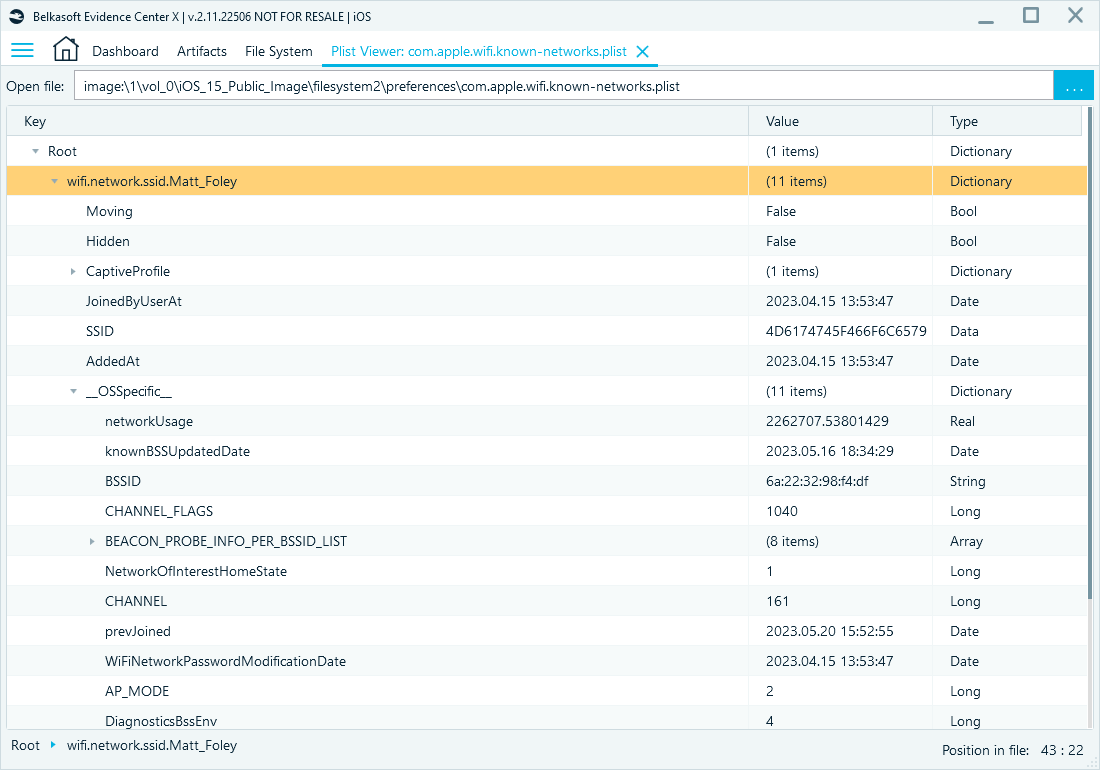
Within WiFi History (com.apple.wifi.
Plists are typically stored along with the data of the systems and apps that use them, so they can be found in various locations on the file system.
XML vs. binary plist formats
Apple plist files exist in two formats:
- XML plist is human-readable, as it is simply a text-based XML file. XML plist is a legacy format and is rarely used in current operating system versions.
- Binary plist, often shortened to bplist, is compact and binary-encoded. Since Mac OS X 10.2, most system and application plist files are saved in binary format by default. A binary plist opened in a plain text editor shows the signature bplist00.
Apple moved to the binary format for two practical reasons: smaller file size and faster parsing. However, for an examiner, binary plist parsing, on the opposite, is a more complicated task.
Inside the binary plist format
You can review an XML plist by hand in any text editor or XML viewer. A binary plist needs a parser, because the layout is designed for machines rather than people. It consists of four parts:
- Header. An eight-byte signature: bplist00.
- Object table. The object data itself. A plist is a numbered collection of objects—object 0, object 1, object 2, and so on. An object can contain a string, number, date, binary data, array, dictionary, or another supported value type. Each object begins with a marker that identifies its type and provides information needed to interpret its contents. Container objects such as arrays and dictionaries store references to other objects in the table.
- Offset table. Since the objects run together with no separators, the file includes a lookup table near the end that tells the parser where each object begins. It contains one entry per object, with each entry giving that object's byte offset from the beginning of the file.
- Trailer. A fixed 32-byte structure at the end of the file. It contains the metadata needed to navigate the plist, including the number of objects, the index of the root object, the location of the offset table, and the sizes used for offset-table entries and object references.
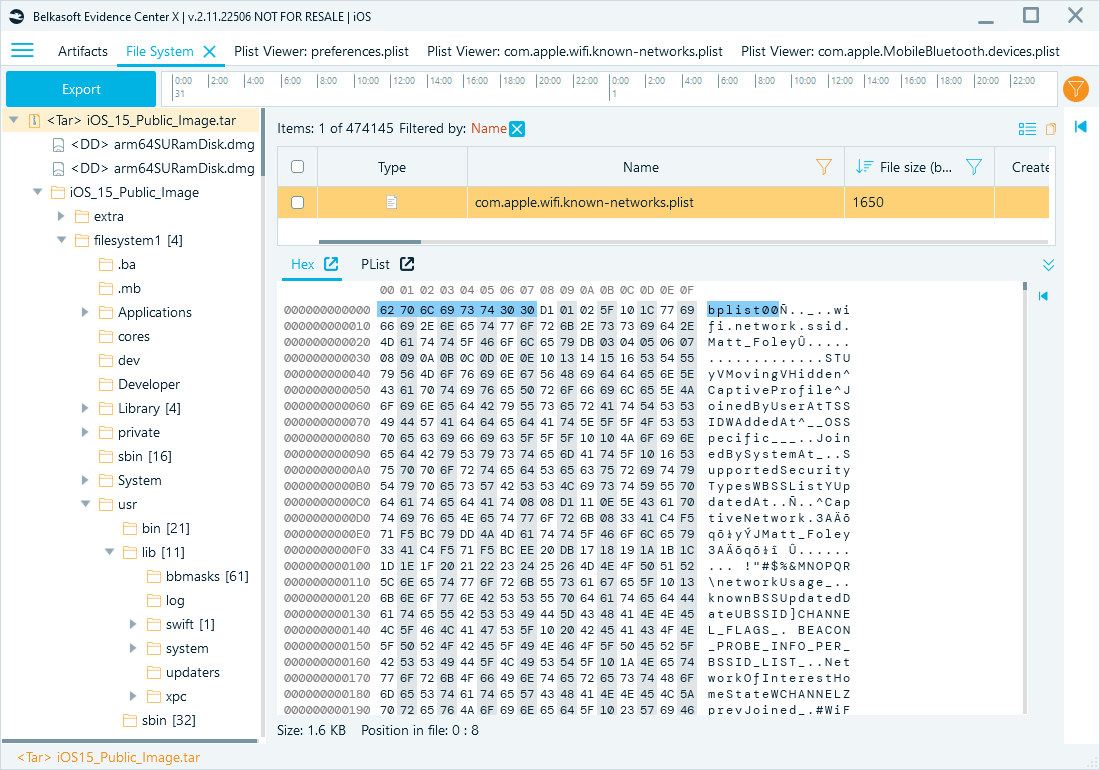
Binary plist in Hex Viewer
Parsing order is the unusual part. Unlike most binary formats, a binary plist parser reads the file backward: the trailer first, because that is where it learns how to interpret everything else.
Object reference is how a container points at its contents. A dictionary does not store the text SSID and the text HomeWiFi in its own bytes. It stores object numbers instead: the key is object 2, the value is object 4. Reading a dictionary is therefore a two-hop process. The dictionary hands you an object number, the offset table converts that number into an offset, and you jump there to find the value. References are packed together with nothing between them, so their width must also be known in advance. That width is the object reference size, and it is a separate number from the offset integer size. It scales with how many objects the file holds rather than how large the file is.
How to parse bplist?
The overall sequence is:
- Read the trailer. The trailer is the last 32 bytes of the file. It is always that size and always in that position, so a parser can find it without knowing anything else. All integers are big-endian:
| Offset from end | Size | Field | Meaning |
|---|---|---|---|
| −32 | 5 | unused | Padding. No parsing significance. |
| −27 | 1 | sort version | A writer-set flag describing how the object table was ordered. Not needed to read the file. |
| −26 | 1 | offset integer size | The width of each entry in the offset table, typically 1, 2, or 4 bytes. Scales with file size: a plist under 256 bytes can address every object with a single byte, a larger one cannot. The offset table is a packed array, so 1-byte and 2-byte entries are indistinguishable on disk until this field says which they are. |
| −25 | 1 | object reference size | The width of each reference stored inside a container. Scales with object count rather than file size, so it is frequently a different value from the field above. Without it, a dictionary's reference list cannot be split into individual references. |
| −24 | 8 | number of objects | How many entries the offset table holds, which fixes where the table ends. Also a validity bound: any reference at or above this value indicates corruption or deliberate malformation. |
| −16 | 8 | root object index | Which object sits at the top of the structure. Almost always 0, but not guaranteed—a parser that hardcodes 0 will silently decode the wrong subtree on a file where it is not. |
| −8 | 8 | offset table offset | The absolute byte position where the offset table begins. This is the single pointer that lets the parser leave the trailer. |
- Read the offset table. Seek to the position the trailer supplied and read the number of object entries, each offset integer size bytes wide. Entry n is the absolute byte position of object n. The table is the file's index: it converts an object number into a file location, and every reference encountered later is resolved through it.
- Seek the root object. Look up the root object index in the table and jump to that position. Decoding starts there.
- Decode each object by its type marker. Every object begins with a single marker byte. The high nibble (half of a byte, written as one hex character) gives the type, the low nibble usually gives the length or entry count.
- Resolve container members recursively. Arrays, sets, and dictionaries store lists of object references, each one as wide as the object reference size from the trailer. A dictionary stores all its key references first, then all its value references, in matching order. Every reference sends the parser back to step 2 for another lookup.
The high nibble identifies one of a fixed set of native types:
| High nibble | Type |
|---|---|
| 0x0 | null, boolean, fill |
| 0x1 | integer |
| 0x2 | real |
| 0x3 | date |
| 0x4 | data (raw bytes, often a nested file, image, or another plist) |
| 0x5 | ASCII string |
| 0x6 | UTF-16 string |
| 0x8 | UID |
| 0xA | array |
| 0xC | set |
| 0xD | dictionary |
A low nibble of 0xF is a flag rather than a length. Four bits reach only to 15, so when a string runs longer than 15 characters or a dictionary holds more than 15 entries, the writer sets the low nibble to 0xF and stores the real length as an integer object immediately after the marker.
Note: Apple stores dates as seconds relative to the Cocoa reference date—January 1, 2001, 00:00:00 UTC—not the Unix epoch. Reading a plist timestamp against the Unix epoch shifts the result by 31 years, so verify the reference point before you report a finding.
Binary plist is not a proprietary Apple encryption scheme. It is a public, documented serialization format, described in the Apple CFPropertyList and NSPropertyListSerialization documentation, and implemented in multiple open-source parsers. A properly built parser reads both XML and binary without being told which it has, because the signature makes that decision automatic.
NSKeyedArchiver: When a plist holds an object graph
Not every plist stores a simple dictionary of values. Some hold an object graph: a set of objects connected by references to each other, rather than nested or flat values, so an object can point to another object, which points to another, forming a web instead of a tree.
Such a graph is often written by NSKeyedArchiver, the serialization mechanism Apple applications use to save complex objects. Instead of flat key-value pairs, the file contains a table of archived objects that point at one another through UID (unique identifier) references. The real structure emerges only after those references are resolved.
This is why a UID is not a value in its own right. A UID is a pointer to another object in a keyed archive, and finding UID entries in a plist is a reliable signal that you are looking at an NSKeyedArchiver graph rather than a plain settings file.
Walking such a graph by hand is slow and error-prone. A value may sit several reference hops away from the key that appears to describe it. A forensic plist parser should reconstruct these relationships automatically.
Parsing a bplist file, byte by byte
For demonstration, we created the following binary plist, 74 bytes, holding two keys: a Channel of 11 and an SSID of HomeWiFi.
For manual parsing, we will use Hex viewer, which is built into Belkasoft X:
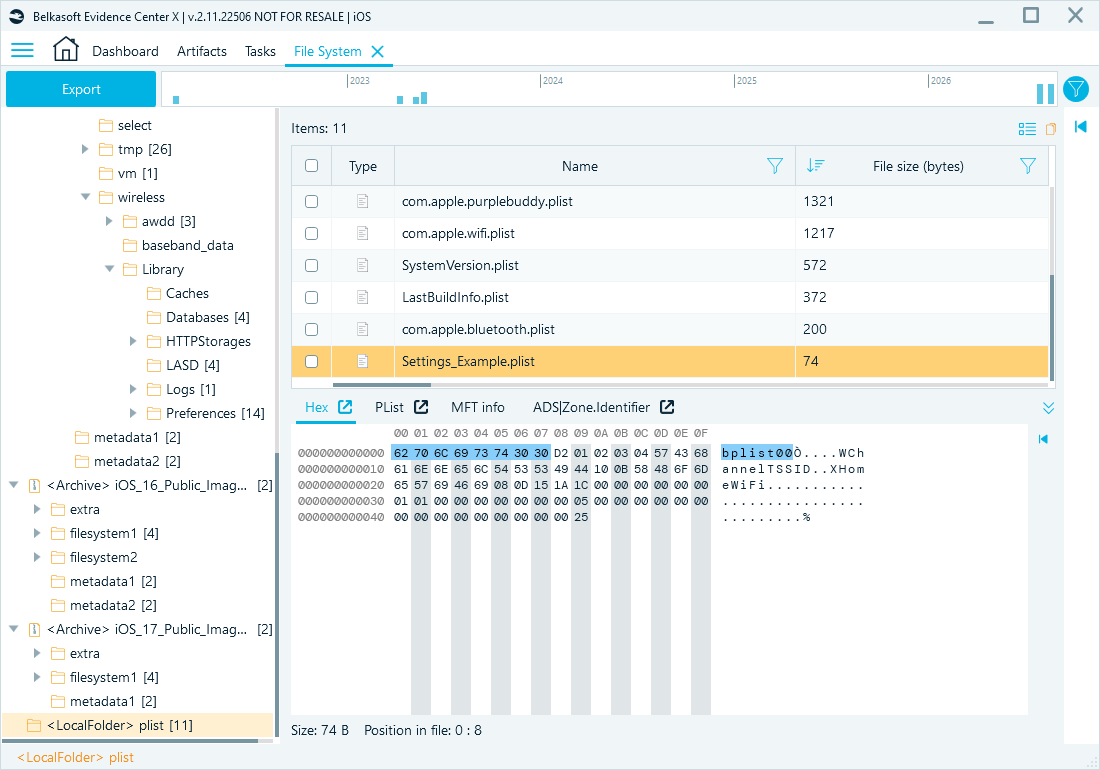
Hex Viewer translates each byte to ASCII
Now, let us run through each step:
1. Start at the trailer—the last 32 bytes, beginning at offset 0x2A.
The first 6 bytes (0x2A–0x2F) are padding plus a sort-version byte; skip them. The fields you actually read are:
0x30—01—offset integer size0x31—01—object reference size0x32–0x39—00 00 00 00 00 00 00 05—number of objects0x3A–0x41—00 00 00 00 00 00 00 00—root object index0x42–0x49—00 00 00 00 00 00 00 25—offset table offset
So: each offset table entry is 1 byte, each reference inside a container is 1 byte, there are 5 objects, the root is object 0, and the table starts at 0x25.
2. Go to 0x25 and read 5 entries of 1 byte each: 08 0D 15 1A 1C. Object 0 begins at 0x08, object 1 at 0x0D, object 2 at 0x15, object 3 at 0x1A, object 4 at 0x1C.
3. Go to the root, object 0, at 0x08. The byte is D2: high nibble D for dictionary, low nibble 2 for two entries. A dictionary stores all its keys first, then all its values, so the four bytes that follow are 01 02 for the keys and 03 04 for the values—one byte each, since the trailer said the reference size is 1. Paired in order, object 1 maps to object 3, and object 2 maps to object 4.
4. Resolve each reference through the offset table:
- Object 1 at
0x0D. The byte is57: ASCII string, low nibble7= 7 characters. The next 7 bytes readChannel. - Object 3 at
0x1A. The byte is10: integer. Here the low nibble is an exponent, not a length—the value occupies 2ⁿ bytes, so0means 1 byte. The next byte is0B= 11. - Object 2 at
0x15. The byte is54: ASCII string, 4 characters—SSID. - Object 4 at
0x1C. The byte is58: ASCII string, 8 characters—HomeWiFi.
Assembled, the file reads Channel = 11 and SSID = HomeWiFi.
As you can see, manually parsing a .plist file is a tedious process, even for a small one that we generated for this demonstration. Thus, the proper tool is absolutely necessary for real-life investigations.
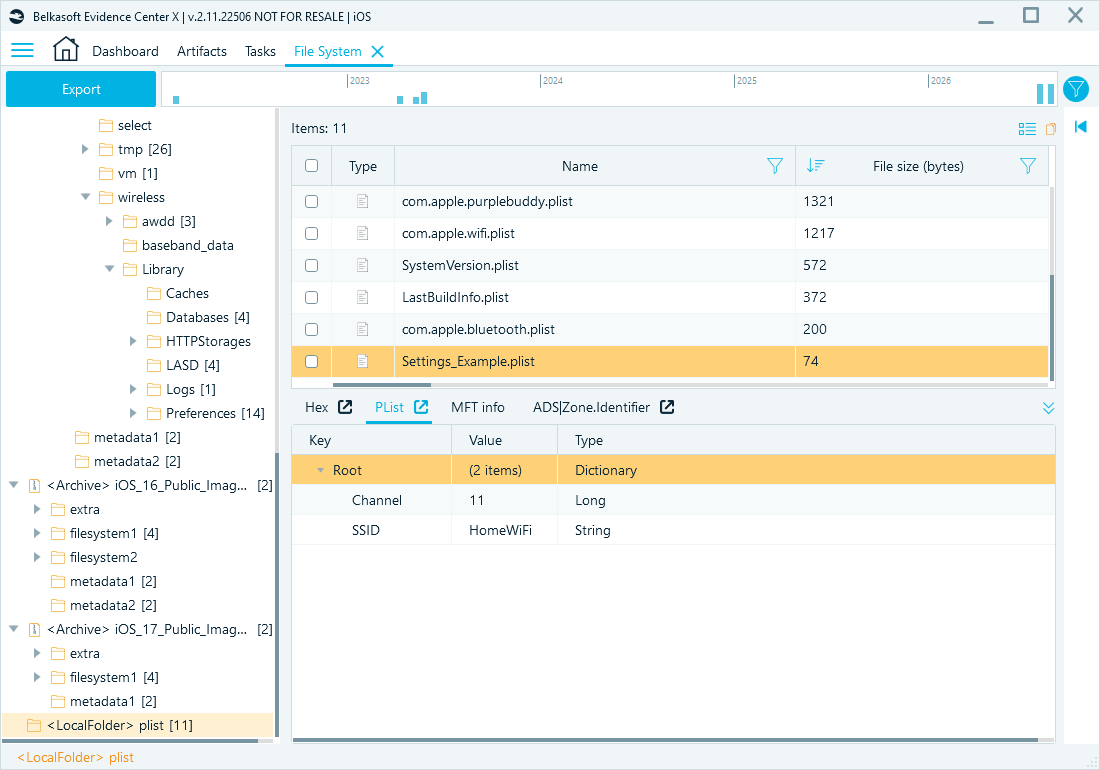
The example .plist file was automatically parsed in Belkasoft X. It can be reviewed using the built-in Plist or Hex viewers
Examining plist files in Belkasoft X
Belkasoft X includes a built-in Plist Viewer for examining Apple property list files, including both XML and binary format, without needing a Mac machine or third-party tools. Belkasoft X extracts common plist-based artifacts automatically, including system configuration, installed applications, Bluetooth configuration, and Wi-Fi connections. Plist Viewer will appear in the Tools View panel for any plist-based artifact.
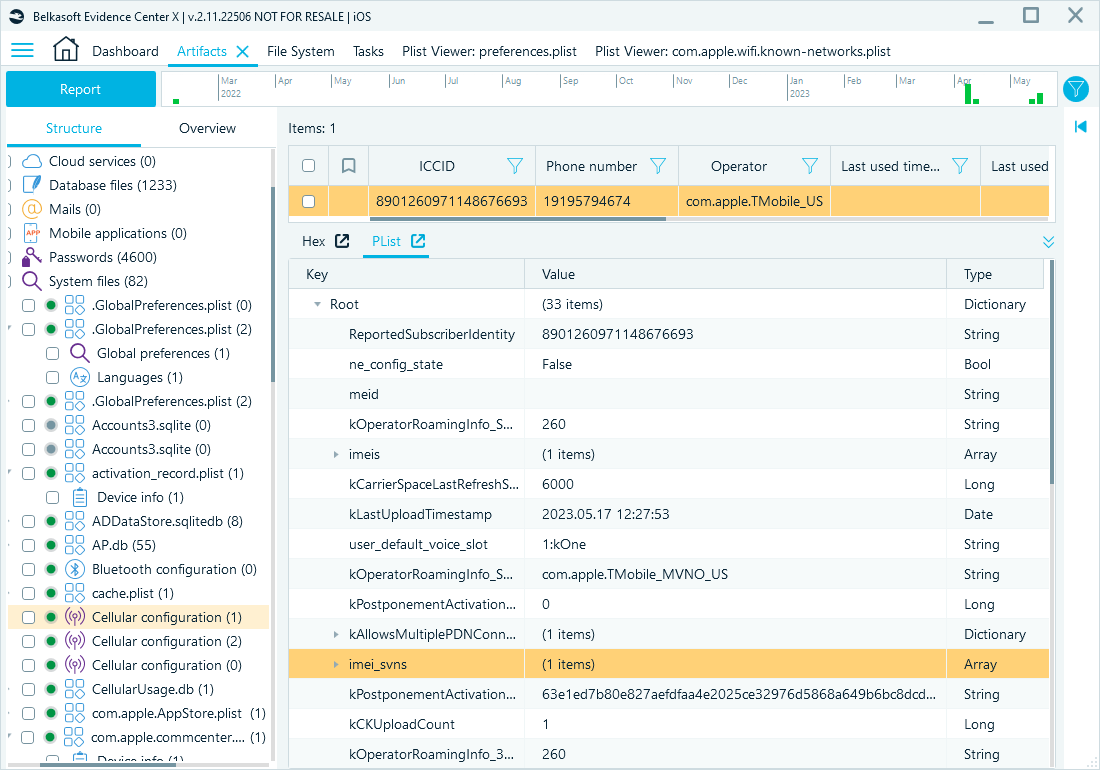
Plist Viewer in the Tools View panel for a plist-based artifact
Additionally, you can open Plist Viewer as a separate tool directly from the Belkasoft X main menu to open a standalone .plist file, or browse through the data source file system and open any .plist file it contains:
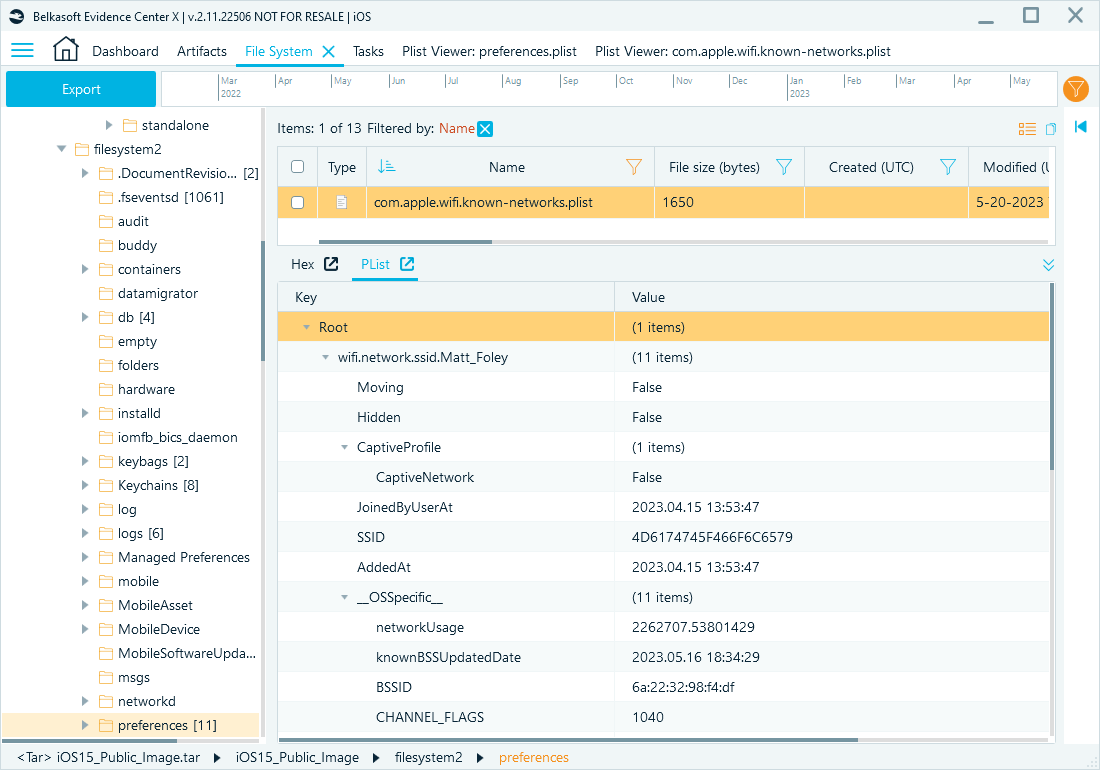
Plist Viewer in File System window
There is no separate conversion step—Belkasoft X reads XML and binary plist files the same way, and displays the file as a structured tree.
Right-click a record to reach the actions an examiner needs for casework:
- Copy key, Copy value, and Copy row: copy the details of an individual record to the clipboard.
- Copy as Plist and Save as XML: copy or save the selected node and its child records in XML plist format.
- Expand Children and Collapse Children: control how much of the tree is visible.
- Find and Find Next: search for a specific record within the file, with an optional case-sensitive match.
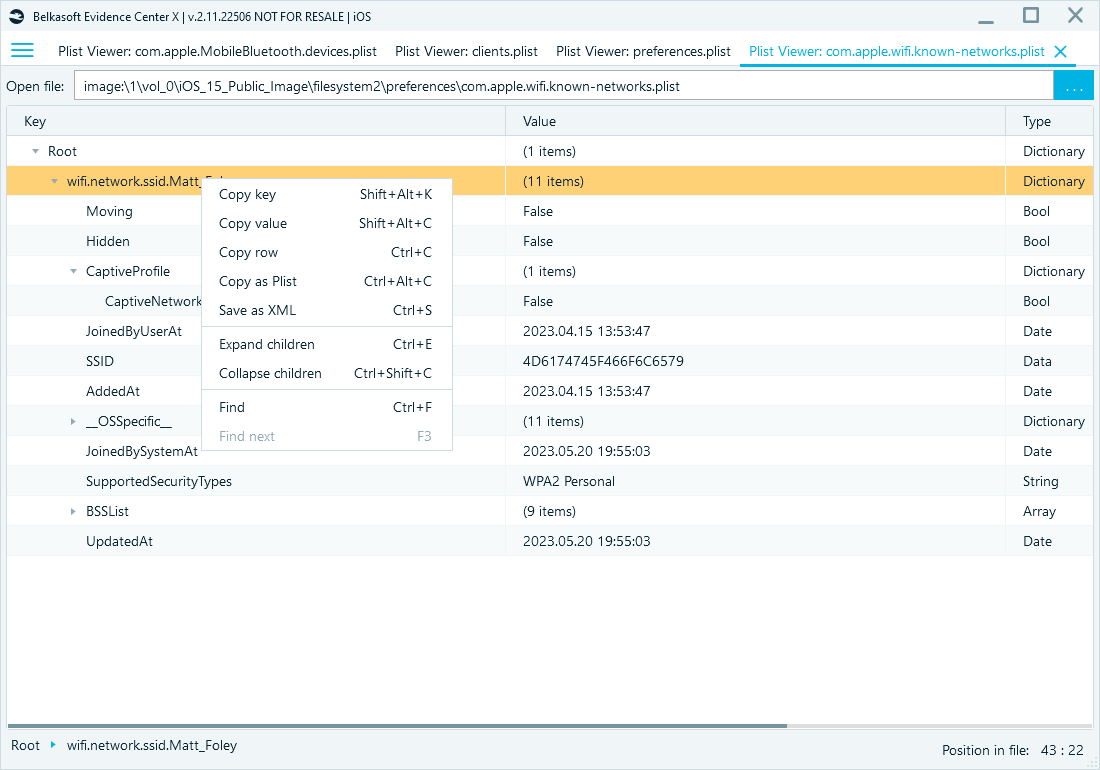
The right-click context menu in Plist Viewer

Where plist files turn up in an investigation
Plist files carry real evidentiary weight, because they sit behind so much of what macOS and iOS record by default.
On macOS, plist files store system configuration: network interfaces, Wi-Fi connection history, Bluetooth pairing records, and the installed application inventory. At the user level, application preference files hold browser settings, recently opened files and documents, and login items. Most of these files sit in /Library/Preferences/, /Library/Preferences/
On iOS and iPadOS, applications run inside isolated sandbox containers. Application preference files usually sit under the application container in a Preferences directory. System-level plist files are spread across protected system areas that become accessible after forensic acquisition. Exact locations vary between iOS versions and acquisition methods, so confirm the path for the version under examination rather than assuming it matches an earlier release. For the extraction methods that give you access to these areas, see our overview of mobile acquisition methods in Belkasoft X.
The files below are a practical starting point on a full file system image. Verify each path against the iOS version you are examining.
Device identity and setup
- /System/
Library/ : product version and build number.CoreServices/ SystemVersion.plist - /private/
var/ : product type, product version, and build.installd/ Library/ MobileInstallation/ LastBuildInfo.plist - /private/
var/ : device name, time zone, region, and phone number.root/ Library/ Lockdown/ data_ark.plist - /private/
var/ : initial setup state, useful for establishing when the device was last set up after reset.mobile/ Library/ Preferences/ com.apple.purplebuddy.plist
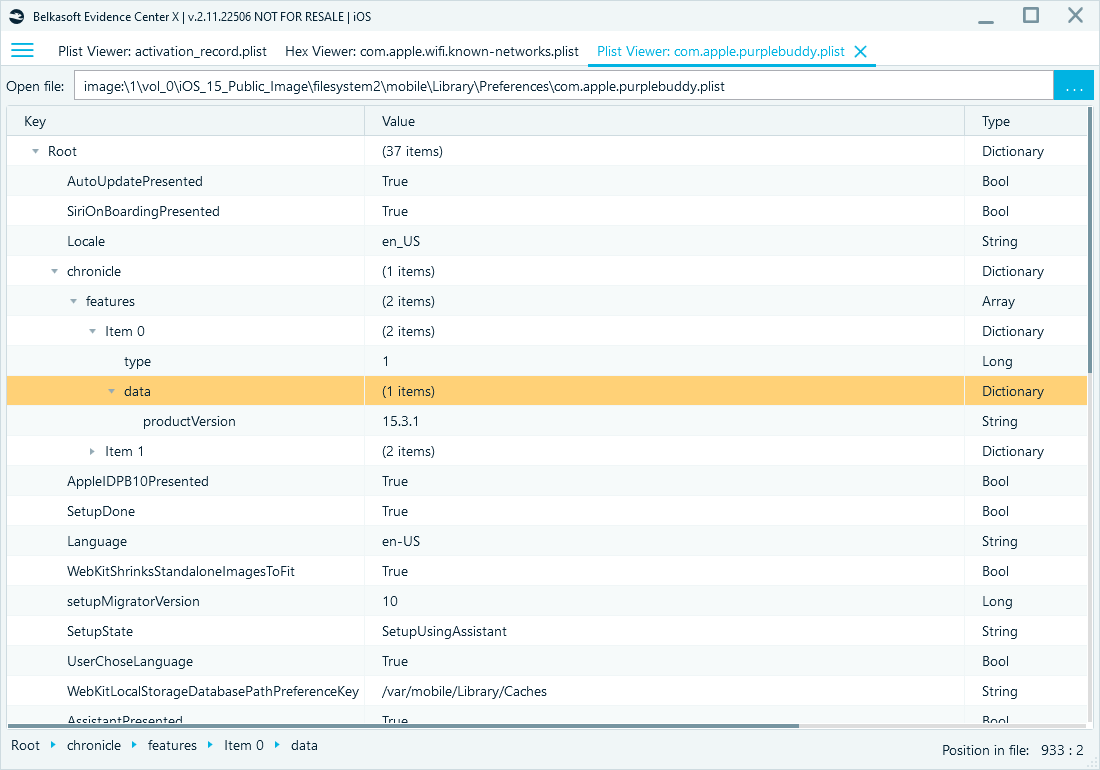
Device identity values recovered from a plist file and displayed in Belkasoft X.
Network and connections
- /private/var/
preferences/ : known Wi-Fi networks with SSID, BSSID, and join timestamps on iOS 16 and later.SystemConfiguration/ com.apple.wifi.known-networks.plist - /private/var/
preferences/ : the equivalent file on iOS 15 and earlier.SystemConfiguration/ com.apple.wifi.plist - /private/var/
root/Library/ : one plist per paired computer, with host identifiers. These records show which workstations the device trusted.Lockdown/ pair_records/ - /private/var/
mobile/Library/ : carrier and subscriber details, including ICCID and phone numbers.Preferences/ com.apple.commcenter.plist - /Library/
Preferences/ : Bluetooth settings. Plist files can hold paired device names, hardware addresses, pairing timestamps, and device classes—useful for showing that a device previously communicated with another system.com.apple.Bluetooth.plist
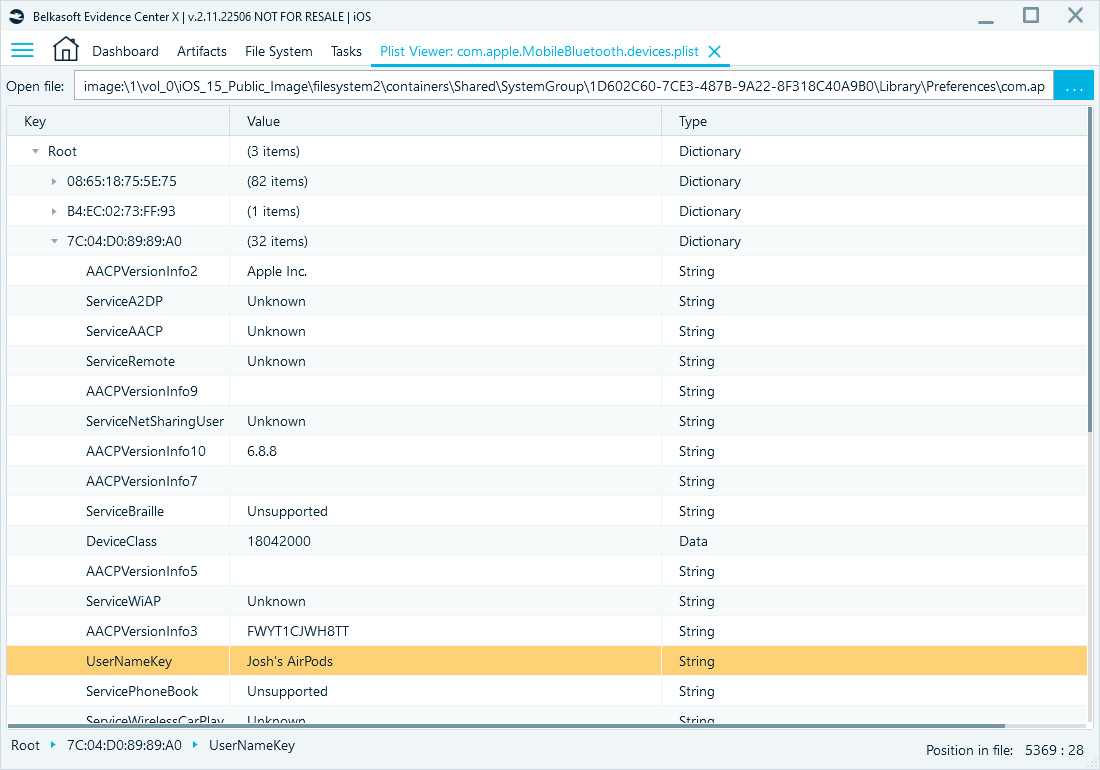
Known Bluetooth devices parsed from com.apple.Bluetooth.plist
User and application activity
- /private/var/
mobile/ : which applications requested location data, and when.Library/ Caches/ locationd/ clients.plist - /private/var/
mobile/ : home screen layout, page order, and folder names.Library/ SpringBoard/ IconState.plist - Info.plist file inside each application bundle under /private/var/
containers/ : bundle identifier, version, URL schemes, and permission usage strings.Bundle/ Application/
Many plist files record last-modified or last-used dates for the settings or items they track, which makes them a useful source for timeline reconstruction.
Plist files also appear inside iTunes and Finder backups, inside the raw file system of a device acquired with a full file system method, and inside application containers recovered during mobile acquisition. In a backup, start with Info.plist, Manifest.plist, and Status.plist in the backup root. Cloud sources hold the same files: see our article on iCloud acquisition and analysis with Belkasoft X.
To always have a list of useful .plist file locations in iOS at your fingertips, download our free mobile forensics cheatsheet.
Plist files and SQLite databases: Reading them together
Apple applications frequently split evidence between SQLite databases and plist files, and treating one source as sufficient leaves gaps. SQLite databases tend to hold user-generated content, such as messages and photo metadata. Plist files tend to hold configuration: user preferences, account setup, application settings, and feature flags. Some data, such as recently opened resources, can appear in either, depending on the application.
Consider an application that stores several user accounts in a SQLite database. The database alone tells you which accounts exist. A related plist file can tell you which account was active most recently, whether cloud synchronization was enabled, what the notification preferences were, and what state the application was in when it last ran. Neither source gives you the complete picture alone.
The two formats also overlap physically. Applications often write a binary plist into a BLOB column inside a SQLite database, so the plist structure sits nested inside the database record. When a BLOB looks unreadable in a database viewer, check the first bytes for the bplist00 signature before you treat the value as opaque.
A well-known criminal case illustrates why this combination matters. A timestamp inside com.apple.mobilesafari.plist appeared to mark when a witness ran a search. Digital forensics experts cross-checked that plist against the corresponding BrowserState.db database and found that the timestamp actually recorded when the Safari tab was opened, not when the search occurred. The plist alone was misleading. The plist read together with the database gave the correct picture. For a step-by-step breakdown of this artifact behavior, see Ian Whiffin's Safari Walkthrough.
For the database half of this work, see our articles on SQLite analysis in Belkasoft X and freelists, write-ahead logs, and SQLite carving. Two worked examples that combine both sources are KnowledgeC database forensics and iOS Telegram forensics.
Conclusion
Plist files reward examiners who read them properly. They record device identity, network history, pairing relationships, application inventory, and the timestamps that tie those facts together. Most of them are binary, most of them will not open in a text editor, and some of them hide an object graph behind UID references. A tool that parses XML and binary alike, resolves keyed archives, and leaves the source file unchanged saves you from guesswork.
Try it on your own data. Download a free trial of Belkasoft X, add an Apple data source, and open a plist file in Plist Viewer. You can also read more about Belkasoft X features and supported artifacts, or sign up for our macOS forensics webinar.
FAQ
What is a .plist file?
A plist, or property list, file is the standard Apple format for storing structured configuration and preference data on macOS and iOS, identified by the .plist extension.
What does .plist stand for?
Plist stands for property list.
What is the difference between a binary plist and an XML plist?
An XML plist is human-readable text. A binary plist, or bplist, is a compact binary encoding of the same key-value data. Binary plist is the default format for most modern macOS, iOS, and application files.
How do I open a .plist file?
Native macOS tools such as TextEdit, Xcode, and plutil are not available on Windows. A dedicated plist viewer, such as the one built into Belkasoft X, opens both XML and binary plist files on Windows without conversion.
Why does my .plist file look like unreadable text?
If the file starts with the signature bplist00, it is a binary plist. That is expected, not file corruption. Open it with a plist viewer or convert it to XML to read it as text.
Can I convert a binary plist to XML?
Yes. On macOS, plutil -convert xml1 converts a binary plist to XML. A forensic plist viewer can display and export binary plist content as XML without altering the source file.
What data do plist files store on a Mac or iPhone?
Application preferences, system configuration, Wi-Fi connection history, Bluetooth pairing records, installed application records, recently opened files, and, often, timestamps for that data.
Are plist files encrypted?
No. A binary plist is a different, non-text serialization of the same key-value structure an XML plist holds. It is a public, documented format, not encryption.
What tool can forensic examiners use to view plist files?
A read-only, forensic-purpose plist viewer that supports binary plist directly, does not require a Mac, and preserves the source file unchanged. Belkasoft X includes such a tool.
Do plist files contain timestamps useful for a forensic timeline?
Yes. Many plist files record last-modified or last-used dates for the settings or items they track. Dates are typically stored relative to the Cocoa reference date (January 1, 2001, 00:00:00 UTC) rather than the Unix epoch, so verify the reference point before you rely on a value.
Why should investigators examine plist files alongside SQLite databases?
The two formats usually store different types of information. SQLite databases often hold user-generated content, while plist files hold configuration and application state. Examining both gives a more complete picture of device activity than either source alone.
What is NSKeyedArchiver, and why does it complicate plist analysis?
NSKeyedArchiver is the serialization mechanism some Apple applications use to save complex objects inside a plist file. Instead of a flat set of keys and values, the file stores an object graph in which values reference one another through UID entries. A forensic parser needs to resolve those references to show the data in a usable form.
What is offset?
Offset is a position in the file, counted in bytes from the beginning. The offset table is a list of these positions, one per object, so it converts an object number into a place to start reading. Every entry has the same width, and nothing separates one entry from the next. You have to know that width before you can read the table at all.
See Also
- Windows Registry: Structure, Forensic Challenges, and Acquisition
- Windows Registry Forensics: Analysis Techniques
- Forensic data recovery with SQLite analysis in Belkasoft X
- Forensic analysis of SQLite databases: freelists, WAL, unallocated space, and carving
- Mobile acquisition methods in Belkasoft X
- KnowledgeC database forensics
- iCloud acquisition and analysis with Belkasoft X