Remote Mobile Acquisition with Belkasoft R
When you investigate a cyber attack, employee misconduct, insider data leaks, or policy violations, a mobile device can hold the communications and location history you need to confirm what happened. However, collecting a phone from a remote office or a home worker and shipping it to your lab can stall the case for days. Additionally, most users are reluctant to surrender their personal mobile device for an extended period, even when they have consented to the acquisition. Belkasoft Remote Acquisition (Belkasoft R), a part of the Belkasoft X Corporate suite, allows you to use a remote computer (endpoint) to acquire data from a connected mobile device without leaving your desk.
While many investigators are familiar with the standard remote acquisition capabilities of Belkasoft R for hard drives and RAM, in this article, we will focus specifically on how to leverage the tool for mobile forensics. Read on to learn how to optimize data collection from remote iOS and Android devices.
The workflow
A practical approach is to use a remote endpoint (an employee's machine) as a proxy and acquire the connected mobile device through Belkasoft R. You run the acquisition over the network, so you can avoid onsite travel and reduce the risks associated with shipping evidence. This keeps the acquisition process centralized and lets you manage it securely from your headquarters.
Note: Mobile acquisition in Belkasoft R works on a per-device basis. The mobile device must be physically connected by USB to a computer running the Belkasoft R agent.
Before attempting an acquisition, verify the proxy machine is prepared:
- For iOS devices: iTunes must be installed and running on the remote endpoint computer to facilitate the connection.
- For Android devices: The endpoint may require ADB (Android Debug Bridge) drivers to be installed to ensure proper communication with the device.
To initiate the process, select the endpoint you want to use to acquire a connected mobile device from your Endpoints window and click Acquire.
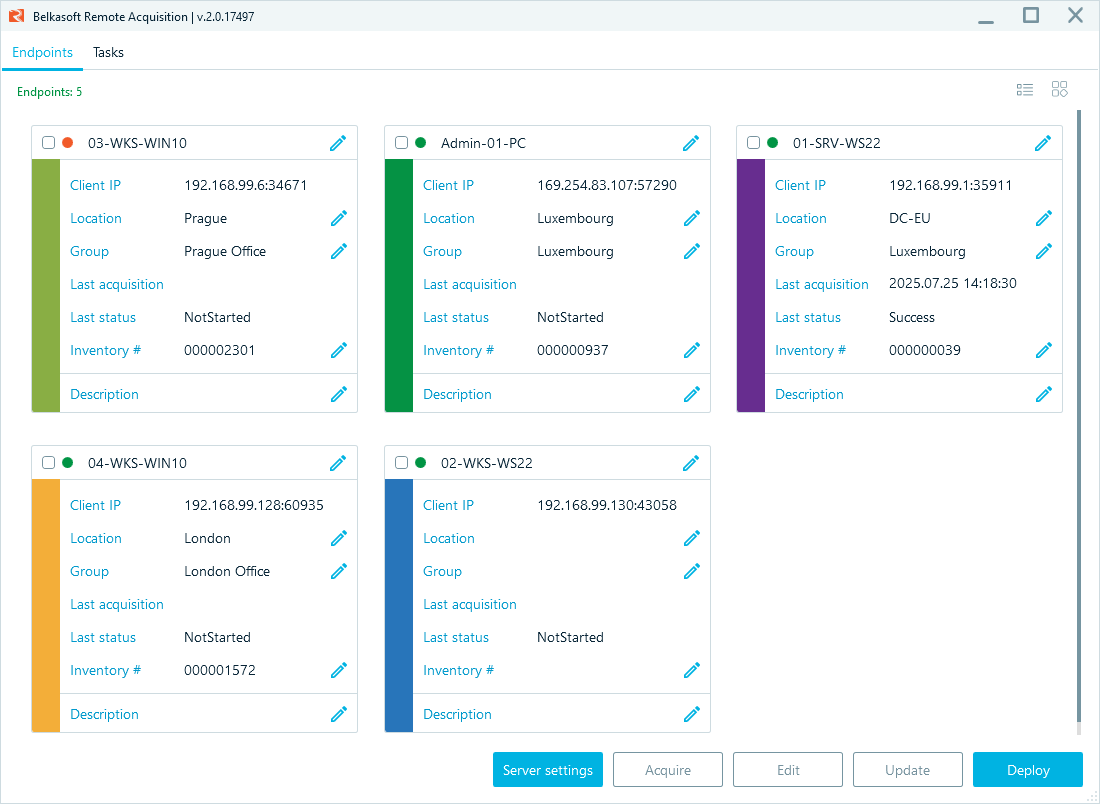
Belkasoft R Endpoints window
Note: While Belkasoft R supports multi-endpoint tasks for disks and RAM, remote mobile acquisition can only be performed on one endpoint at a time.
After you launch the task, it runs in the background. Use the Tasks window to track task execution. It shows start time, status, and execution duration. You can open the task log by double-clicking the task name.
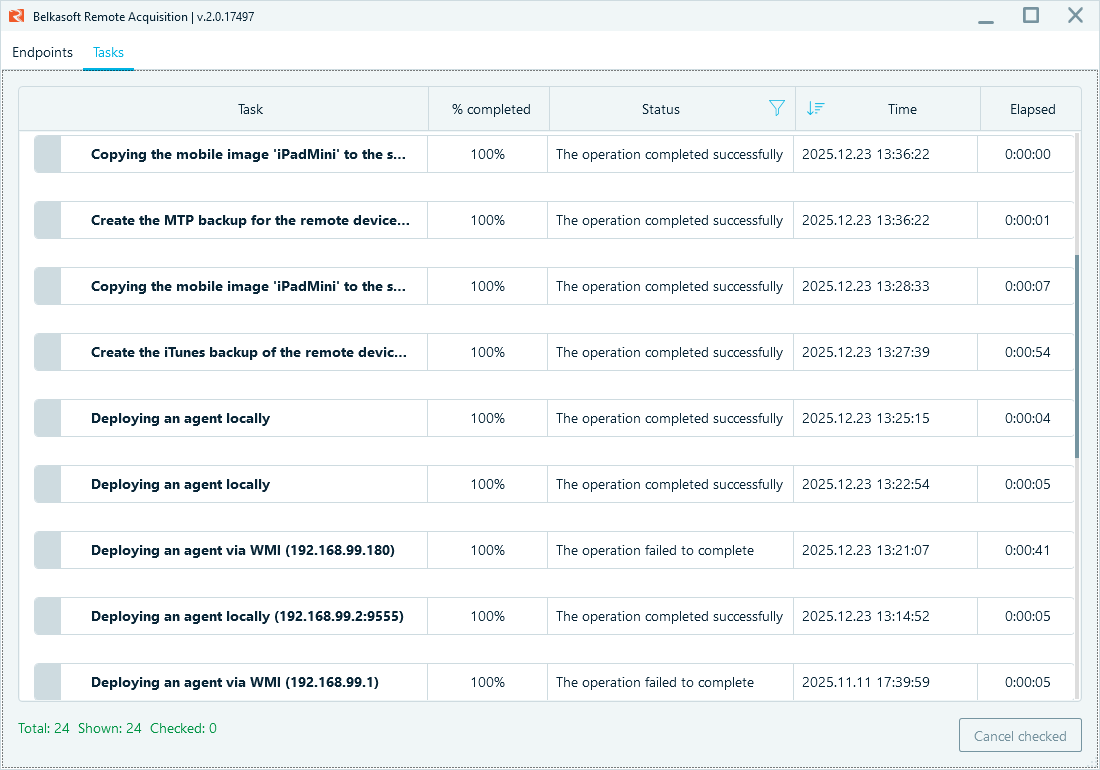
Belkasoft R Tasks window

Acquisition options by mobile platform
Belkasoft R supports different acquisition methods for iOS and Android devices. You can choose the method that matches the device condition, whether it is in a standard state, rooted, or jailbroken.
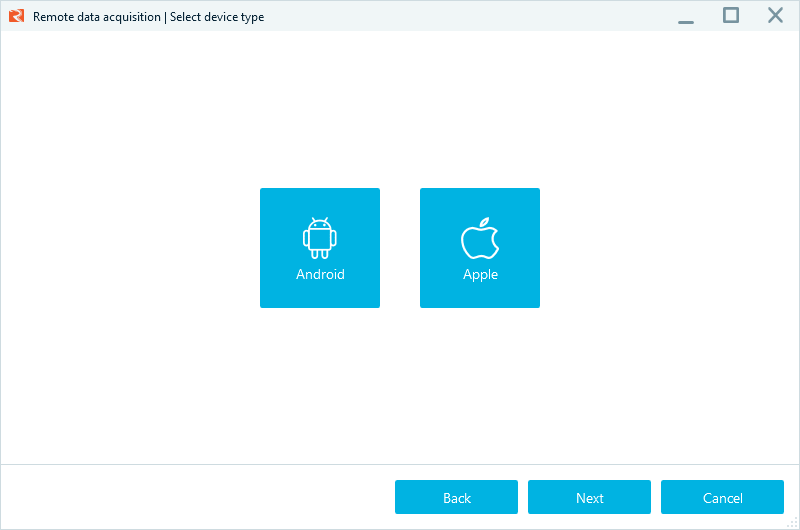
Selecting the device type
Remote acquisition methods for Android devices
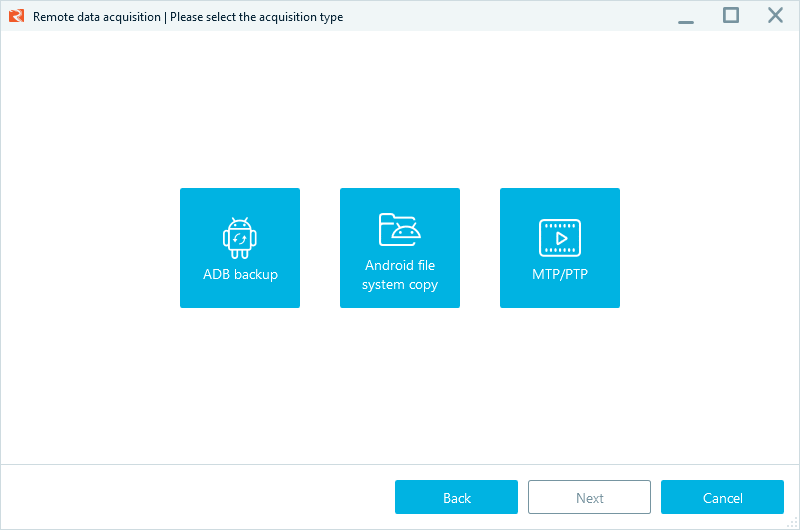
Android acquisition options
When acquiring an Android device, you can choose from three methods:
- ADB backup: This is the standard method for most Android devices, utilizing the built-in Android backup protocol (ADB).
- Android file system copy: This method is designed specifically for rooted devices. It provides deeper access, allowing for the copying of file system data that is otherwise inaccessible.
- MTP/PTP: This option uploads data via the Media Transfer Protocol or Picture Transfer Protocol, useful for collecting media files like photos and videos.
Remote acquisition methods for iOS devices
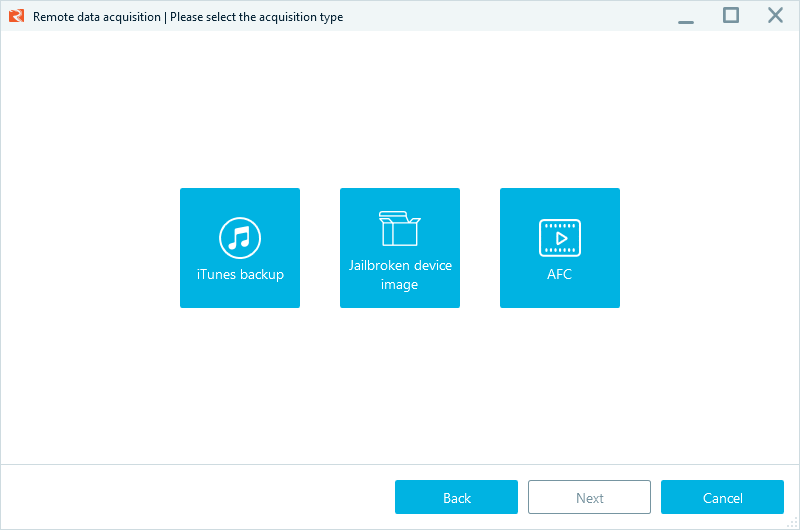
Apple device acquisition options
For iPhones and iPads, Belkasoft R also offers three types of data collection:
- iTunes backup: The standard approach for iOS data collection. It can include media files, call logs, messages, contacts, emails, notes, and data from some third-party apps such as WhatsApp and Viber.
- Jailbroken device image: If the remote device is jailbroken, this method can provide full file system access, rather than a standard backup.
- AFC (Apple File Conduit): This method allows for the collection of media files from the /private/var/mobile/Media folder.
Running the remote mobile acquisition
Once you have selected a device acquisition method, the further acquisition process is straightforward for both types of devices.
Android
Belkasoft R will wait for the target device to be connected and identified at the endpoint. Choose the identified device and click Next.
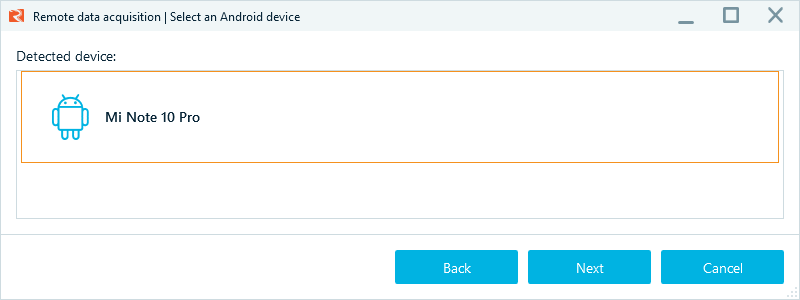
Selecting your Android device
When running the ADB acquisition method, Belkasoft R will also prompt you to confirm that the endpoint operator has unlocked the device and enabled USB debugging. Click Next.
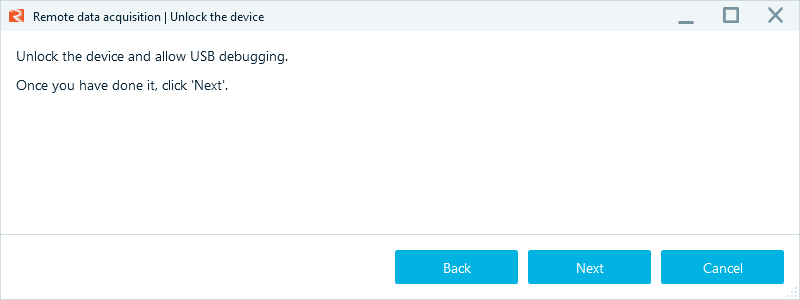
Prompting to unlock the device and enable debugging
On the last screen, choose the image folder on your server and click Start.
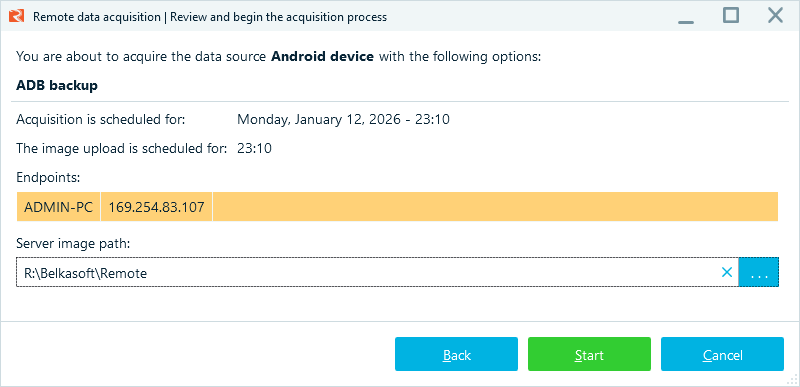
Belkasoft R's server-side acquisition settings
Once device data is acquired, Belkasoft R will download it to the target folder.
iOS
After the device type and acquisition method are selected, Belkasoft R detects the connected device and displays its Name and UDID.
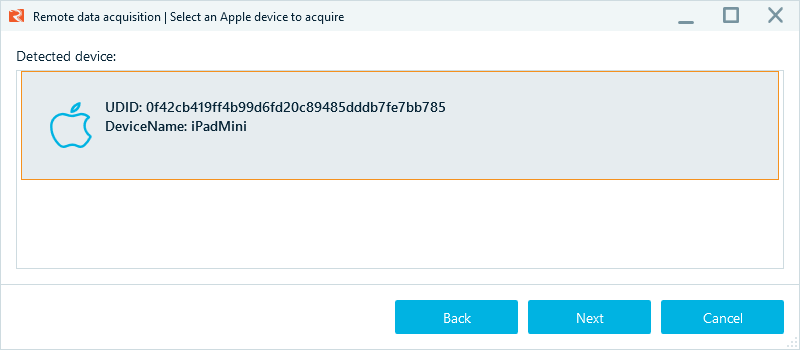
Selecting your Apple device
With the iTunes backup acquisition method, you can either have the device unlocked remotely or use a valid lockdown file to access its data:
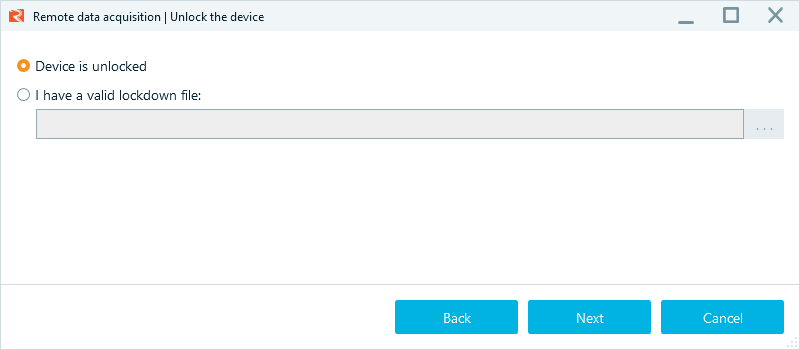
Prompting to unlock the device or provide the lockdown file
You then define where the image will be stored:
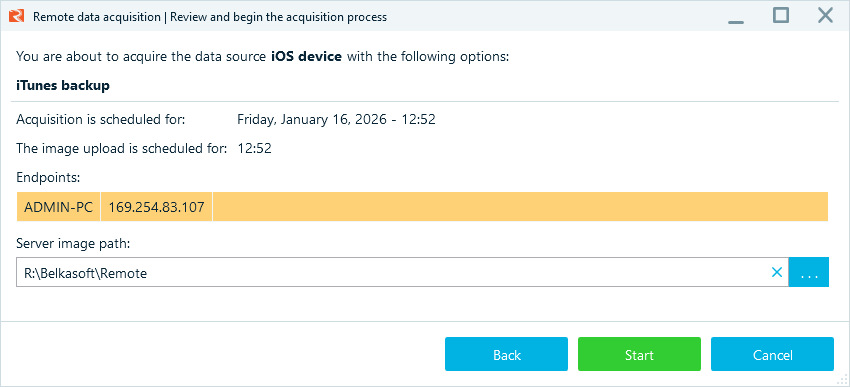
Belkasoft R's server-side acquisition settings
After reviewing your configuration, including the scheduled time for imaging and uploading, click Start.
The agent on the remote machine handles the extraction and securely transfers the image back to your central server.
Bring mobile evidence into your remote workflow
Remote mobile acquisition with Belkasoft R helps you stay in control when the device is not within reach. You can collect evidence through an endpoint computer that is already on site, without adding shipping and scheduling delays.
This workflow is ideal for corporate investigations and distributed teams. To receive actionable data, simply deploy a temporary or resident client on the endpoint, connect the mobile device, and run the acquisition—all from a centralized hub.
When you need mobile evidence from a remote location, use Belkasoft R to acquire it, document the process, and move the case forward.