How Command-Line Automation Works in Digital Forensics Software
Command-line automation in digital forensics software means running acquisition, analysis, and reporting tasks through a configuration file or script instead of the graphical interface. This approach lets a lab process one case, or a queue of cases, without an examiner clicking through each step by hand. Labs use it to clear backlogs overnight, apply the same analysis profile to every case, and deploy the same tool across many examination machines. The underlying extraction logic does not change—only who, or what, triggers it changes.
In this article we use Belkasoft X as a working example, since it ships command-line automation as a built-in part of the product. Acquisition, analysis, and reporting run from a JSON configuration file passed to the command line, with no extra module or license.
What command-line automation means in a forensic tool
Three different things get called automation in digital forensics, and mixing them up causes most of the confusion around this topic.
- CLI-driven automation. A configuration file plus an executable, with no graphical interface required. This article focuses on CLI approach.
- Macros or scripting inside a GUI. A recorded or scripted sequence of clicks within the graphical tool itself. Macro automation still requires the interface to stay open, and usually a person to watch it.
- External orchestration platforms. SOAR (Security Orchestration, Automation, and Response) tools are built for incident-response ticketing and playbooks, not for processing forensic images. See the FAQ below for the difference.
Within CLI-driven automation, labs generally use one of two patterns:
- Fully unattended runs. A script or a scheduler starts the process, and acquisition, analysis, and reporting complete with nobody watching. This is the usual choice for overnight batches.
- Semi-automated runs. An examiner creates the case and selects the source, and the configuration handles the repetitive analysis and reporting that follow.
These two patterns carry different risk profiles. Acquisition automation touches the original evidence, so it needs strict controls around write blocking and hash verification. Analysis automation works from an image or export that was already acquired, so it puts the evidence itself at less risk. The output still requires review either way.
Automation workflow in Belkasoft X
In Belkasoft X, automation relies on two components: the Command Line Configurator, a graphical tool that generates a JSON configuration file, and Belkasoft.Cli.bat, the executable that reads that file and runs the case.
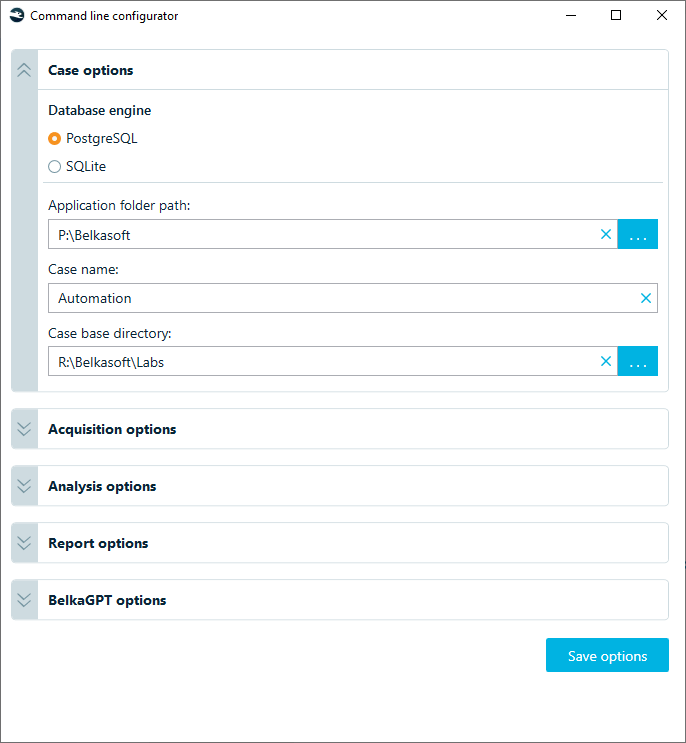
The Command Line Configurator window
Once the configuration file exists, a single command can cover acquisition, analysis, and reporting in one pass:
Belkasoft.Cli.bat -optionsPath="path\to\your_config.json"Note: This command needs administrative privileges, because acquisition and low-level disk access require them.
What a CLI configuration actually controls
An automation configuration in Belkasoft X is a JSON file with four working sections, plus an optional fifth for AI-assisted analysis:
- Case options—case name, case folder, and the application data folder.
- Acquisition options—source type (a local disk, a Tableau write-blocker device), image format, and hash algorithms.
- Analysis options—which data source to process and which named analysis profile to apply.
- Report options—one or more output formats and the folder to write them to.
- BelkaGPT options (optional)—whether to run an AI-assisted analysis pass with a predefined list of questions against the extracted data.
You can skip sections that do not apply to a given run. If the images already exist, skip acquisition. If you only need extraction with no report, skip the report section. Field names and JSON structure depend on the product version, so check the automation walkthrough or the current Belkasoft X documentation before you script against a specific field name.
Note: The trial version of Belkasoft X does not support automation through the Command Line Configurator. Testing automation requires a licensed installation.
Scaling from one case to a queue
The Command Line Configurator and a single Belkasoft.Cli.bat call handle one case. A backlog of ten or fifty devices needs one more layer: a wrapper script that generates a configuration file per data source, then works through the queue.
A short Python script can loop through a folder of configuration files, call Belkasoft.Cli.bat against each one, and write a success or failure line per case, with a pointer to a debug log for anything that fails. That is enough to leave a queue running overnight and come back to a folder of processed cases and a log that shows what happened to each one. The mechanism does not change—one configuration file, one command—it is simply repeated and logged instead of started by hand. The automation walkthrough includes a working version of this script.
Chaining multiple tools in one pipeline
CLI automation does not have to stop at a single vendor tool. A script—written in Python, PowerShell, or batch—can run one tool CLI, wait for it to finish, then feed the output into a second tool CLI or API. At this point “automation” becomes “orchestration”: a sequence of processing stages, each config-driven, chained together by a script rather than by hand.
Standard export formats make orchestration possible. A proprietary format locks output to one tool. An open or widely supported format lets output from one stage become input for the next.
| Format | Data type | Typical use in a pipeline |
|---|---|---|
| Project VIC / VICS | Media hashes and categorization | Feeding a media-classification or hash-matching tool |
| RSMF | Chat and messaging thread structure | Import into an eDiscovery or review platform |
| CSV / JSON | Structured artifact data | General-purpose scripting, custom reporting, ticketing systems |
The Report options section in Belkasoft X can produce several of these formats—CSV, XML, HTML, KML, PDF, RSMF, Project VIC/VICS, and others—from the same run, which makes the product a workable first or last stage in a multi-tool pipeline. For an example, see how Belkasoft X and Griffeye DI Pro exchange data through Project VIC.
When a tool in the chain has no command line and no API, a graphical automation library such as PyAutoGUI can drive it by simulating clicks and keystrokes. Two drawbacks come with that approach: it runs slower than a native call, and it breaks whenever the target interface changes.
What automation changes for a lab
Running a case from a configuration file is a small technical step. Deciding which cases to run that way is the larger decision. Automation removes the setup and extraction work that comes before review. It does not remove the review itself, but it does change four things:
- Shorter queues. Devices process overnight or over a weekend instead of waiting until an examiner is free.
- Consistency. Every case in the queue gets the same analysis profile, so the artifact categories do not vary by examiner.
- Examiner time. Standard extraction and standard reporting are repeatable, low-judgment tasks. Automating them leaves more time for interpretation.
- Multi-machine setup. Labs that run several isolated workstations or virtual machines configure each one the same way instead of repeating manual setup on every box.
None of this changes what the tool extracts or how it extracts it. It changes who starts the process and how many cases run in parallel. The sections below cover what that means step by step, what it means for the evidence, where automation does not fit, and what to have in place first.
Manual vs. automated: What changes at each step
The table below shows the same four-step workflow run manually and run through a CLI configuration. The comparison shows where the human steps out, and where a human stays involved regardless of automation.
| Workflow step | Manual (GUI) | Automated (CLI) |
|---|---|---|
| Case creation | Examiner enters case name and folder in the interface | Read from the configuration file (case name, case folder) |
| Acquisition | Examiner selects the device or image and picks the method | Configuration specifies the source type and acquisition method |
| Analysis profile | Examiner picks which artifact categories to process | Configuration references a named, pre-built profile |
| Report review | Examiner reviews results as the case runs | Examiner reviews the generated report after the run completes |
The last row is the one to remember. Automation removes the clicking, not the reviewing. A completed unattended run is a starting point for analysis, not a finished conclusion.
Forensic soundness and chain of custody in unattended runs
Automation changes what starts a step. It does not change how the step works. The same validated extraction logic runs whether an examiner clicks a button or a script passes a JSON file to the command line.
Three things still need a documented answer:
- Who created the configuration, when, and why.
- How a failed or partial run gets logged and reviewed. A run that fails silently overnight is a real risk, so logging and error handling deserve as much attention as the configuration.
- Whether hash verification and write blocking are enforced the same way during unattended acquisition and manual acquisition.
Validation and documentation requirements apply to the tool and the process, not to the way a run was started. Standards bodies treat automation as ordinary practice, not as a special category. SWGDE guidance on tool validation and the NIST Computer Forensics Tool Testing Program both address validating the tool and documenting the process, and neither treats automation as a separate legal question. Validate the tool, keep the configuration file with the case record, and stay ready to explain both. Automation does not create an admissibility problem by itself. An undocumented change to the process does, whether that change is automated or manual.
When not to automate your workflow
Advice to automate everything ignores how forensic work actually goes. Some situations call for staying manual, regardless of what the tooling can technically do:
- Novel or unusual devices. No validated analysis profile exists yet, so build and test one by hand first.
- Cases under a manual-documentation policy. Some agencies require a documented, step-by-step manual chain of custody. Technical capability does not override policy.
- Early triage of unfamiliar evidence. The examiner still has to choose an acquisition method before a scripted run makes sense.
- Encrypted sources. Command-line runs skip decryption, so handle encrypted sources in the graphical interface.
Getting started: a prerequisites checklist
Confirm that each of these is in place:
- A validated analysis profile exists for the device or data type in the queue.
- The lab has agreed on a naming convention for cases and output folders.
- The licensing method—dongle or electronic—is confirmed and scriptable across the target machines.
- Someone is named as responsible for reviewing logs and error output from unattended runs.
- A standard export format is chosen for any tool downstream in the pipeline.
Then start small:
- Pick one repeatable, low-risk task, such as a standard mobile extraction with a PDF and a CSV report.
- Build the configuration and run it once by hand to confirm the behavior.
- Run it unattended against a test case.
- Compare the output with a manually processed baseline.
- Document the process, then move it into the production queue.
Conclusion
Command-line automation means running acquisition, analysis, and reporting from a configuration file. The payoff is consistency on repeatable tasks and a shorter queue. Documenting who configured a run, and how failures are caught, matters as much as getting the JSON file right.
Belkasoft X includes automation capabilities at no extra cost. The software also supports silent installation and licensing from the command line, so a lab can set up several examination machines the same way instead of running the installer on each one.


See Also
- Automating Digital Forensic Workflows with Belkasoft X
- Automation with Belkasoft X: Installation and Licensing
- Automation with Belkasoft: Orchestrating Belkasoft X and Griffeye DI Pro
- DFIR Labs in the Cloud: The Future of Digital Forensics
FAQ
Can digital forensics software be run from the command line?
Yes. Many forensic suites, including Belkasoft X, include a command-line mode that runs acquisition, analysis, and reporting from a configuration file instead of the graphical interface.
How do you automate forensic evidence acquisition?
Specify the source (a disk, an image, or a connected write-blocker device), the acquisition method, and the output location in a configuration file, then launch the command-line executable against that file. Acquisition automation still requires the same write-blocking and hash-verification controls as a manual acquisition.
Is unattended forensic processing admissible in court?
Automation does not itself grant or deny admissibility. The same validation and documentation standards that apply to any forensic tool and process apply to an automated one: who configured it, what it ran, and how failures were caught and reviewed.
What is a JSON configuration file used for in forensic automation?
It stores the parameters for a run—case details, acquisition source and method, the analysis profile to apply, and report formats—so the same run can be repeated exactly or scripted across many cases.
How do you silently install forensic software on multiple machines?
Most forensic tools support unattended installers for multi-machine deployment, separate from case-processing automation itself. Flag names and syntax vary by tool and release, so confirm current installer options against the vendor documentation before scripting a rollout.
Can you combine two different forensic tools into one automated pipeline?
Yes, using a script that runs one tool CLI, then passes its output—usually in a standard format such as CSV, JSON, or Project VIC/VICS—into a second tool CLI or API.
What tasks in a digital forensic investigation should not be automated?
Acquisition of a device type without a validated profile, cases where policy requires manual chain-of-custody documentation regardless of technical capability, and early triage where the acquisition method itself requires a judgment call.
Does Belkasoft X support command-line automation?
Yes. Belkasoft X includes the Command Line Configurator and a command-line executable, Belkasoft.Cli.bat, that runs acquisition, analysis, and reporting from a JSON configuration file. The trial version does not support automation, so testing it requires a licensed installation.
What is the difference between forensic automation and SOAR/incident-response orchestration?
SOAR platforms automate incident-response workflows: ticketing, alert triage, playbooks across security tools. Forensic CLI automation automates evidence processing itself: acquisition, artifact extraction, and reporting on a specific device or image. They solve different problems and are not interchangeable.