Analyzing Windows BAM and DAM with Belkasoft X

Windows logs a large amount of user and system activity, creating forensic artifacts that support digital investigations. These artifacts can provide evidence of program execution, recent application activity, and the account context associated with that activity, even when a user has tried to cover their tracks.
This article covers forensic analysis of the Background Activity Moderator (BAM) and Desktop Activity Moderator (DAM). We will explain the functions and forensic significance of these artifacts, as well as how they can be used in digital forensics and incident response (DFIR) workflows alongside other Windows artifacts when examined with Belkasoft X.
Why BAM and DAM matter
The first question in endpoint triage is simple: what ran on the machine, and under which account context. Windows BAM and DAM answer that question directly: both components write registry entries that record the full path of an executable and the most recent recorded execution time, associated with the user security identifier (SID). Windows can write this timestamp when the process starts and update it again when the process terminates. These records provide the following forensic value:
- Evidence of execution: BAM and DAM can provide evidence of recent program execution even when the executable is no longer present.
- Insider threats intelligence: These artifacts can reveal whether an employee used unauthorized applications, such as data exfiltration tools.
- Compliance and policy enforcement: Teams can check if users ran forbidden or unapproved software, such as cloud storage or peer-to-peer applications.
- Correlation with other evidence: BAM and DAM become more useful when linked with event logs, Prefetch, LNK files, or Shellbags. This builds a timeline of user behavior.
- Survival after cleanup: These records live in the SYSTEM hive, not in the file system. Deleting the executable does not immediately remove every BAM entry. However, Windows can remove the associated entry during a later boot, so survival after deletion is not guaranteed.
BAM and DAM artifacts help you validate alerts, investigate policy breaches, and establish the execution path and account behind a security incident.
Where to find BAM and DAM records
On modern Windows deployments (Windows 10 version 1809 and later, including Windows 11), Background Activity Moderator (BAM) data resides under HKLM\
Legacy Windows 10 versions (prior to version 1809) stored this data under HKLM\
Note: On a live system, BAM and DAM data is available under HKLM\
Legacy BAM and DAM paths
The path for BAM and DAM records changed from \UserSettings to \State\
Two checks follow from this:
- Look in both locations before concluding that a user has no BAM data.
- If entries exist in both, treat the \State\
UserSettings path as current.
How long Windows retains BAM and DAM records
BAM records are typically short-lived. By default, BAM uses a retention period of approximately seven days. It is the default for most Windows systems, but it may be overridden by the UserSettingsLifetimeMs setting under Control\
Background Activity Moderator (BAM): Evidence of program execution
BAM stores recent program execution records under user-specific registry keys identified by SID. Each record is stored as a registry value and includes the executable identifier and a binary structure with associated timestamp:
- Name—for conventional executables, the value name normally contains the executable path in NT device notation, such as \
Device\ rather than a drive-letter path such as C:\HarddiskVolume3\ Users\ rsmith\ Downloads\ tool.exe Users\ . The HarddiskVolume number should not be assumed to correspond to a particular drive letter without resolving the system's volume mappings. Execution record of packaged applications may appear by Package Family Name, which consists of the package name followed by a 13-character Publisher ID, for example AppleInc.rsmith\ Downloads\ tool.exe iCloud_ .nzyj5cx40ttqa - Data—a REG_BINARY structure whose first eight bytes contain a little-endian Windows FILETIME. BAM can update this timestamp when a process starts and again when it terminates, so it should not always be interpreted strictly as the process start time.
Note: SequenceNumber and Version, when present under the SID key, are BAM metadata values rather than executable records. They have a different data type and structure.
To retrieve the execution timestamp manually:
- Take the first 8 bytes from the Data field.
- Interpret the 8 bytes as a little-endian unsigned 64-bit integer. If you are converting the hex value manually with a tool that expects the most-significant byte first, reverse the byte order.
- Convert the resulting value to decimal. A Windows FILETIME represents the number of 100-nanosecond intervals elapsed since January 1, 1601, UTC.
- Convert the FILETIME value to a UTC date and time.
In the screenshot below:
- The first 8 bytes for Element.exe are EB E6 4C 41 F0 86 DA 01.
- Written in most-significant-byte-first order, the value is 01 DA 86 F0 41 4C E6 EB.
- In decimal, the value is 133567505406682859. This value corresponds to April 5, 2024, 00:29:00.6682859 UTC, which matches the timestamp shown in Belkasoft X.
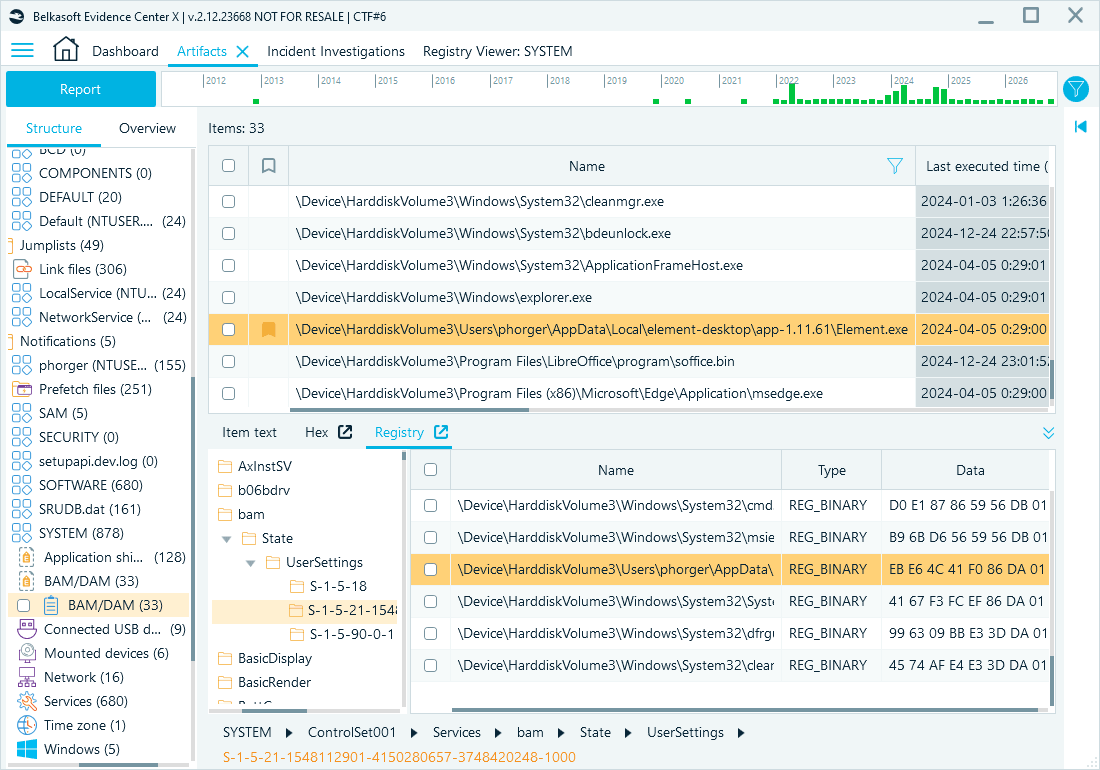
Belkasoft X automatically extracts and interprets BAM records from the Windows Registry
BAM records can provide strong evidence that a program executed, but they do not capture every execution. Common exceptions include executables launched from USB drives or network shares, while console applications may also fail to generate BAM entries reliably. In our testing:
- A console tool launched directly in its own window, such as whoami.exe, appeared in BAM.
- Tools run from an existing shell did not appear. BAM recorded only the shell, such as cmd.exe or powershell.exe.
- Terminal replacements had the same effect. With ConEmu set as the default terminal, console tools started from File Explorer opened inside ConEmu and left no BAM entry of their own.
Desktop Activity Moderator (DAM): A companion to BAM
Desktop Activity Moderator (DAM) originated with Windows 8 Connected Standby and later became part of the Modern Standby power-management model. DAM works similarly to BAM but was designed as a Windows power-management component that helps conserve battery life by managing processes on devices such as tablets and lightweight laptops. DAM records use the same basic registry representation as BAM: an executable path as the value name and a FILETIME in the value data. In corporate environments, this information is useful for investigating company-issued devices, such as tablets or laptops.
One practical difference matters. On a desktop workstation without Modern Standby, the dam key commonly exists but holds no execution entries. An empty dam key is not evidence of deletion, and it should be explained rather than left unmentioned in a report. On a live system, run powercfg /a to list supported sleep states and confirm whether the hardware supports Modern Standby.
For a deeper insight into the Windows Registry, read our articles on its structure and acquisition, as well as artifacts and analysis techniques.

What BAM and DAM cannot tell you
These artifacts answer a narrow question, so it is important to highlight the limitations before your findings become part of a report:
- No command-line context. BAM records the executable path and execution time, but not the command-line arguments, parent process, or exit code.
- Console applications may be absent. Console applications launched through a command-line interface do not reliably produce BAM entries.
- Attribution stops at the SID. The record links execution to an account, not to a person at the keyboard.
- The path is not the file. The value name records where the executable ran from. It does not confirm that the file at that path today is the file that ran.
- Incomplete coverage. Applications launched from network shares and removable media commonly do not produce BAM entries. The exact conditions governing this behavior are not documented by Microsoft.
- Short retention. Roughly seven days of inactivity is observed default behavior. If the SYSTEM hive is collected two weeks after an alert, the record is likely gone.
Using BAM and DAM in DFIR workflows
When you combine BAM and DAM with other Windows artifacts, you gain a more coherent view of user actions and system activity during a corporate investigation:
- Evidence of malware execution: Even if an attacker deletes malware, BAM or DAM entries may still keep execution details, such as the executable path and its last recorded run time.
- User behavior analysis: BAM and DAM entries link program execution to a user SID. When you correlate these records with Prefetch, UserAssist, LNK files, and event logs, you can identify many executed programs, see patterns of regular activity, and approximate the order and time of execution.
- Strengthening reports: Evidence from BAM and DAM provides verifiable, user-linked activity records for legal or compliance needs.
The following table compares these artifacts with other common forms of Windows user activity evidence:
| Artifact | What it records | Forensic value | Storage location | Limitations |
|---|---|---|---|---|
| BAM | Recent executable activity, last recorded execution time, executable path, and associated user SID | Program execution, user attribution, execution time | Registry (SYSTEM hive), Services\ | Short-lived. Executables on network shares or removable media are generally not recorded |
| DAM | Recent executable activity, last recorded execution time, executable path, and associated user SID | Program execution, user attribution, execution time | Registry (SYSTEM hive), Services\ | Populated mainly on devices with Modern Standby. Short-lived. Executables on network shares or removable media are generally not recorded |
| Shellbags | Folder viewing preferences, folder interaction history | Folder access, deleted folders, and removable media | Registry (USRCLASS.DAT, NTUSER.DAT) | Tracks folders only, parsing complex |
| Prefetch | Executable name, run count, last run times, and files loaded at launch | Execution counts, file paths, run times | File system (C:\Windows\ | Stores limited run history |
| LNK Files | Shortcuts to files and folders | File and folder access, removable media use | File system (Desktop, Recent Documents) | Can be deleted or modified |
| UserAssist | Program usage statistics | Execution counts, last execution time | Registry (NTUSER.DAT) | ROT13 encoded, can be cleared |
Automating BAM and DAM analysis
Manually parsing these registry artifacts is time-consuming and prone to error. Integrated forensic suites like Belkasoft X automate this process during data source analysis with:
- Automated artifact extraction: With the Incident Investigations module, the tool automatically identifies and parses registry hives to extract BAM and DAM data, along with Shellbags, Prefetch files, LNK files, and dozens of other artifacts. In the Incident Investigations window, the Version and SequenceNumber metadata records are skipped for BAM/DAM.
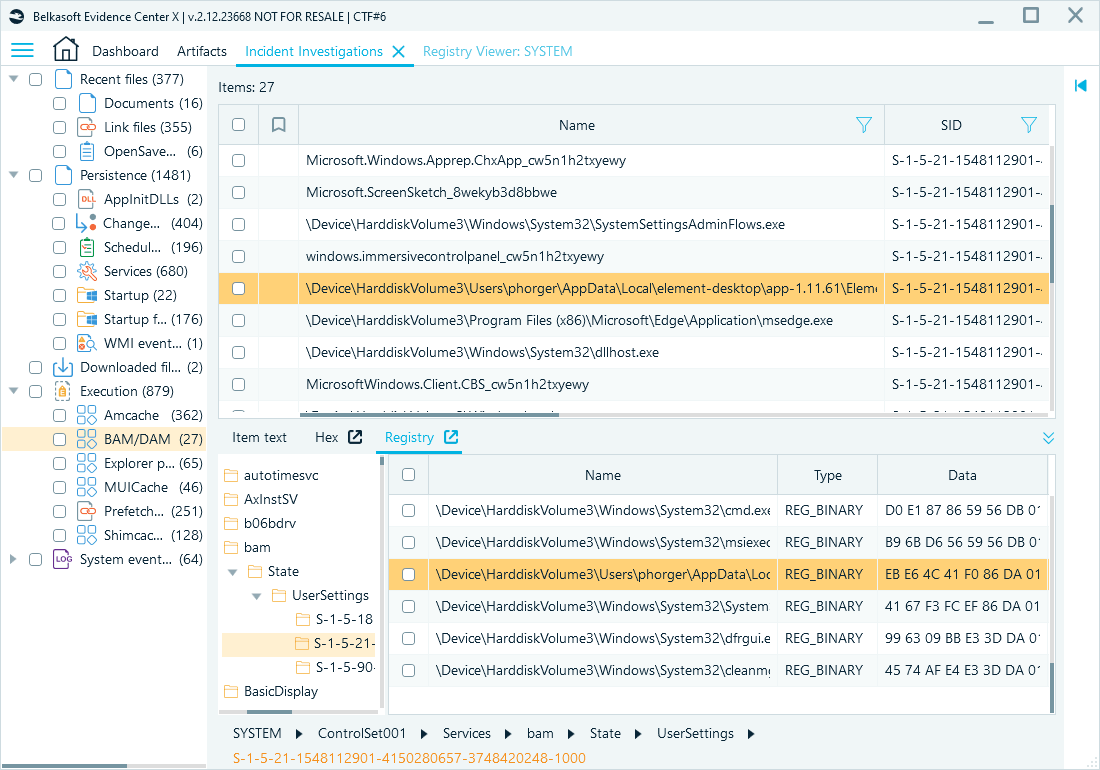
The Incident Investigations module aggregates artifacts most used in incident response
- Manual verification: The built-in Registry Viewer opens NTUSER.DAT, SAM, SOFTWARE, SYSTEM, and other hives from the case, or a standalone hive from the host machine. The right pane shows Name, Type, and Data for the selected key, and the Copy data context menu item copies the raw value data, so you can check a decoded timestamp by hand.
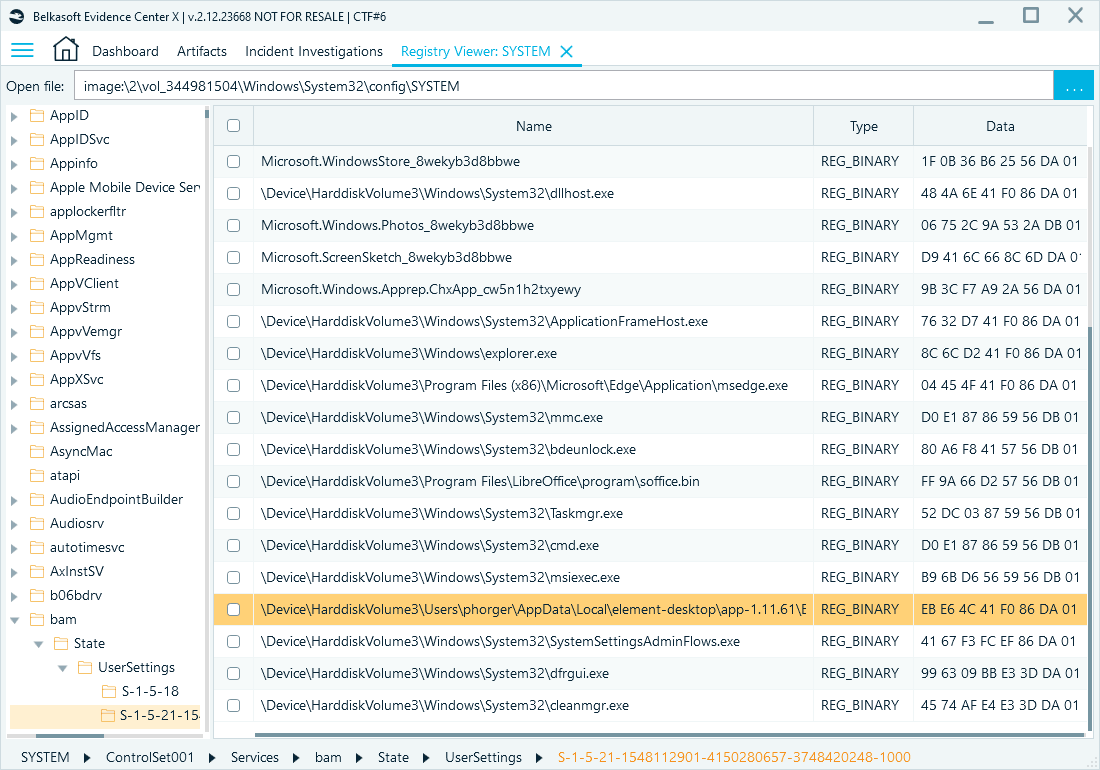
Registry Viewer allows you to review any BAM/DAM artifact and neighboring keys manually
- Correlation and analysis: Filters, bookmarks, and Timeline functionality help examiners see connections between artifacts. For example, a BAM entry showing a suspicious executable was run can be linked to a Prefetch file confirming its execution, and a Shellbag entry can provide additional evidence that the associated folder was browsed.
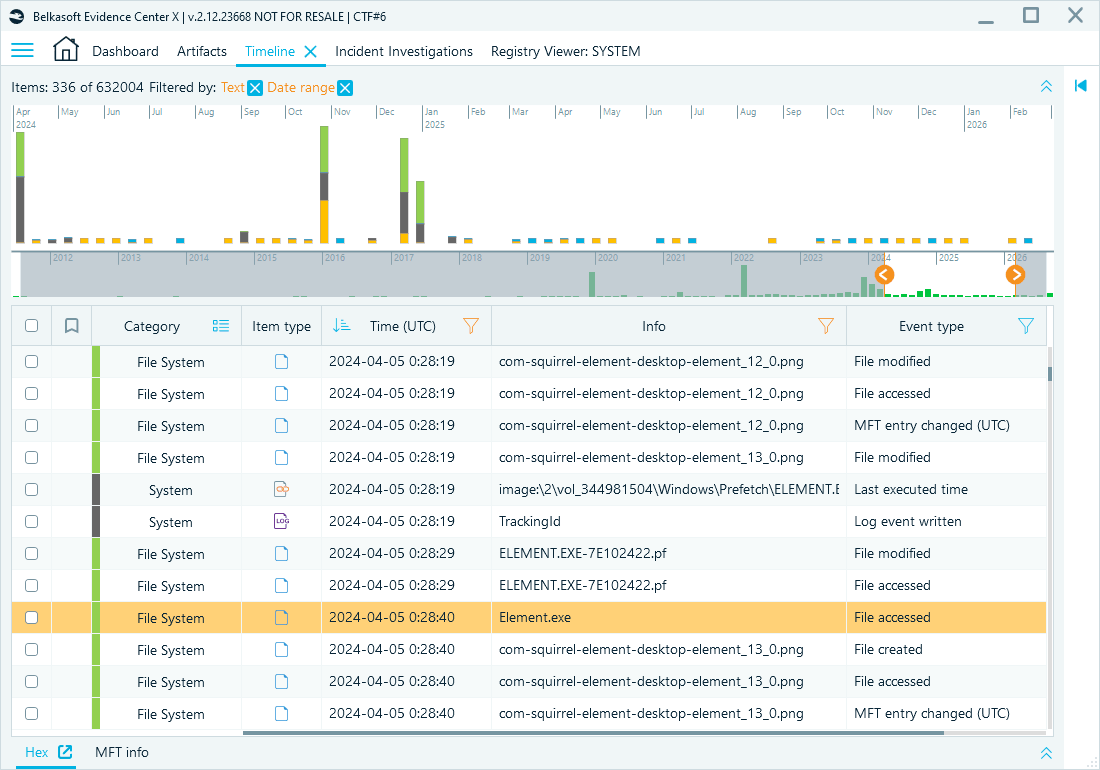
The Timeline window can help you correlate execution artifacts with related events
Every action leaves a trace
Artifacts such as BAM and DAM help examiners track program execution and user activity. These artifacts provide details that other logs do not capture. By understanding what each artifact tracks, where it is stored, and its forensic value, corporate IT and security teams can reconstruct events, attribute actions, and counter anti-forensic techniques. The combined analysis of these artifacts creates a more complete picture of an incident, allowing investigators to uncover activity that warrants further investigation. Belkasoft X extracts, parses, and correlates these artifacts automatically, so you can spend less time on manual parsing.
Frequently asked questions
What is the BAM registry key in Windows?
The BAM registry key contains records maintained by the Background Activity Moderator, a Windows component involved in managing background process activity and power consumption. Under each user SID, it lists the full path of executables and the time each one last ran. Investigators use it as evidence of execution with user attribution.
Where is BAM data stored?
BAM data is stored in the SYSTEM hive at HKLM\
What is the difference between BAM and DAM?
The record structure is identical: an executable path as the value name and a FILETIME in the first 8 bytes of value data. The difference is coverage. BAM is populated on most Windows 10 and Windows 11 systems, while the Desktop Activity Moderator key fills mainly on devices that support Modern Standby, such as tablets and thin laptops.
How long does BAM and DAM data stay in the registry?
Entries generally persist for about seven days of inactivity and may be removed earlier by system maintenance or reboots. Acquire the SYSTEM hive as early in the investigation as possible.
Does a BAM entry prove that a program was executed?
A BAM entry is strong evidence that an executable at that path ran at that time under that account, but it is not a complete finding on its own. It does not record run count, command-line arguments, or the person at the keyboard, and it does not confirm that the file at that path today is the file that ran. Corroborate with Prefetch or event logs.
How do you decode a BAM timestamp?
Take the first 8 bytes of the value data, reverse them because the value is little-endian, and convert the result to decimal. Read that number as a Windows FILETIME, which counts 100-nanosecond intervals since 1601-01-01 UTC. Convert to a readable date, then normalize from UTC to the case time zone at the reporting stage.
Does BAM record programs run from a USB drive?
Entries for executables launched from removable media and network shares are commonly absent. The exact conditions are not documented by Microsoft, so an empty result is not proof that nothing ran from a USB device. Check LNK files, Shellbags, USB device records in the SYSTEM hive, and Prefetch to cover that gap.
Is BAM still present in Windows 11?
Yes. Windows 11 keeps the Background Activity Moderator component and the same key structure under Services\
How does Belkasoft X extract BAM and DAM artifacts?
Belkasoft X parses the SYSTEM hive during data source analysis and presents BAM and DAM records in the Incident Investigations window, alongside Amcache, Shimcache, scheduled tasks, and other intrusion-related artifacts. You can open the same hive in the built-in Registry Viewer to inspect raw value data, and review decoded timestamps in the Timeline window.