Tips to Optimize DFIR Analysis Time in Belkasoft X

Data is not just growing, it is exploding. A single case can involve terabytes of storage across multiple devices and cloud services. The old-school approach of "image everything, analyze everything" is becoming practically impossible—or at least, strategically unwise when time is of the essence. Waiting days for a full forensic process to complete before you even look at the evidence is not an option when an incident is active.

To help you get to the "who, what, and when" faster, we have compiled a set of tips to optimize your workflow through flexible, granular analysis configuration in Belkasoft X. Read on to learn how you can streamline your forensic workflow.
Targeted analysis
Investigation without a plan can be chaotic. Start by narrowing the scope. The fastest analysis is the analysis you do not run.
You are not forced to process an entire disk image. Start with one concrete question, then configure the analysis to answer it first. Examples:
- Which machine first contacted the command and control server?
- Which application or browser made the connection to the server?
- Which user account executed the suspicious software?
- Which mailbox contains the phishing thread?
Once you have identified your key question, limit your analysis to the relevant devices, volumes, or partitions—to focus processing power on where the smoking gun is likely hiding.
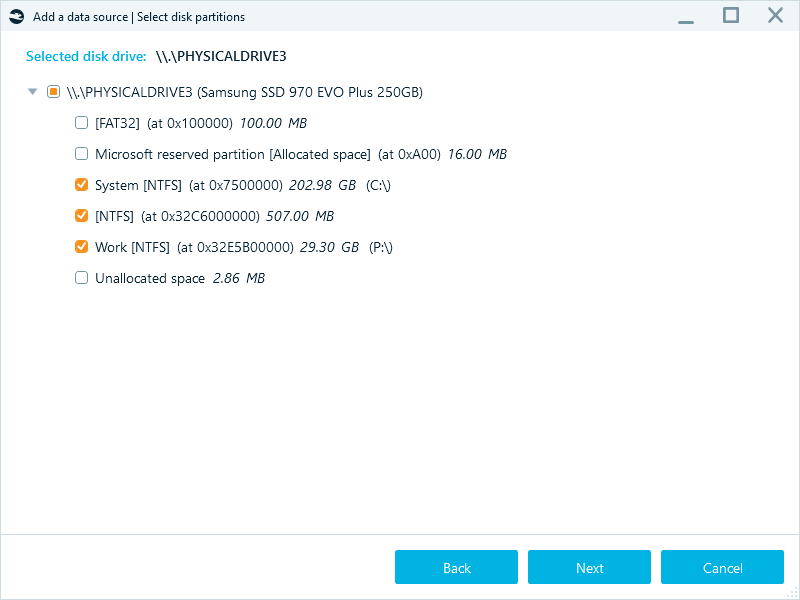
This approach helps you avoid spending hours on data sources you do not need yet.
Apply different strategies per partition
Not all partitions need the same level of attention. Analysis settings in Belkasoft X allow you to treat each of them individually.
In the Select analysis type window, you can fine-tune the options for every partition separately. For example, enable all analysis types and carving on the system drive while only running file system analysis and restoring the Recycle Bin on secondary storage partitions.
The operations taking significantly longer processing time are marked with the clock icon so that you can easily spot them in the interface.
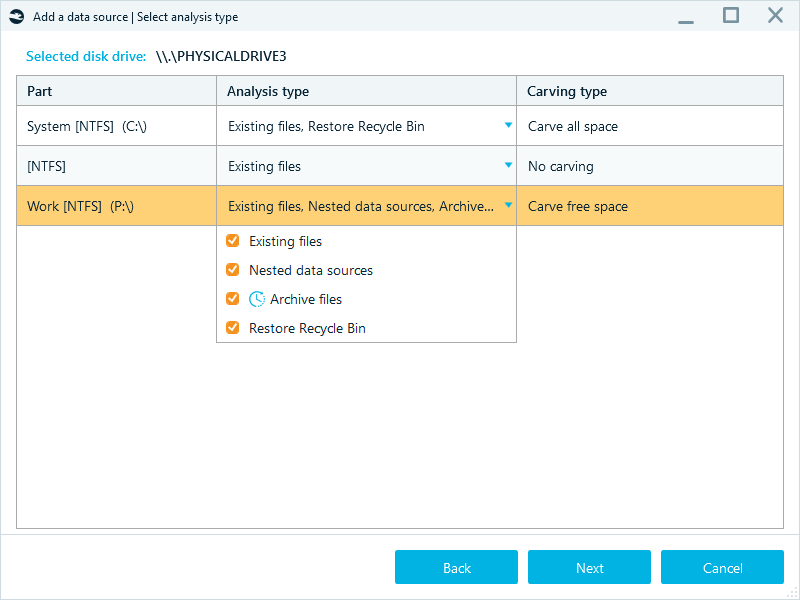
When defining the settings for partitions, you can also tune carving options to reduce the number of clusters to target during the analysis. If you work with NTFS volumes, you can enable the Carve free space option. This setting focuses carving on the space that NTFS has marked as available for writing, which helps you avoid extra processing and recover deleted data faster.
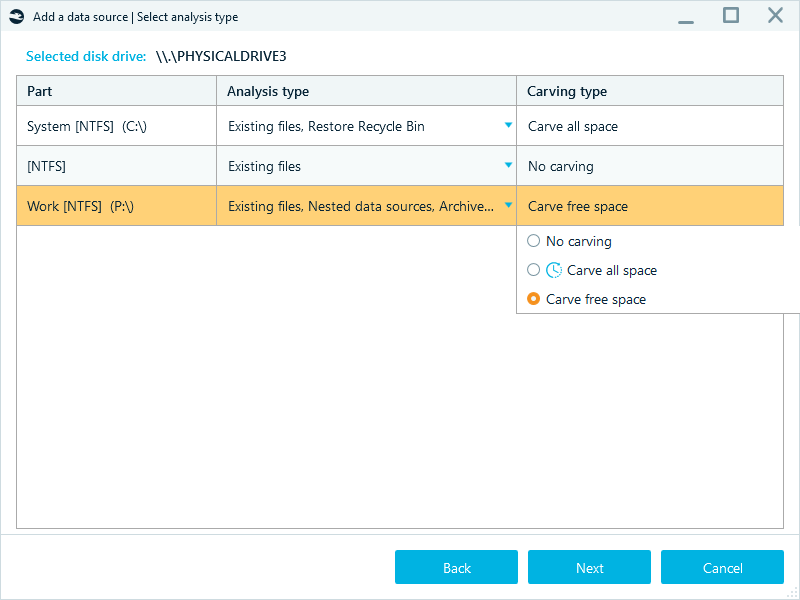
Carving all space of NTFS partitions may not be as fruitful as they store smaller files as resident data directly within the Master File Table (MFT), thus generating less slack space on disk and leaving carvers with less recoverable data overall.
Zero in on artifact profiles
Once the scope of the data sources to process is selected, tune your artifact extraction. Belkasoft X provides analysis profiles to help you control what the software extracts and how it processes the data. A profile groups artifact types, such as chats, emails, and system files, along with the other analysis options you need for a given case.
Some of the predefined profiles focus on operating systems like Windows, Android, or macOS. Others are built for particular types of investigations, such as triage, incident investigation, or internet activity tracking.
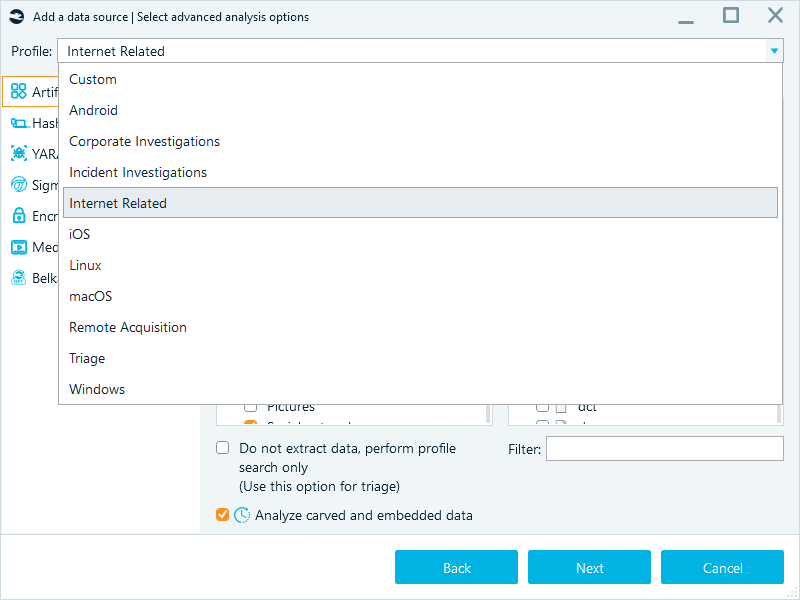
If the built-in options do not fit your needs, or you need further customization, you can set up a custom profile.
Select Artifact types (like Chats, Mails, or Browsers) to pick predefined sets of artifacts, and refine the selection in Applications and formats: if you only need Outlook emails or Microsoft Office documents, then select only the corresponding checkboxes:
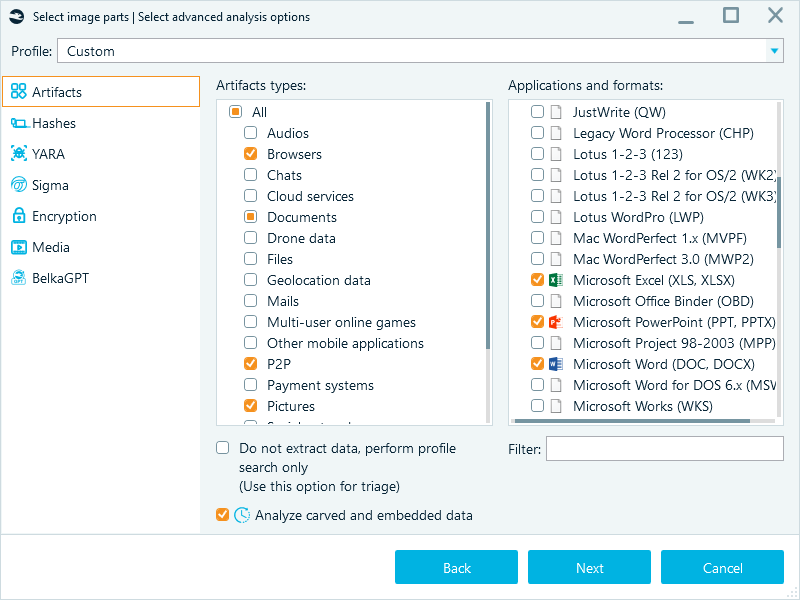
Such a "surgical strike" approach is one of the fastest ways to extract the information of primary interest from a data source. Again, you can always launch a full analysis for more insights later.
Skip carved and embedded data analysis until you need depth
Analysis of embedded data (like a picture inside a Word document or an email attachment) and carved fragments creates an additional volume of items for processing, which may take significant time. If your goal is initial analysis, uncheck Analyze carved and embedded data and dig deeper later if needed.
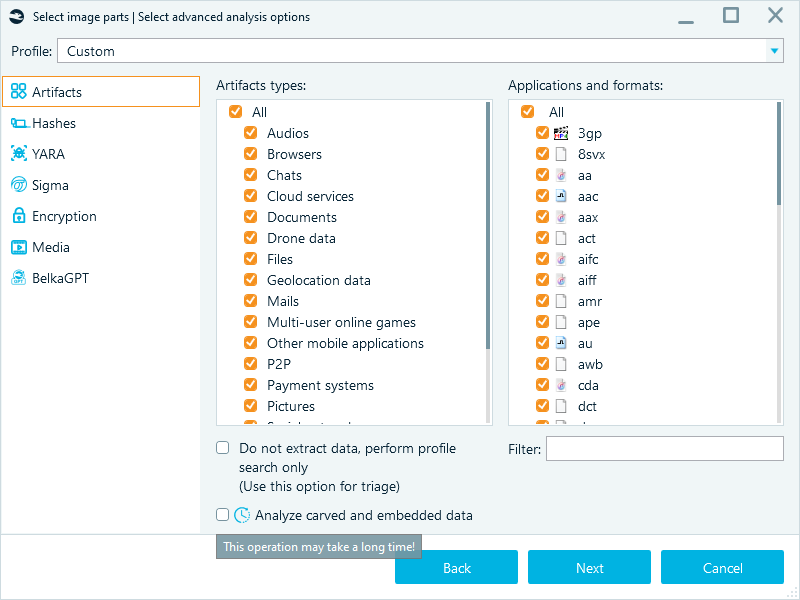
Note: Before selecting the exact artifacts to process, you can perform triage analysis by ticking Do not extract data, perform profile search only. With this option enabled, Belkasoft X will detect the selected artifact profiles without extracting all their data.
Defer encrypted data
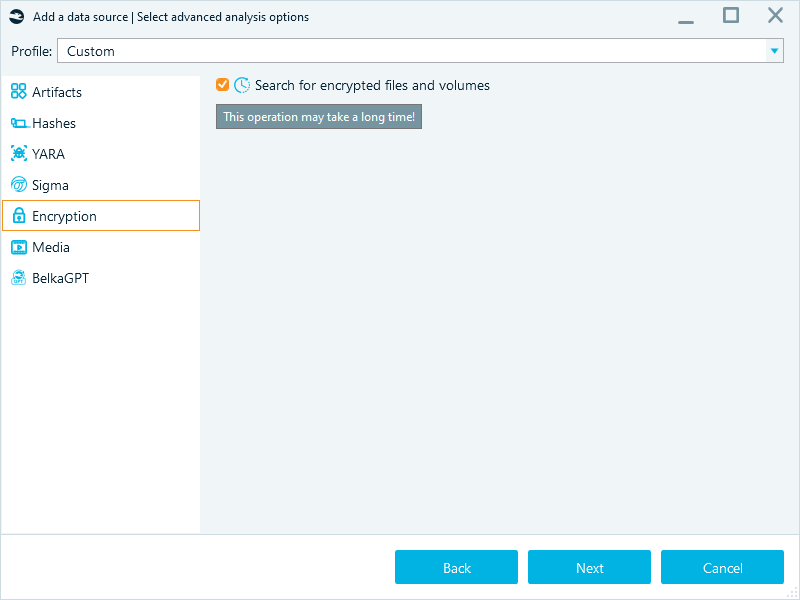
Belkasoft X can detect major types of file and disk encryption, including WDE (whole disk encryption) and FVE (full volume encryption). However, this task can be time-consuming.
You can skip the search for encrypted files and volumes during the initial analysis run: complete the main extraction first, then target specific locked files for decryption later on a dedicated machine.
Additionally, decryption itself can be resource-intensive, especially when you need to brute-force a password. You can skip decryption during the initial analysis and re-run it later from the Tasks window, or apply known passwords straight away.
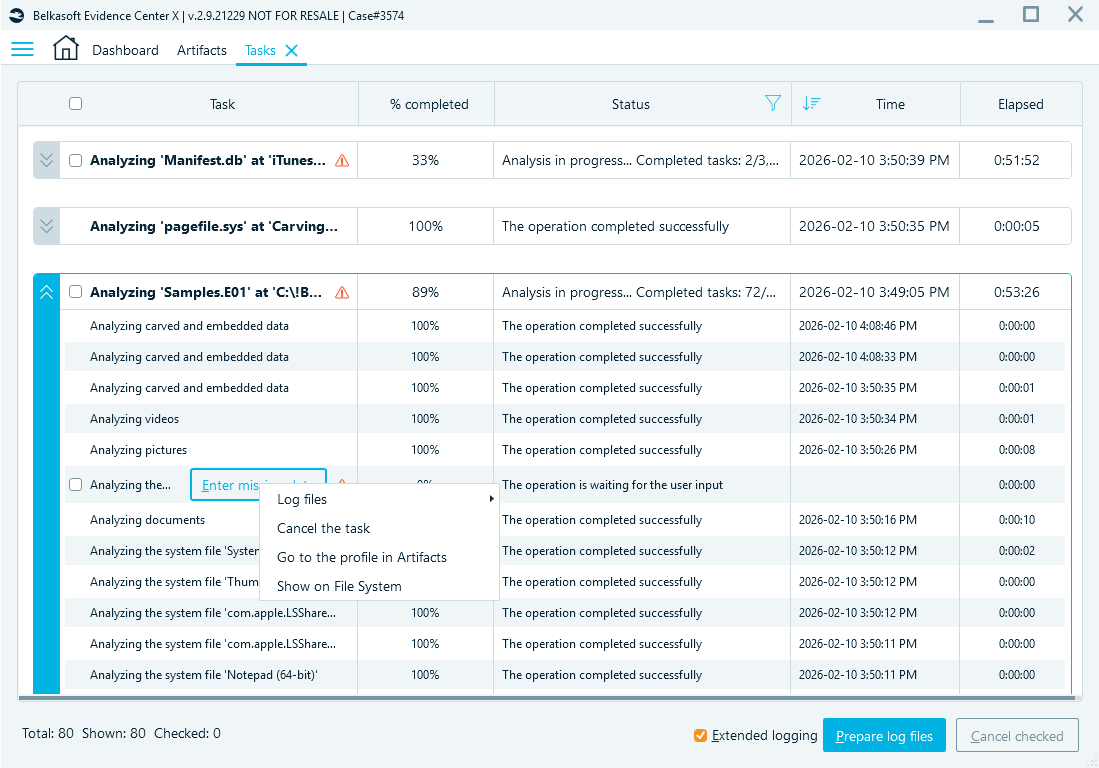
This option allows you to complete the extraction first and review the accessible evidence. After that, you can target specific locked files for decryption, such as Google Chrome data, mobile device images, or other encrypted files. You can also run these tasks later on a dedicated machine or outside working hours.
Optimizing hashset analysis
Hashset analysis can significantly reduce manual review. Whitelists help you filter out known benign files, such as operating system components. Blacklists help you flag known illegal or suspicious content.
However, calculating hashes for every file on a 4TB drive is not just a task, it is a massive time commitment. Limit hashing to what you really need:
- Set file size limit to skip extremely large files that would slow processing
- Only select hashing used in the reference hashset databases:
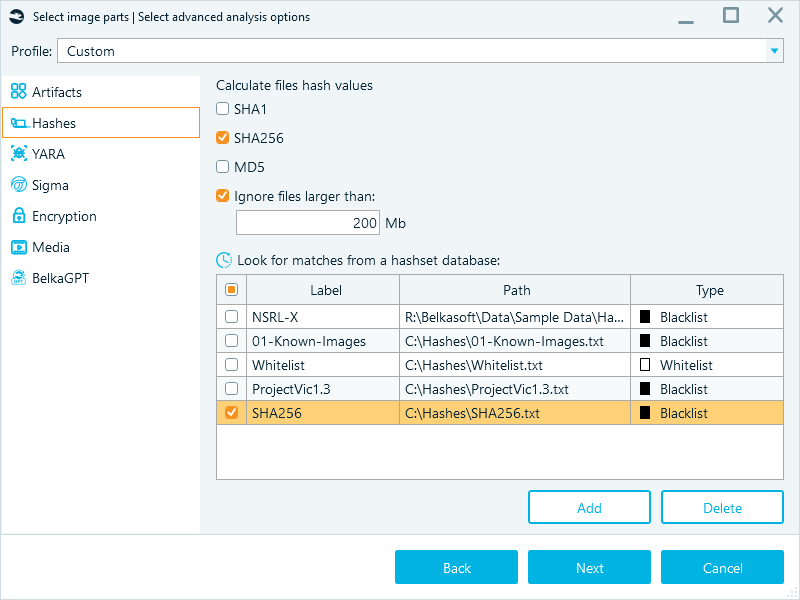
Another useful setting that optimizes hashset analysis is flexible hashset database selection. You can quickly add or remove reference databases (like NSRL or ProjectVIC) from your case configuration as your investigative focus shifts.
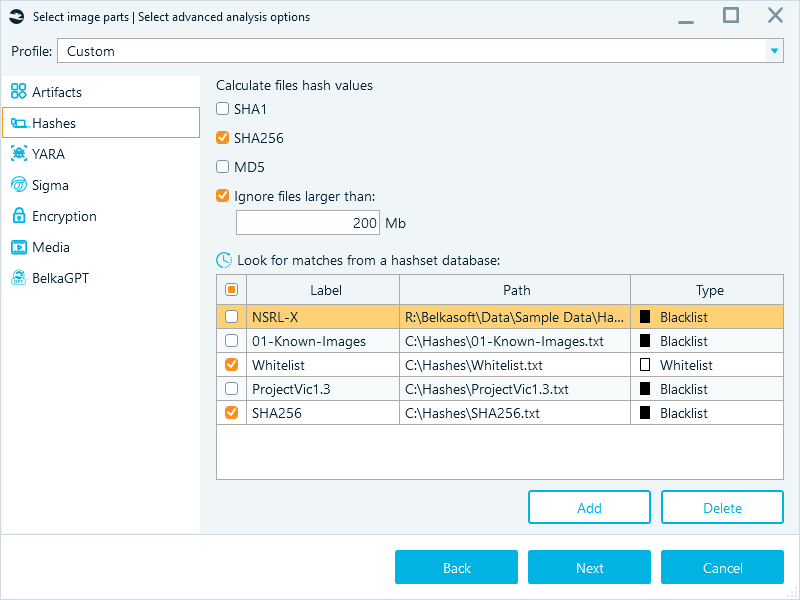
Using various preconfigured blacklists and whitelists can significantly expedite the processing phase of your investigation. Swap databases by applicable scenario, and do not forget to disable unnecessary ones.
Keeping the scope tight and offloading AI processing to BelkaGPT Hub
AI tasks, like image classification and speech recognition with BelkaGPT, require significant processing power, and on systems that rely solely on CPU or utilize entry-level GPUs, these tasks can experience performance bottlenecks. Belkasoft X lets you control when it runs BelkaGPT processing. You can run these tasks during initial processing, or defer them and run them only for the items you need. During analysis, you can granularly enable:
- Media analysis, such as picture description and classification, facial recognition, and speech recognition.
- Artifact processing that prepares extracted items for BelkaGPT questions and answers
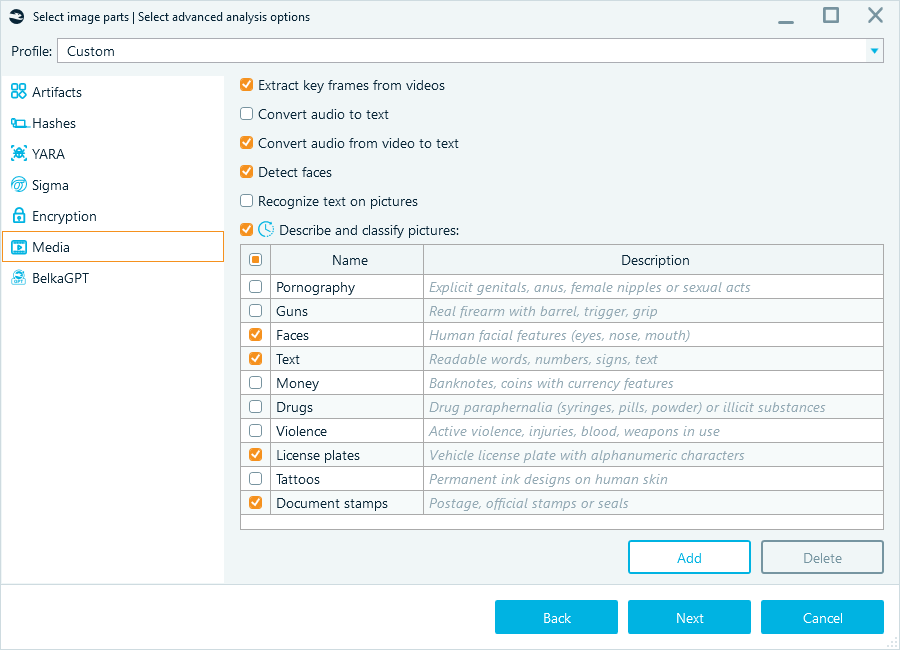
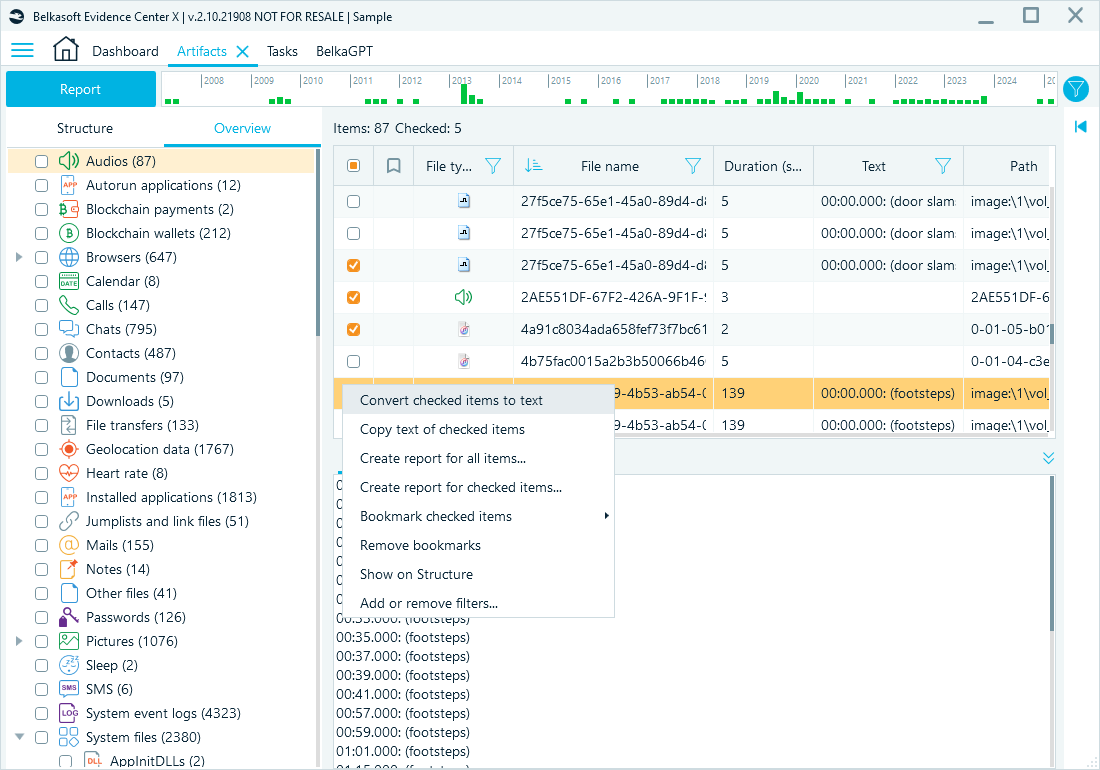
When your workstation has a compatible graphics processing unit (GPU), you can run these tasks without a major slowdown. If resources are limited, or if you want to start with a narrow set of sources, run artifact extraction first. Then open the Artifacts window and process only the applications, profiles, or items that matter for your current lead.
- Only run picture analysis or speech recognition for selected items:
- Run artifact processing for BelkaGPT at the data source, profile group, or profile level:
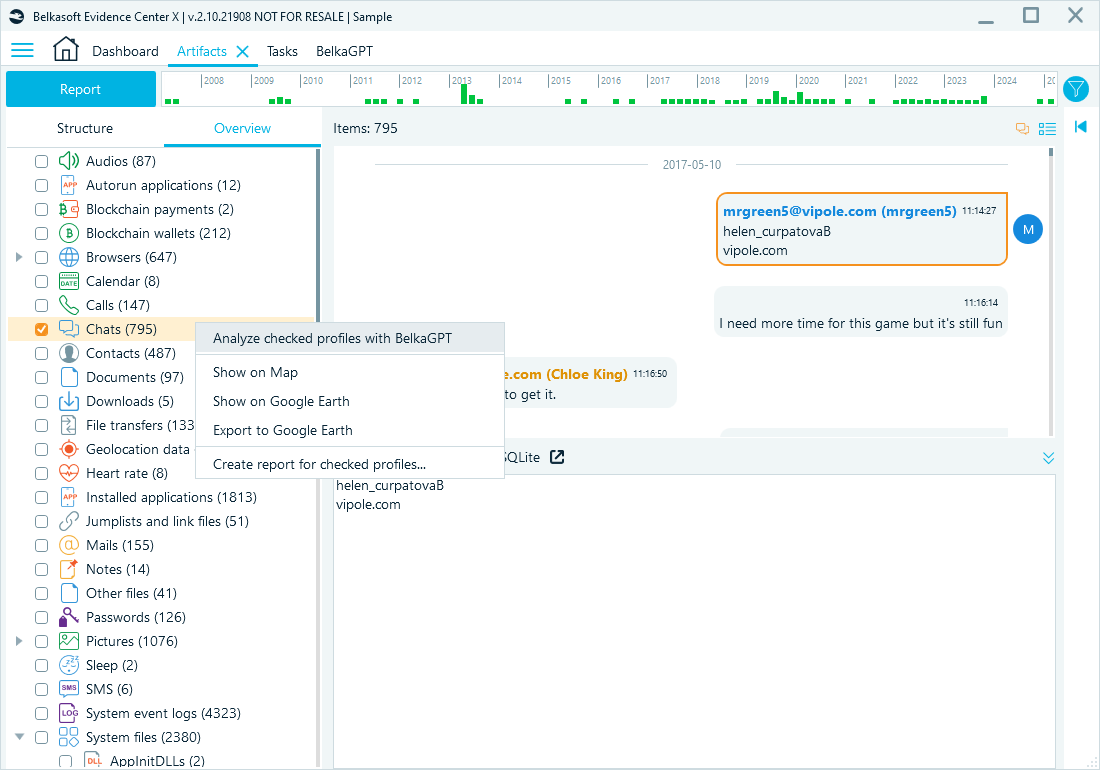
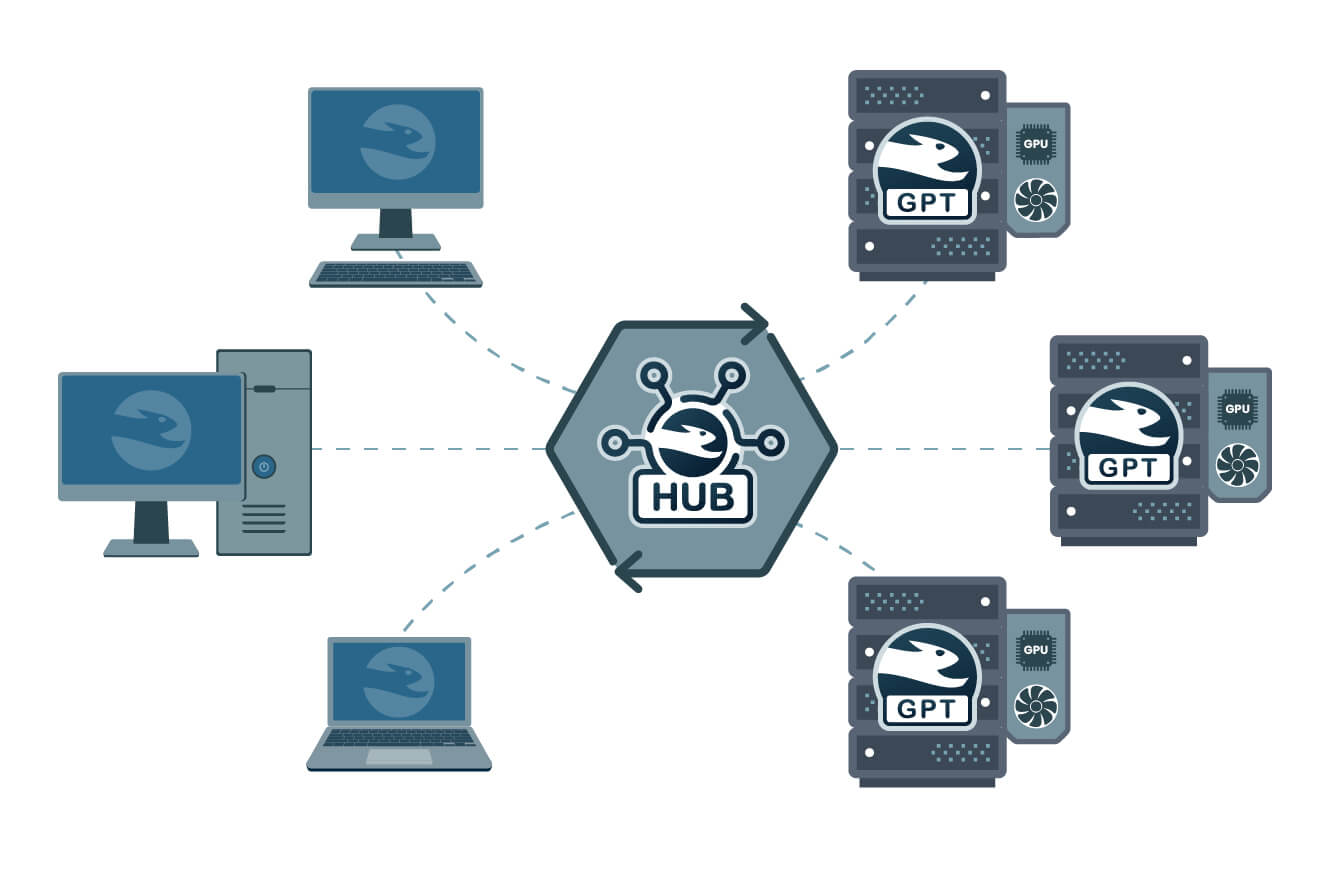
If your workstation is not equipped to handle compute-heavy artificial intelligence tasks, you can use BelkaGPT Hub to offload these tasks to high-performance (equipped with GPUs) resources on your local network. This solution provides a distributed infrastructure that allows you to share lab hardware and keep forensic workstationы light while using BelkaGPT features without processing delays.
Hardware, automation, and scalability
After you cut the scope and content, you can tune the remaining work. These settings help you avoid unnecessary bottlenecks.
Control your hardware usage
Maximum speed is useful, but you can adjust resource usage based on what else you need to do on your workstation: the goal is faster analysis, while keeping the system responsive.
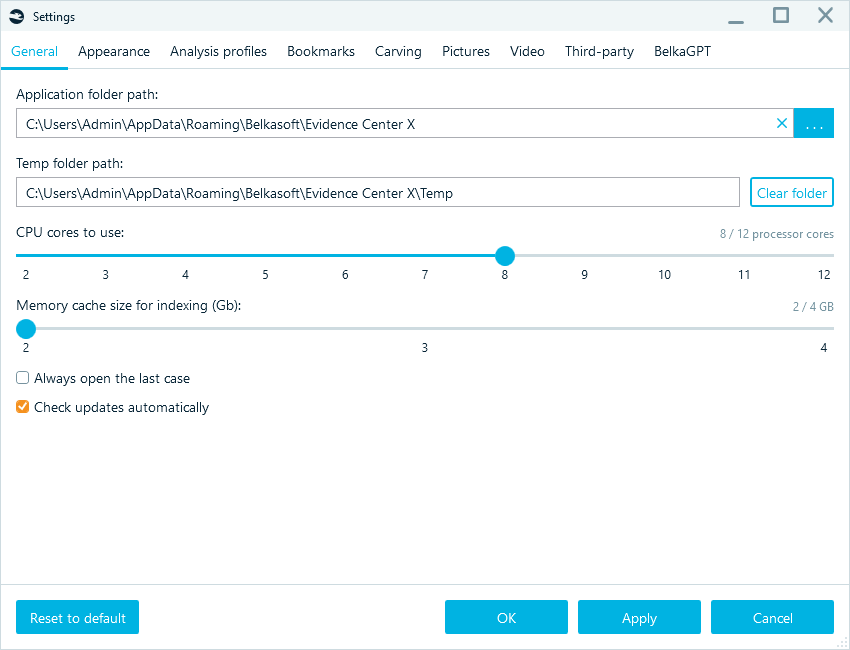
You can reduce or increase the number of CPU cores to use so you can keep working on other tasks, such as checking email or writing reports, without the interface freezing. Similarly, you can set the Memory cache size for indexing. On a high-RAM workstation (128 GB or more), increasing this value can speed up data indexing and improve search performance.
Repeatable work should not require repeated clicking. Heavy processing should not block active review.
Use purpose-built hardware when performance matters
Offloading work to the BelkaGPT Hub helps you keep analysis fast without tying up your main workstation or investing in top-end hardware for every analyst. However, DFIR work is still compute-heavy. Many tasks, such as indexing, hashing, decryption, and media processing, can exceed what a standard office desktop can handle in a reasonable time. For the ultimate configuration, run Belkasoft X on a specialized forensic workstation designed for high-throughput analysis and faster decryption.
If your PC lacks processing capacity, run analysis on a specialised workstation, and after it is finished, examine the case on another machine.
Fire and forget (CLI)
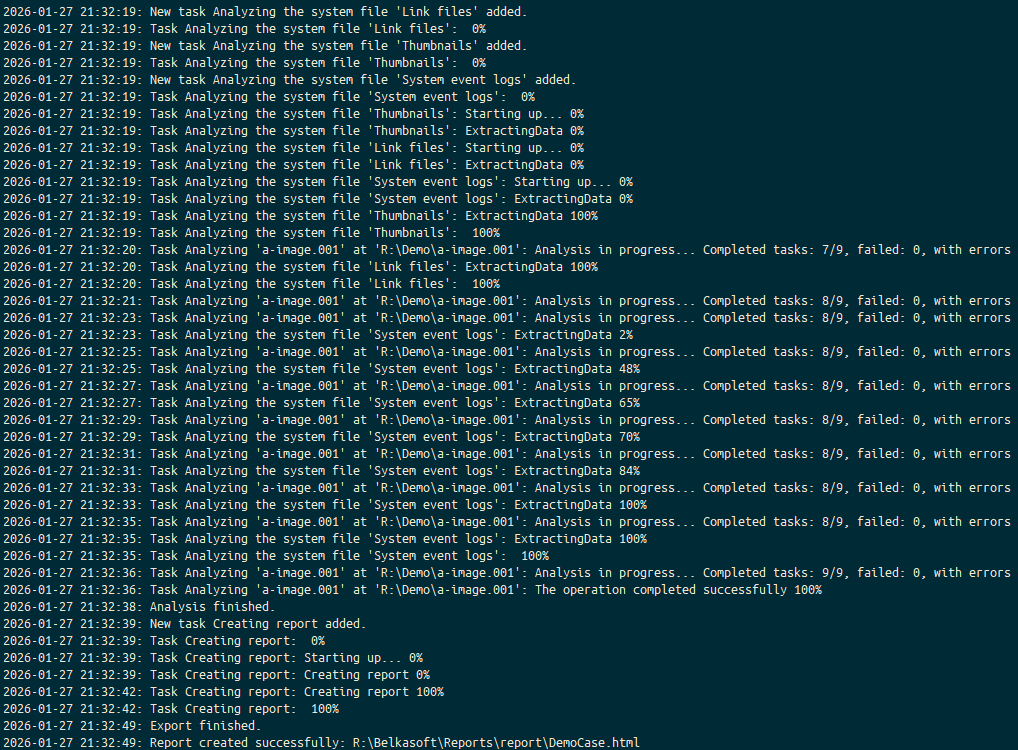
Belkasoft X features a Command Line Configurator that allows you to automate the entire acquisition and analysis process. You can script your workflow to ingest an image, run analysis based on a specific profile, and export a report, then hit Enter and walk away while the tool handles the routine processing.
Split review work across a team
You can export your case or its parts to Evidence Reader, a free case viewer.
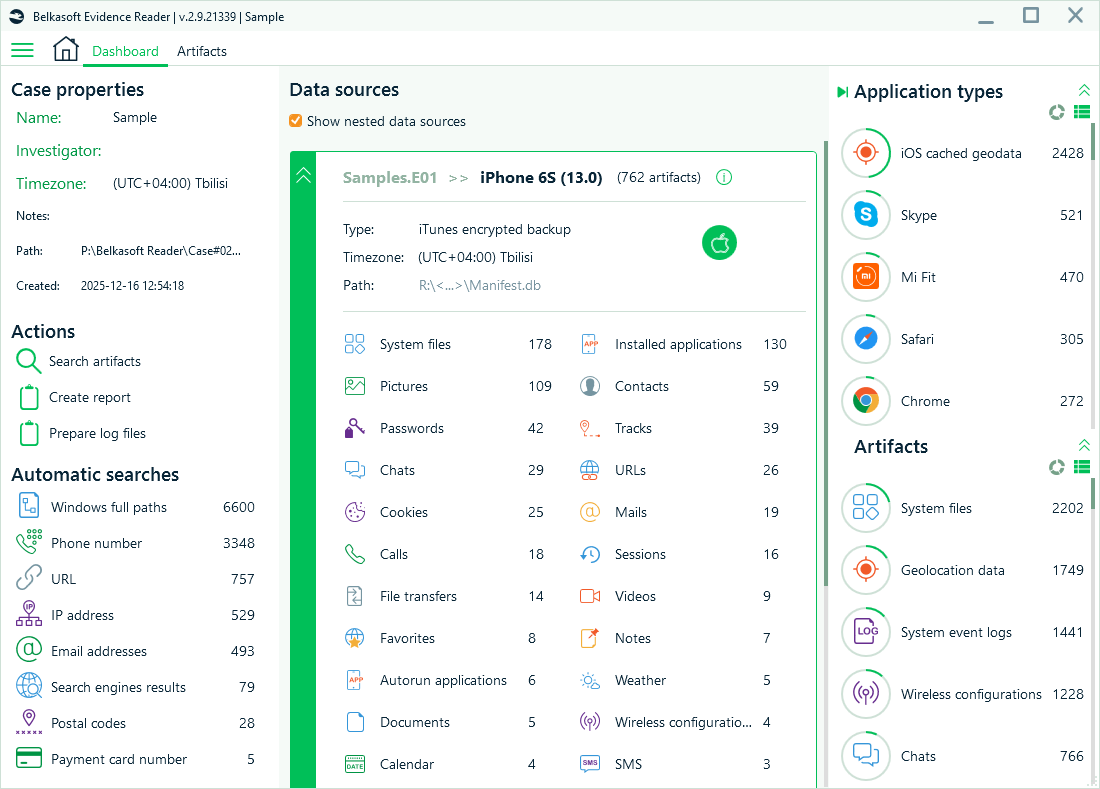
Belkasoft Evidence Reader allows you to:
- Distribute portable cases to team members so they can review different artifact sets simultaneously
- Create bookmarks and generate reports directly from Evidence Reader
- Use BelkaGPT to explore case data.
Conclusion
Fast DFIR results come from control, not shortcuts. By mastering these tips, you turn a week-long job into a day’s work. Belkasoft X does not force you into a black box process, but gives you the control to decide exactly how deep to dig and how fast to go.
When you scope processing by partition, extract only relevant artifacts, and tune performance settings, you reduce wait time without sacrificing clarity. Add automation for repeatable runs, and scale workload through infrastructure or team review when volume demands it.
Belkasoft X supports this workflow end-to-end. You decide what to process, when to go deeper, and how to allocate compute and reviewer time.
