Corporate Endpoint Triage: How It Works and What to Use
Corporate endpoint triage is the rapid inspection of a live employee workstation to determine whether it holds evidence worth pursuing, and to collect only the most relevant part of that evidence. It runs in minutes rather than hours, it targets selected artifact categories rather than the whole disk, and it produces a decision: escalate to a full forensic acquisition, or close the machine out. Corporate security teams use triage when an incident is suspected but not confirmed, when the machine cannot be taken offline, or when the responder on site is an IT administrator rather than a forensic examiner.
The sections below explain the method first, then show how one free tool, Belkasoft T, performs it on Windows endpoints.
What triage means in digital forensics
Triage borrows its name from emergency medicine, where limited staff sort patients by urgency. Digital forensics uses the same logic. When a team faces more devices than it can examine, or less time than a full examination requires, triage ranks the devices by relevance and inspects each one only deeply enough to make that ranking correct.
A triage pass answers four questions:
- Does this machine hold data relevant to the case at all?
- What kind of data is present, and which applications produced it?
- Which of that data should be collected right now, before it changes or disappears?
- Does the result justify a full forensic acquisition of this machine?
Nothing in that list requires a complete disk image. Each question can be answered by scanning for known application profiles and system artifacts, then copying out a selected subset. Triage output is therefore called a partial image: it is bounded on purpose.
Triage in a corporate environment
Law enforcement triage usually happens after a seizure, with administrator access arranged and the machine under full control of the examiner. Corporate triage rarely offers those conditions. Four constraints shape the work:
- Time. A suspected insider incident, malware alert, or policy violation often needs a first answer within the hour. A full disk image of a modern laptop takes hours and produces terabytes that still require processing afterward.
- Continuity of business. The endpoint is usually in production use. Removing it for half a day carries a visible cost, and in insider cases it also warns the subject.
- Access rights. Corporate machines run under standard user accounts by default. Local administrator rights are not guaranteed, and obtaining them may require a change request that defeats the purpose of moving quickly.
- On-site personnel. The nearest available person is often an IT administrator following instructions by phone, not a trained examiner.
Triage is designed around those constraints. A full image is designed around evidentiary completeness. Both are legitimate, and the choice between them is a case decision rather than a quality judgment.
The order of volatility
Triage follows the order of volatility, a principle documented in NIST SP 800-86 and in SWGDE guidance on volatile data collection. Data that disappears soonest is collected first. Memory contents vanish when the machine powers down. Network connections, running processes, and open handles disappear just as fast. Files on disk survive a reboot and can wait.
In practice, memory acquisition comes before disk artifact collection whenever memory is in scope. A machine that is already running is also worth triaging while it runs, rather than powering it down and imaging it cold, if the case may involve malware, encryption, or active remote sessions. For a longer treatment of why memory matters and which tool to use, see Why RAM dumping is so important and what tool to use.
When to run triage instead of a full image
Reach for triage when the following apply:
- You need a fast initial answer about whether evidence exists and what kind it is.
- The machine cannot leave active service for hours without disrupting the business.
- The responder on site lacks guaranteed administrator rights or examiner-level time.
- The immediate goal is deciding whether full acquisition is justified, not building the complete evidentiary record yet.
Reach for a full image instead when the case already carries an evidentiary commitment: a litigation hold, a criminal referral, a regulatory inquiry, or a dispute headed for court. In those cases triage still has a role. It tells you which machines to acquire, and in what order.
Triage versus full forensic imaging
| Aspect | Triage | Full forensic image |
|---|---|---|
| Time to result | Minutes | Hours, depending on disk size |
| Scope | Artifact categories selected by the operator | Entire disk or volume, bit for bit |
| Typical decision point | Confirm evidence exists and gather leads | Committed evidentiary or litigation-hold requirement |
| Storage and logistics | Low: output fits on portable media | High: dedicated media and longer chain-of-custody handling |
| Who can run it | Examiner or guided IT staff | Trained examiner with prepared equipment |
| Result | A decision about what to do next | A complete record for examination and disclosure |
Belkasoft T: a triage tool for Windows endpoints
Belkasoft T (Belkasoft Triage) is a free, portable digital forensics tool that performs the workflow described above on a live Windows computer. It detects application profiles and system artifacts, then exports a selected part of them as a partial forensic image, with optional memory capture. Belkasoft X analyzes the result afterward.
The tool runs from portable media. You extract it onto a thumb drive or external hard drive in advance, connect that drive to the target machine, and run the executable. No installation is required on the target machine, and no runtime libraries need to be present. The interface supports both DFIR examiners and non-technical first responders.
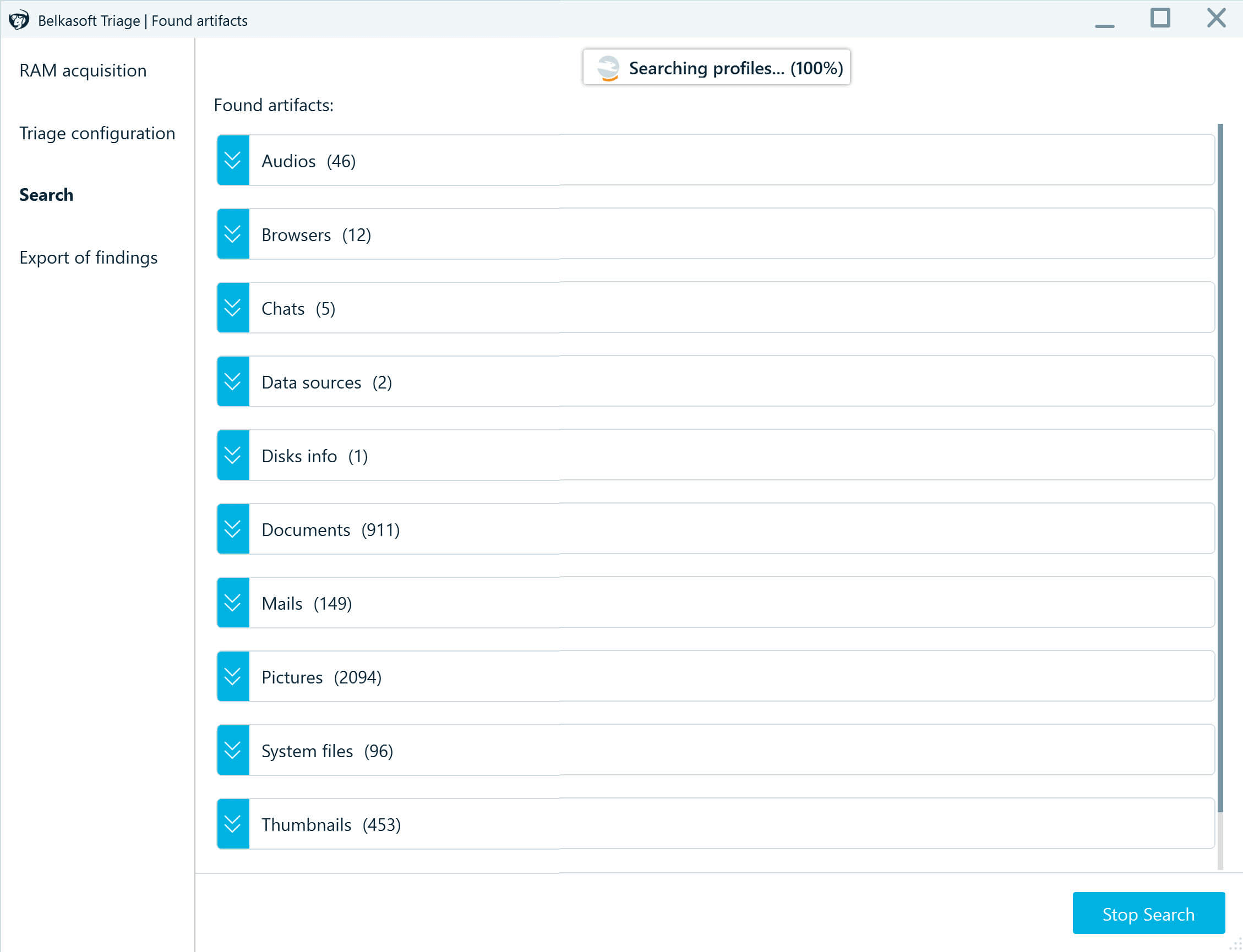
Triage of a Windows endpoint in Belkasoft T
Belkasoft T identifies more than 1,500 application profiles: browsers, chat and social network applications, documents, pictures, audio, video, cryptocurrency transactions and wallets, and mobile application data that happens to sit on the computer. It also locates system files that matter in most investigations, including registry hives, jumplists, link files, prefetch files, and event logs. Nested data sources are covered as well, such as Android and iOS backups, virtual machines, and memory files.
Detection stays separate from collection. The tool reports what is present, and the operator chooses which categories, profiles, or individual files to copy out.
Three scope facts belong up front rather than in a footnote:
- Belkasoft T works on Windows machines only.
- It produces a partial forensic image, not a bit-for-bit disk image.
- It requires local access. Someone must be present to connect the media and run the tool.
The Belkasoft T field workflow, step by step
1. Prepare the media in advance. Download Belkasoft T, extract the archive onto a thumb drive or external drive, and keep that drive in the response kit. Preparation belongs to a quiet day, not to the incident itself.
2. Connect the drive and launch the tool. On the target machine, open the folder with the product files and run Belkasoft.Triage.exe.
3. Handle the privilege prompt. If the tool starts without administrator privileges, it displays a warning and offers to elevate rights so it can collect more data. Administrator rights allow memory acquisition, access to other user folders, and access to locked system files. Elevation is conditional, not guaranteed: it depends on the account, the machine configuration, and the Windows version in front of you, and it is frequently unavailable on corporate endpoints. Plan for both outcomes. Standard-user execution still produces useful results, only fewer of them.
4. Decide on RAM acquisition. In the RAM acquisition window, select Yes to capture memory as part of the triage run, then choose where to save the dump. By default the tool writes it to its own folder on the external drive. A separate folder for each machine keeps output organized when several endpoints are triaged in one visit. Memory can also be captured separately with Belkasoft Live RAM Capturer, another free Belkasoft tool. The prompt exists because memory capture consumes time and destination space, and because a full memory dump requires administrator rights.
5. Configure what to scan. Select the data source to inspect. Under time pressure, start with the current user folder, since most user-created data sits there. Media analysis options are set at this stage as well. Skin tone detection flags images containing nudity, and Search for hashset matches compares files against a hash database. Belkasoft T supports Project Vic, NSRL, and custom text or CSV hashsets. See hashset analysis in Belkasoft X for how the same databases are used later in the case. Both options extend scanning time, so enable them only when the case calls for them.
6. Run the scan and review results. Detected profiles appear in the Found artifacts window as the scan proceeds. Expanding a profile shows the files behind it. When a hashset match or a skin tone match appears, the tool alerts the operator once, since a single confirmed match is usually enough to decide. Stop Search ends the scan at any point and moves straight to export.
7. Filter and export. Click Export. The Export settings window groups detected artifacts by category, and the Filter by field narrows the list. Selection works at three levels: a whole category, a single application profile, or specific files. The tool displays the size of the selection, so the operator can confirm free space on the destination drive before starting.
8. Collect the output. Belkasoft T writes the partial image in .tar format, which Belkasoft X and other forensic tools can read. The export folder also holds an HTML list of the acquired files. If an error interrupts the export, the tool still writes an image of whatever it collected. Eject the drive safely at the end.
A screen-by-screen walkthrough of these steps is available in How to Efficiently Triage Digital Evidence with Belkasoft T.
Footprint
Belkasoft T keeps its footprint minimal, and Belkasoft states plainly that some footprint is unavoidable. Windows records the connected storage device and the last executable run from it. Antivirus software may inspect the file and write log entries. The traces are comparable to those left by any memory-dumping utility run from external media. Record the run in the case notes, so that these entries are explained rather than discovered later by someone else.
Corporate access constraints to plan for
- Confirm whether the responder will hold local administrator rights on the target machine.
- Confirm whether the machine can leave active use, even briefly.
- Identify who will be physically present: a trained examiner, or an IT staff member guided by phone or video.
- Expect antivirus or endpoint detection software to flag or log the tool, and arrange an exception or a notification path in advance.
- Prepare destination media with enough free space for the selected artifacts and, if planned, a full memory dump.
What Belkasoft T does not do
Misplaced expectations cost time during an incident, so the boundaries deserve their own section.
No macOS or Linux support. Belkasoft T targets Windows machines. It can detect Android and iOS backups stored on a Windows computer, but it does not triage macOS machines, Linux machines, or mobile devices directly.
No full forensic image. The output is a filtered collection built from operator selections. Where a case requires a complete disk image, triage informs that decision without satisfying it.
No remote deployment. Belkasoft T needs a person at the machine to connect media and run the executable. Collection from endpoints that nobody can reach physically is the job of Belkasoft Remote Acquisition (Belkasoft R), a separate product included with Belkasoft X Corporate.
Reduced collection under a standard user account. Without elevation, a full memory dump, other user folders, and locked system files stay out of reach. That condition is routine on corporate machines rather than an edge case.
Reaching endpoints you cannot touch: Belkasoft R
Distributed offices, home workers, and servers across several sites break the assumption behind on-site triage, since nobody is available to plug in a drive. Belkasoft R handles that situation with agents deployed over the network.
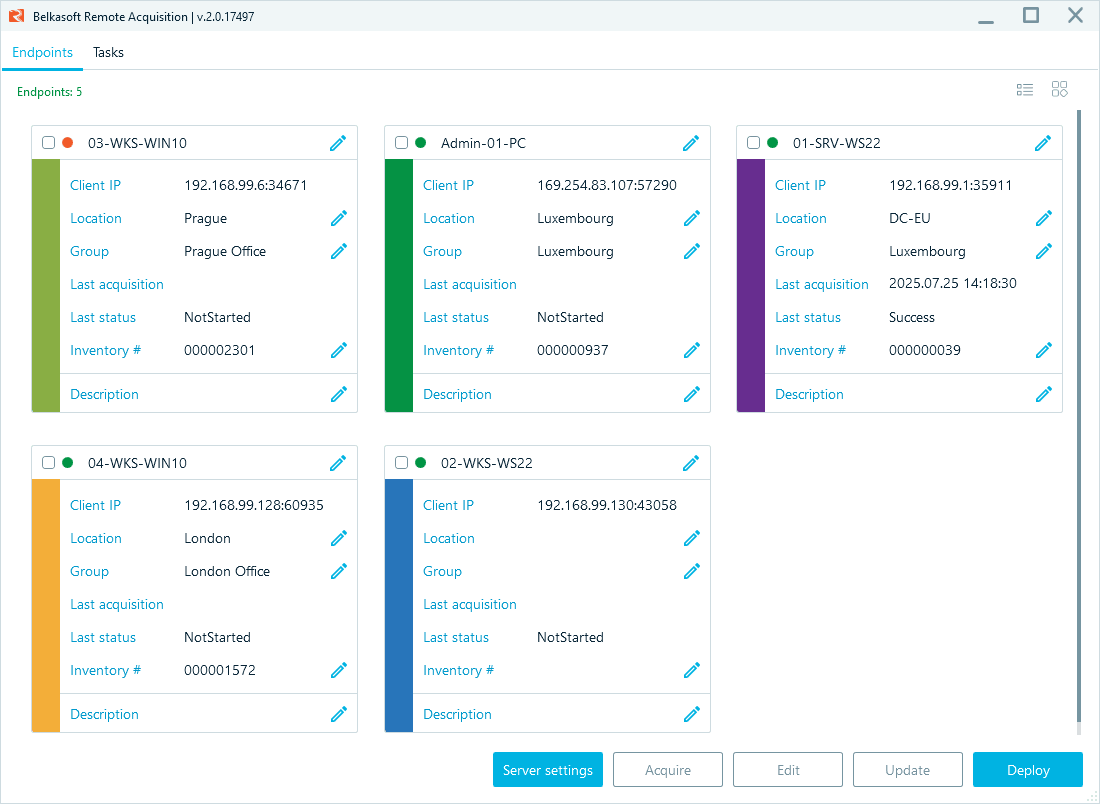
Remote evidence collection in Belkasoft R
Agents install through Group Policy Objects or Windows Management Instrumentation for administrators of a Windows domain, and they can also run from a USB thumb drive or a network share. Once an agent is in place, the analyst selects endpoints and chooses what to acquire: a hard or removable drive, endpoint memory, a mobile device connected to the endpoint, or specific artifact types such as documents or pictures. Acquisition and upload can be scheduled separately, which keeps bandwidth free during working hours. Transfers are protected with SSL encryption, and the resulting images are analyzed in Belkasoft X.
The boundary between the two products is simple. Belkasoft T triages one machine that someone can physically reach. Belkasoft R acquires from many machines that nobody has to visit.
Belkasoft T, Belkasoft R, and Belkasoft X
| Product | Primary function | Access model | Typical output |
|---|---|---|---|
| Belkasoft T | On-site triage and partial collection on a live Windows machine | Local access to the machine, runs from portable media without installation | Partial image in .tar format |
| Belkasoft R | Remote acquisition across a network, part of Belkasoft X Corporate | Agent based, deployed through GPO, WMI, USB drive, or network share | Full or selective remote acquisition, including memory and connected mobile devices |
| Belkasoft X | Deep analysis, correlation, and reporting | Analyst workstation, imports images from Belkasoft T, Belkasoft R, and other tools | Case file and reports |
From triage to full analysis
A triage image is an input to analysis rather than a finished product. Belkasoft T stops at collecting the right subset quickly. Belkasoft X parses the artifacts in depth, correlates them with other evidence in the same case, and produces reports.
The corporate sequence usually runs as follows:
- Run triage on site, or through an IT staff member guided remotely.
- Export the partial image and transfer it to the DFIR team.
- Import the image into the Belkasoft X case alongside other evidence.
- Analyze and correlate, then decide whether the findings justify a full acquisition.
- Escalate to Belkasoft R when full acquisition is warranted and the machine is no longer reachable in person.
Step four carries the value of the whole exercise. Triage produces a decision, and that decision justifies the cost of everything that follows. For the wider process around these steps, see Incident Response with Belkasoft: First steps.
A practical corporate scenario
The scenario below is illustrative rather than a real case.
Human resources flags a senior employee who has resigned, with a last working day ten days away. Legal asks the security team to check the corporate laptop the same day, without removing it for hours and without alerting the employee.
An IT administrator brings a prepared drive with Belkasoft T to the employee desk during a scheduled meeting. She runs the tool under the administrator account available to the local IT group, accepts memory acquisition, and scans the current user folder first. Within minutes the tool reports cloud storage sync clients, an archiving utility, browser profiles, and registry-based USB device history.
She exports those categories, ejects the drive, and hands the image to the DFIR team. The team imports the .tar file into Belkasoft X, confirms large recent file copies to an external drive, and finds matching browser activity on a personal cloud account. Those findings justify a full acquisition, which the team schedules through Belkasoft R before the laptop is returned.
One working day passes between the request and the escalation decision. A full-image-first approach would have taken the laptop out of service and delayed the answer.
Conclusion
Corporate endpoint triage exists because most alerts do not deserve a full disk image, and because the ones that do deserve it need to be identified quickly. The method is simple: collect the volatile data first, scan for known artifacts, export only what matters, and use the result to decide.
Belkasoft T performs that method on Windows endpoints at no cost and without pre-deployment, which makes it a reasonable first addition to a corporate incident response kit. Belkasoft X handles the analysis that follows, and Belkasoft R covers the endpoints that nobody can reach in person.


FAQ
What is corporate endpoint triage?
Corporate endpoint triage is the rapid inspection of a live employee workstation to determine whether it holds relevant evidence and to collect the most important part of it. It takes minutes, targets selected artifact categories instead of the whole disk, and produces a decision about whether full forensic acquisition is warranted.
How is triage different from full forensic imaging?
Triage scans for known artifacts and copies out a selected subset in minutes. Full imaging copies an entire disk bit for bit over several hours and creates a complete evidentiary record. Triage supports a decision, full imaging supports an examination.
When should a corporate team run triage first?
Run triage first when a fast answer is needed, when the machine cannot leave production, when administrator rights are uncertain, or when the goal is deciding whether deeper acquisition is justified. Run a full image first when a litigation hold, criminal referral, or regulatory requirement already applies.
What is Belkasoft T?
Belkasoft T is a free, portable DFIR tool for rapid triage of live Windows computers. It detects application profiles and system artifacts, and exports a selected part of them as a partial forensic image for further analysis.
Is Belkasoft T free?
Yes. Belkasoft distributes Belkasoft T free of charge. You download it, extract it onto portable media, and use it without installation.
Does Belkasoft T require administrator rights?
No, although administrator rights expand what it can collect. Without them, a full memory dump, other user folders, and locked system files remain inaccessible. When launched without privileges, the tool offers to elevate them, and elevation may or may not succeed depending on the machine.
What operating systems does Belkasoft T support?
Windows only. It can detect Android and iOS backups stored on a Windows computer, but it does not triage macOS machines, Linux machines, or mobile devices directly.
What is the difference between Belkasoft T and Belkasoft R?
Belkasoft T is a local triage tool that runs from portable media on one machine at a time. Belkasoft R is an agent-based remote acquisition product, included with Belkasoft X Corporate, that collects evidence from endpoints across a network without physical presence.
Can Belkasoft T collect data from a machine nobody can reach physically?
No. Someone must connect the media and run the executable on the target machine. Use Belkasoft R for endpoints that nobody can visit.
How is the collected data analyzed further?
Belkasoft T writes a partial image in .tar format. Import that file into Belkasoft X for artifact parsing, correlation with other evidence in the case, and reporting. Other forensic tools that read the format can process it as well.
Does Belkasoft T capture RAM as well as disk data?
Yes, when the operator chooses to. The tool prompts for memory acquisition as a separate step, and a full memory dump requires administrator rights. Memory can also be captured separately with Belkasoft Live RAM Capturer.