DFIR Reports with Belkasoft X

In digital forensics and incident response (DFIR), a strong investigation is only as effective as the report that communicates it. Reporting turns complex technical findings into defensible narratives that investigators, management, or courts can understand. Whether you are documenting a ransomware attack or a timeline of a suspect’s actions, a well-structured DFIR report connects evidence to conclusions and builds trust in your work.
In this article, we discuss the reporting techniques and options in Belkasoft X that help you accurately present your findings:
- Selecting artifacts for a report
- Supported report formats
- Report customization options
- Making your AI findings admissible
- Visual reports: Connection Graph and Map view
- Exporting SQL database tables and blobs
- Portable case exports with Evidence Reader
Read on to discover how Belkasoft X simplifies reporting, enabling you to create concise, precise, and easily understandable reports tailored to your investigative needs.

Selecting artifacts for a report
Before you generate a report, you define its scope. When working in Belkasoft X, you can generate reports at any stage of your investigation. For example, you can create a case-wide report from the Dashboard window:
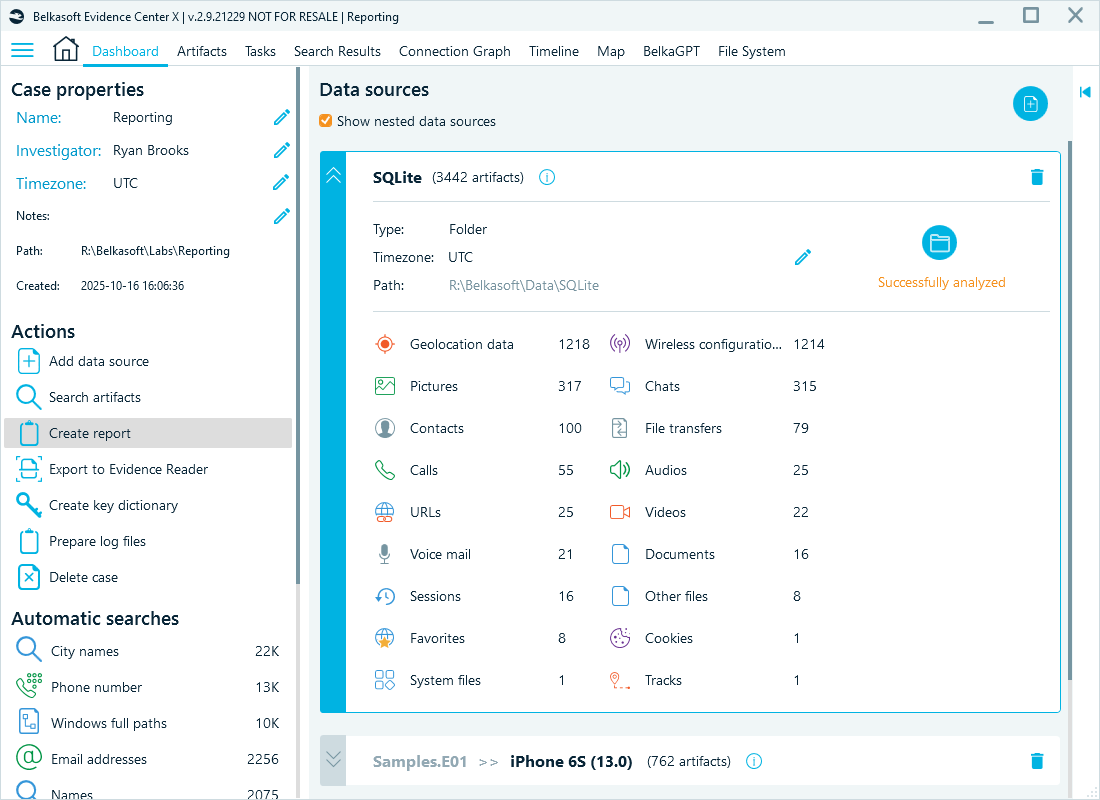
Creating a case-wide report from the dashboard
If you need a more focused report, you can choose individual artifacts in the grid view, select artifact profiles (nodes that enclose data from specific apps or system files) or data types (for example, specific conversations or types of artifacts) for export:
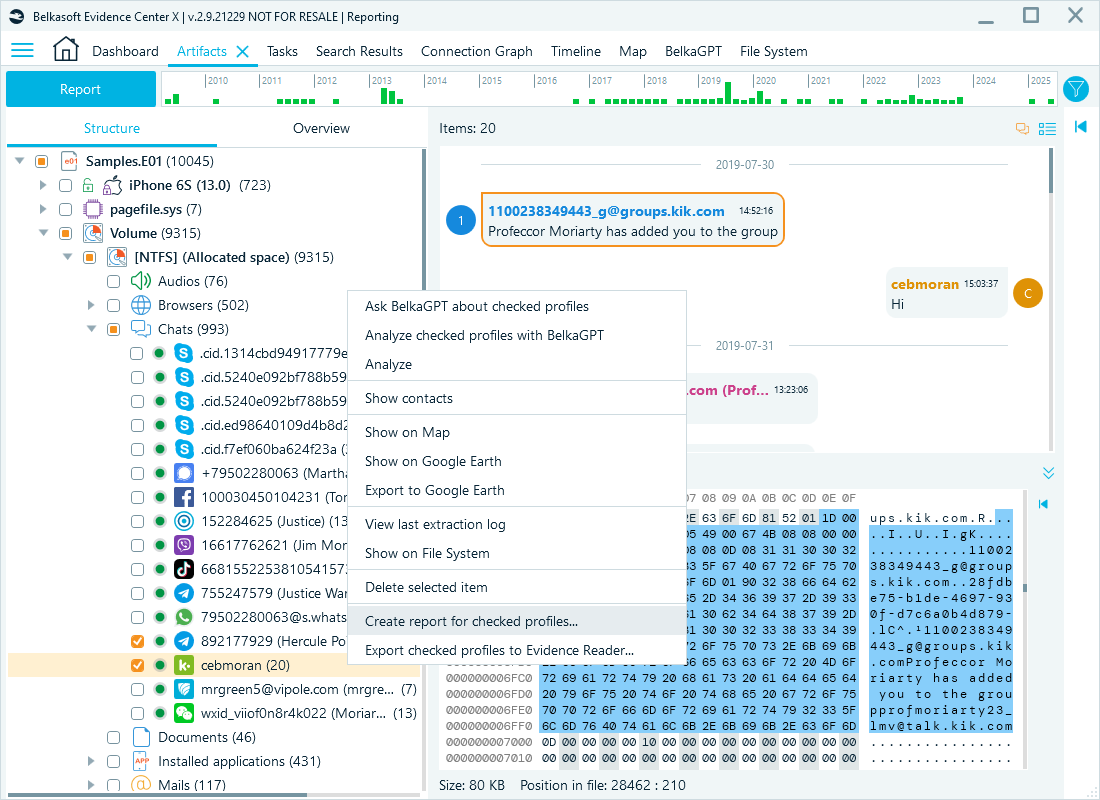
Creating a report for selected artifacts
When your dataset is large, you can further refine your selection before creating a report with the help of the following techniques:
- Bookmarks: As you uncover relevant artifacts, save them to bookmarks organized by categories.
- Keyword searches: Quickly locate artifacts containing specific keywords or expressions.
- Filters: Apply filters based on artifact categories, date and time ranges, or other criteria to focus your reports.
- Sorting: Organize artifact lists clearly, making it straightforward to pinpoint relevant data.
You can then generate a report from the filtered set.
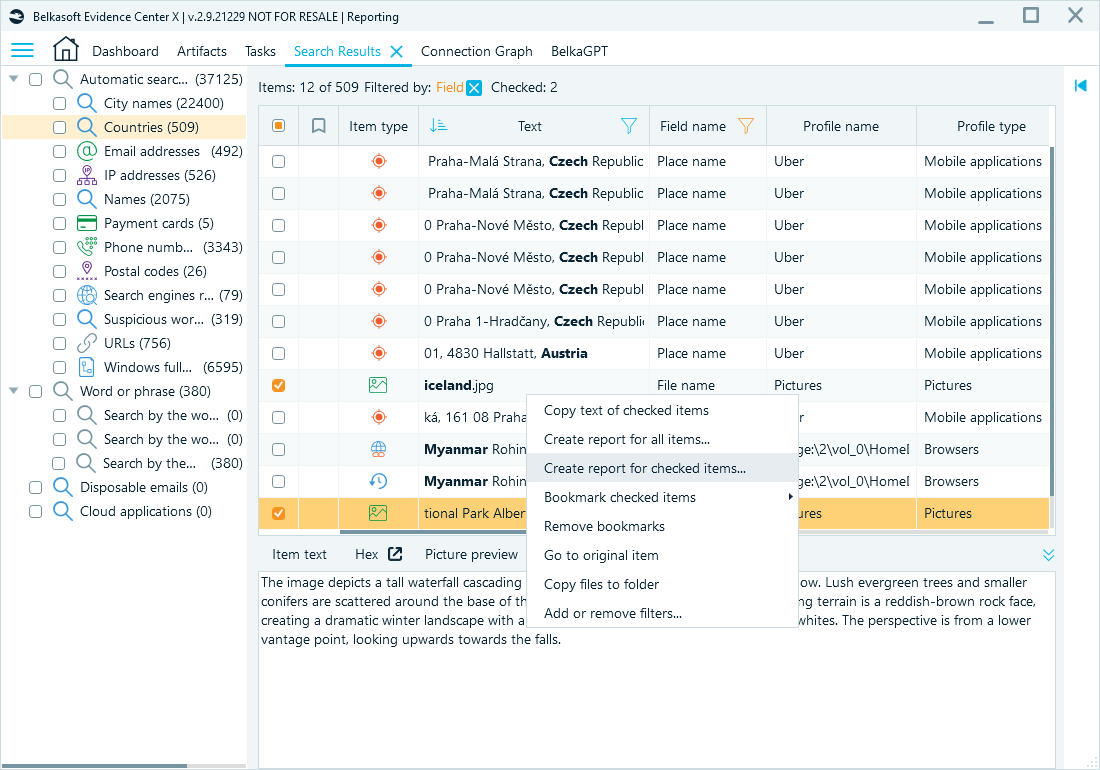
Creating a report from filtered search results
Supported report formats
Different forensic scenarios call for different types of reports—for example, those intended for technical analysis, evidence sharing, long-term data preservation, or courtroom presentation. Belkasoft X offers a wide range of report formats to ensure compatibility with any forensic workflow:
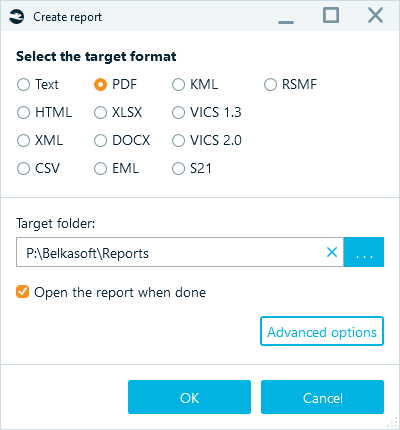
Report format options
- Textual reports: TXT, HTML, PDF, DOCX—ideal for general documentation and court presentations.
- Structured data exchange: XML reports facilitate automated data sharing with external systems.
- Spreadsheet-compatible formats: CSV and XLSX exports make data analysis easier with tools like Microsoft Excel.
- Email-specific format: The EML format enables the reporting of email artifacts for external analysis or storage.
- Geospatial data: KML (Keyhole Markup Language) reports are compatible with mapping tools like Google Earth.
- Specialized interoperability formats: VICS (Project VIC) and S21 (Semantics21) formats enhance compatibility with specialized law enforcement forensic systems.
- eDiscovery: RSMF (Relativity Short Message Format) allows chat conversations to be imported smoothly into platforms like Relativity.
Report customization options
Once you select the scope and formats of a report, you can fine-tune content and presentation using advanced report options:
Note: Available report options vary depending on the selected report format and artifact type.
- Formatting: Sort artifacts by date or metadata, add headers and footers, change orientation, and customize date and time formats.
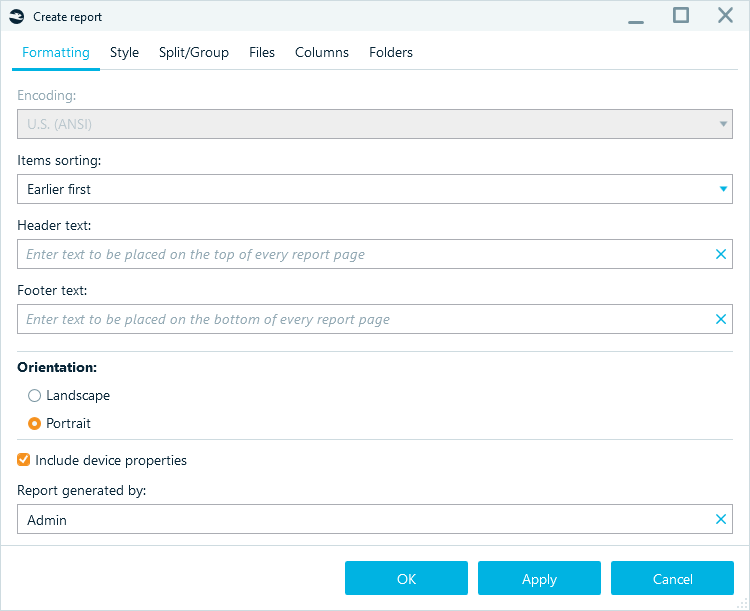
Report format options
- Styling: Add your organization’s logo or modify the report’s fonts.
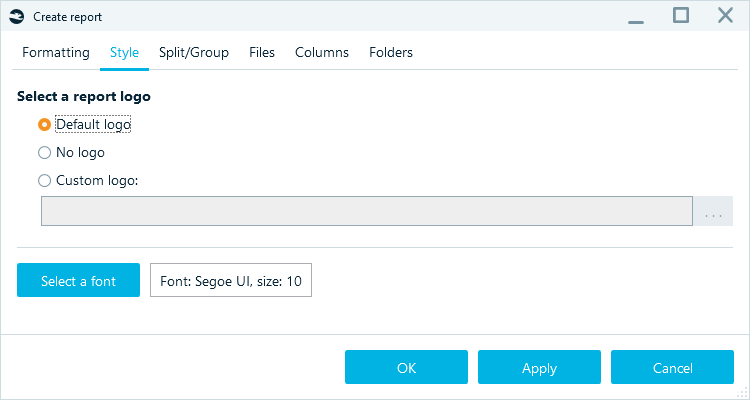
Style options
- Splitting and grouping: You can choose to create separate report files for each profile/data type (artifact type) and also split files by contact or record count to make review and distribution easier.
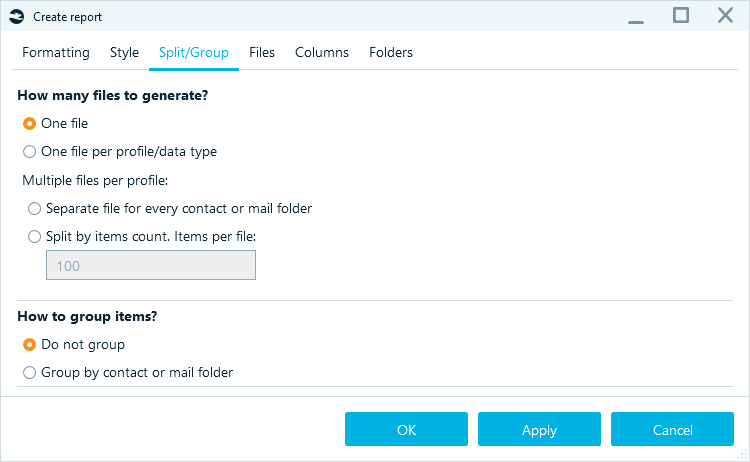
Split and group options
- Embedded evidence: You can adjust file options by linking original files in reports, copying embedded files, or obscuring sensitive photos.
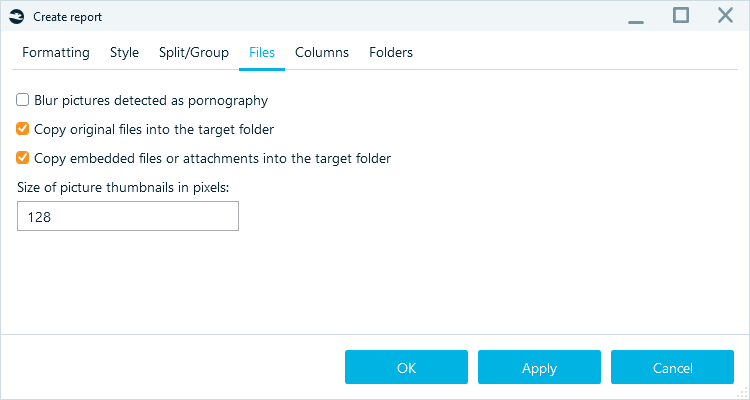
File options
- Selective metadata: Include or exclude specific artifact metadata columns to keep your report relevant and concise.
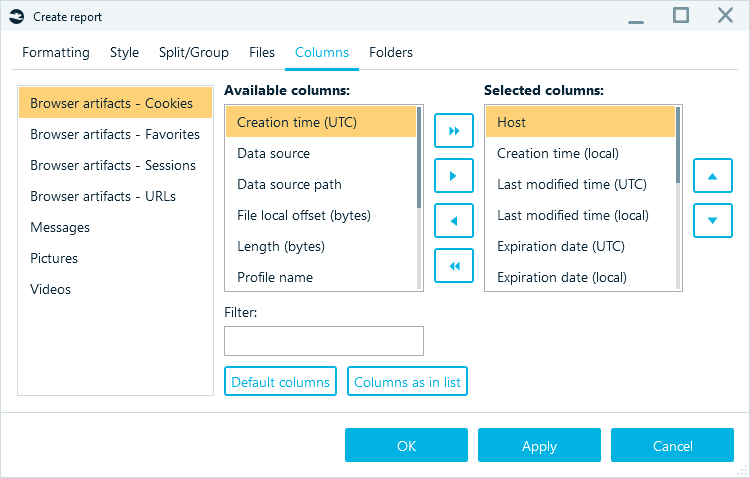
Output columns options
- Folders: Create subfolders based on the case tree for more straightforward report navigation.
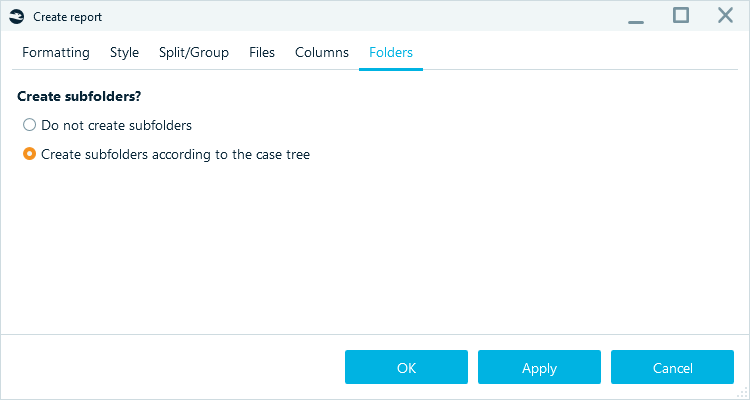
Folder options
Making your AI findings admissible
Modern AI solutions are valuable tools that can save you significant time and effort and reveal more evidence. However, AI-generated evidence must meet the same legal standards as any other part of your investigation. This means that any findings generated using AI must be admissible, and you should specify the source of your findings.
Belkasoft X provides comprehensive support for such needs, allowing you to create reports directly from each BelkaGPT topic. These reports preserve the context of your AI-assisted analysis, showing questions and responses that led to insights or conclusions.
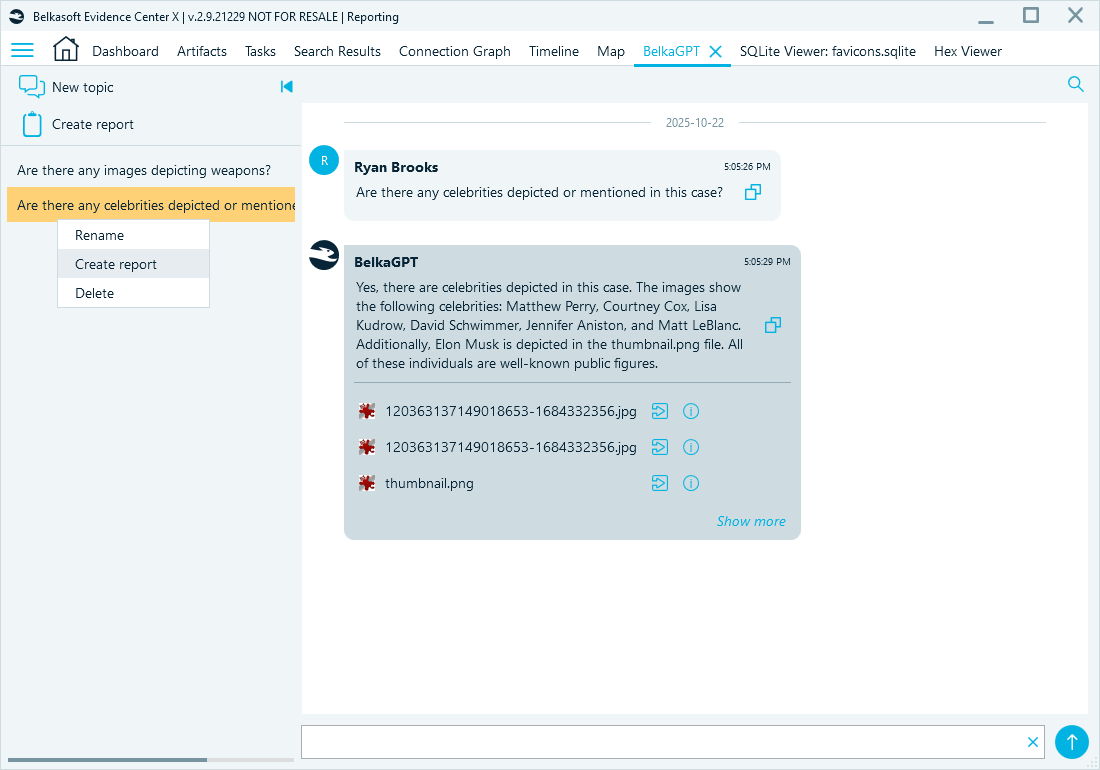
Creating a BelkaGPT report
This export helps document how BelkaGPT contributed to the investigative process and supports admissibility in formal reporting.
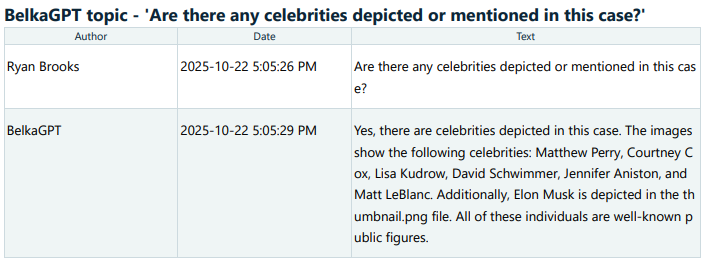
BelkaGPT report results
Visual reports: Connection Graph and Map view
Visual representations are often more effective at communicating relationships and location data more clearly than traditional textual reports:
- Connection Graph reports: Visualize interactions between individuals (calls, chats, file transfers) and export these visuals directly to PDF. Easily modify the graph to highlight important relationships. This visualization helps quickly identify key connections, detect tightly knit groups or communities, and provides clear visual evidence suitable for court presentations.
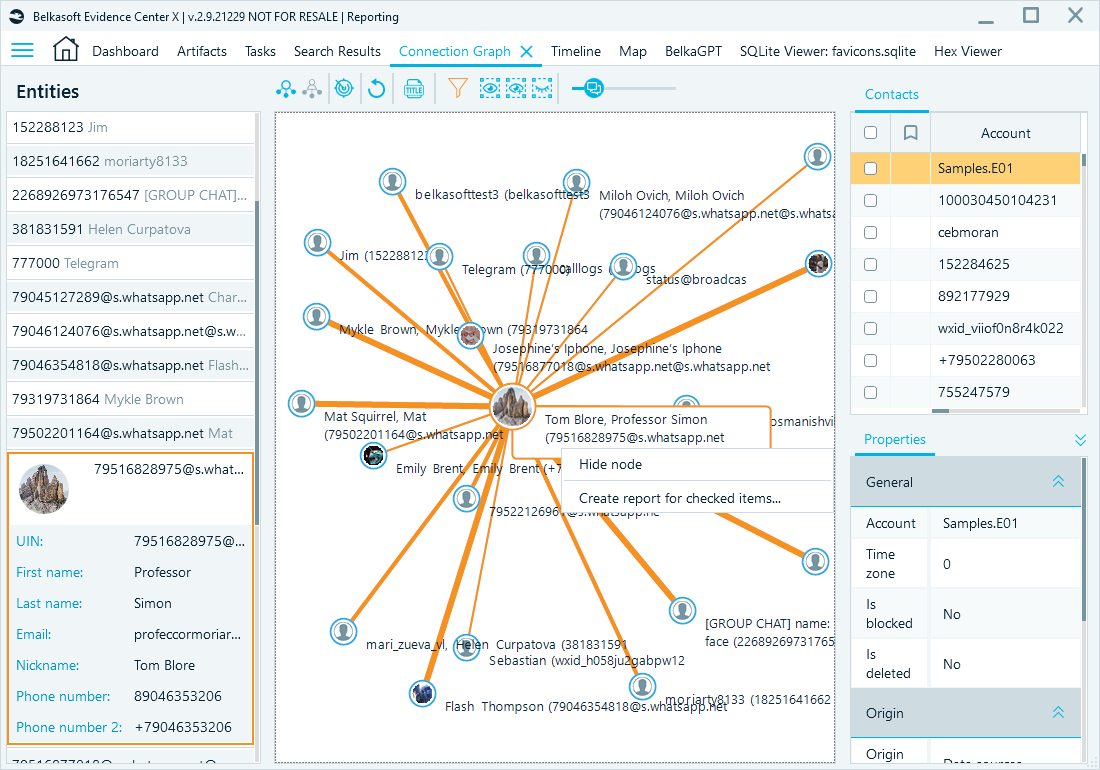
Creating a Connection graph report
- Geolocation artifact reports: In addition to exporting to KML for use with external mapping tools, such as Google Earth, you can also plot and export geospatial data from devices, integrating map views into PDF reports.
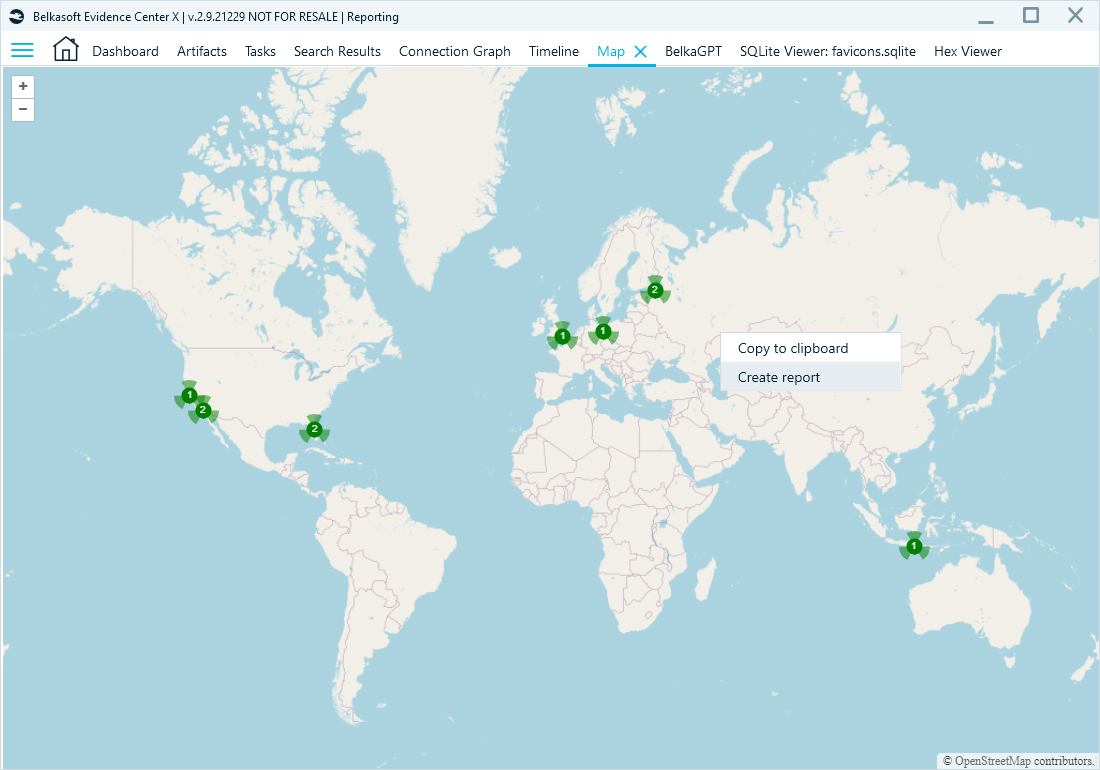
Creating a report from the Map window
Visual reports are simple to use and easy to grasp, enhancing the impact of your investigative findings.
- Bubble chat view: For better visualization, you can export chat app conversations in a user-friendly bubble view.
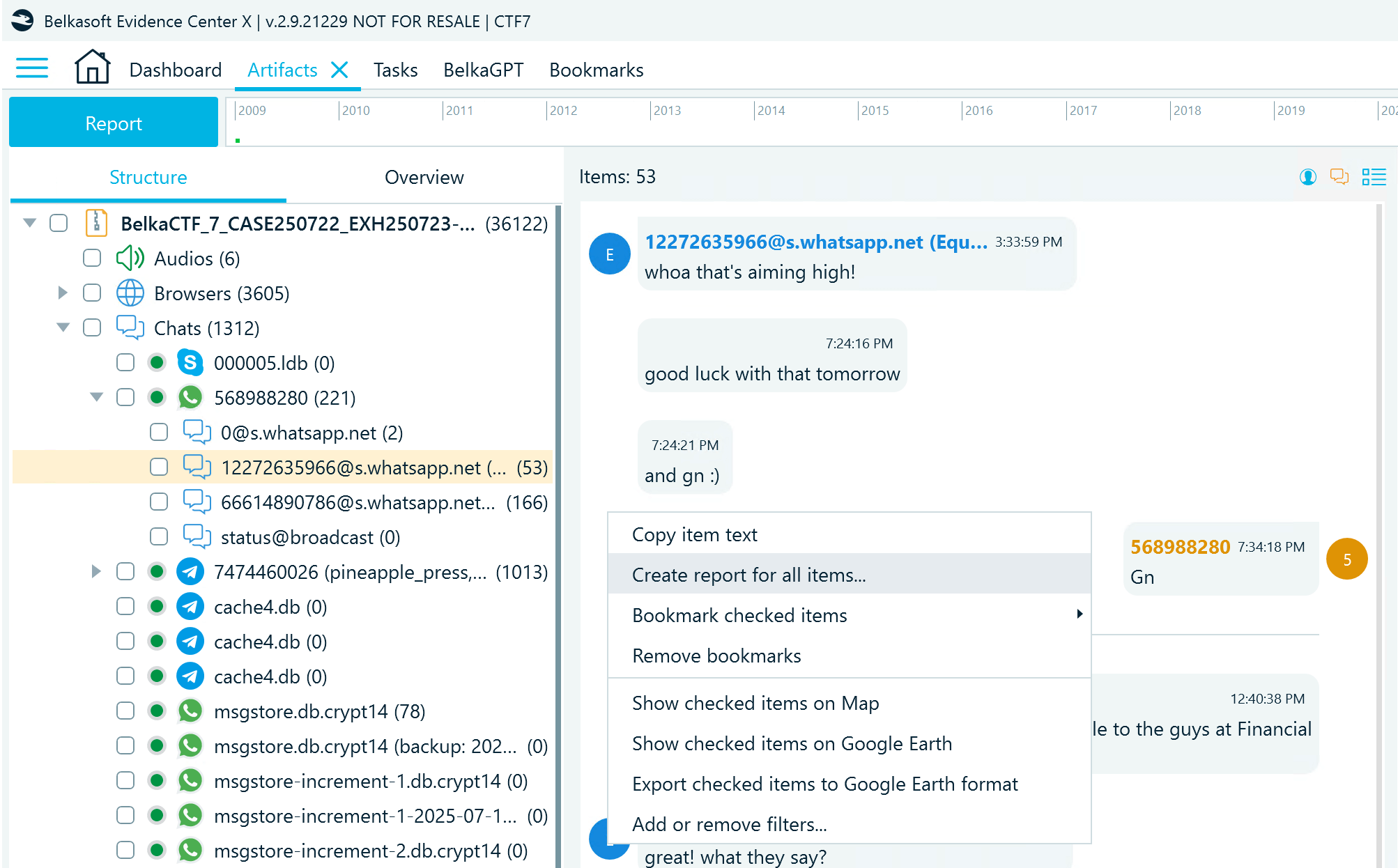
Creating a report from the bubble chat view
Exporting SQL database tables and blobs
Belkasoft X includes an SQLite Viewer that helps you examine database contents in depth. You will find it useful when Belkasoft X does not support a rare app or when you are looking for extra fields that automatic parsing does not show. You can export all or selected table data from the SQLite Viewer to TXT, CSV, XLSX, HTML, XML, DOCX, or PDF.
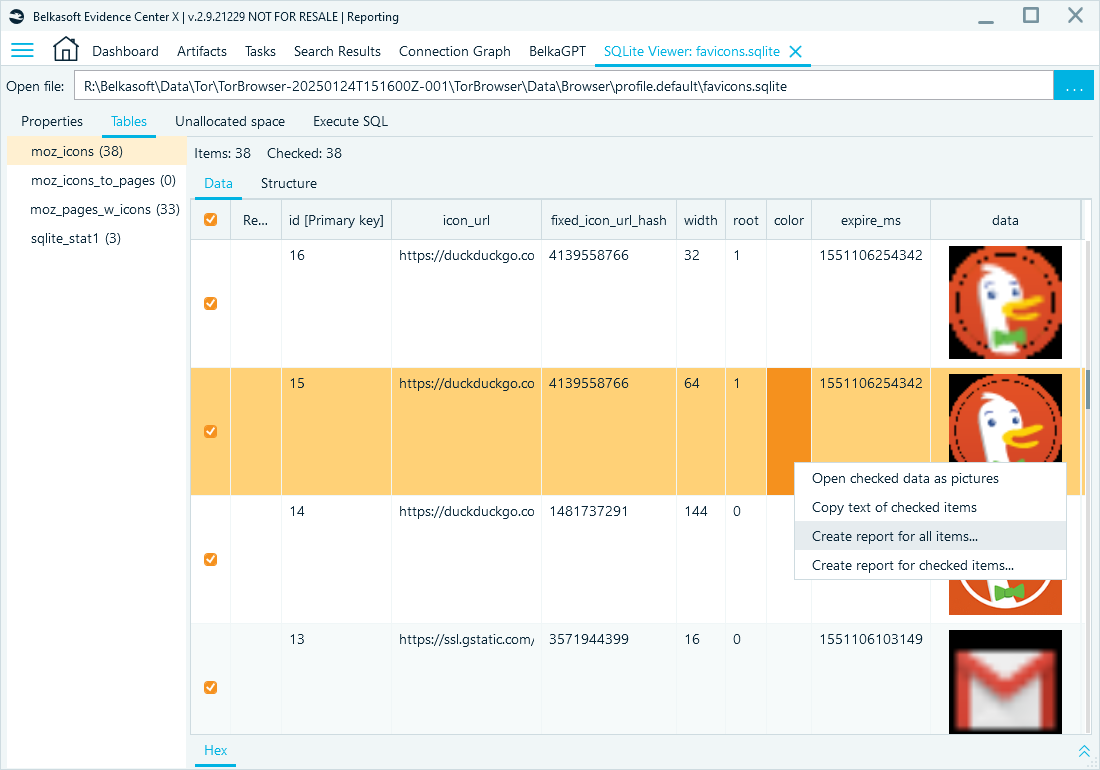
Creating a report from SQL Viewer
You can also run your own SQL queries in SQLite Viewer. This helps you examine unsupported applications, check additional fields, or validate artifacts revealed by automatic parsing. You can then export the query results to XLSX, CSV, HTML, or PDF.
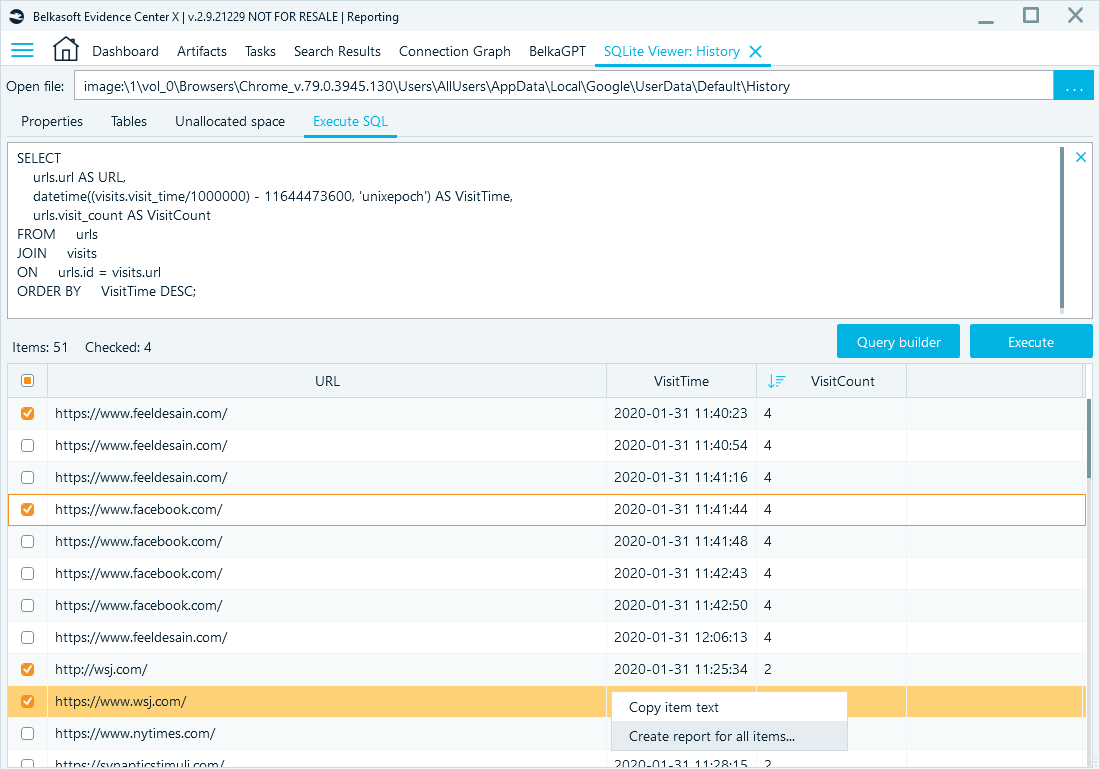
Creating a report from SQL Viewer’s query results
This functionality enhances your investigative flexibility, enabling detailed analysis and targeted reporting without leaving Belkasoft X.
Portable case exports with Evidence Reader
Sharing investigative findings securely and efficiently with external stakeholders or team members without complete Belkasoft X installations is straightforward: you can export entire cases—or specific subsets of data—to a portable format readable by the free Belkasoft Evidence Reader with all your BelkaGPT findings.
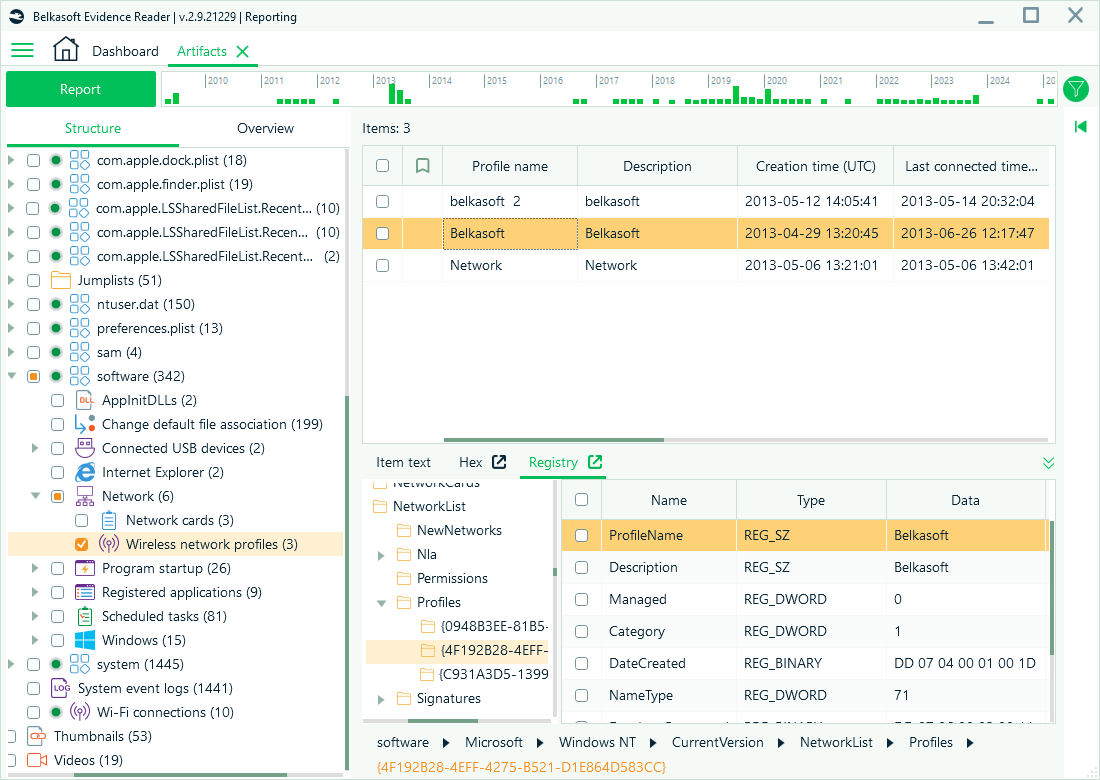
Evidence Reader export results
Conclusion
Belkasoft X’s powerful and flexible reporting tools provide forensic investigators with comprehensive solutions tailored to diverse reporting requirements. Whether you are preparing court presentations, performing deep analytical reviews, or sharing case insights with external stakeholders, Belkasoft X delivers precision, clarity, and forensic integrity at every step.